

Configuration
Before using the Buckaroo plugin for Odoo, you need to configure the connection between your Odoo environment and your Buckaroo account. This requires entering the correct API credentials provided by Buckaroo.
Follow the steps below to configure the plugin:
-
Log in to your Odoo (eCommerce) website environment.
-
From the top menu, navigate to Configuration → (eCommerce) Payment Providers.
-
Select Buckaroo Official from the list of payment providers to open the configuration settings.
-
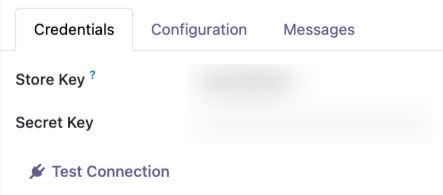
In the main configuration page, enter your Buckaroo API credentials:
‣ Store Key- Enter your Buckaroo Store/website key.
- This key is unique for each store, allowing you to track transactions per store.
- You can find it in the Buckaroo Plaza → Settings → API Keys.
‣ Secret Key-
Enter your Buckaroo Secret Key.
-
This key is unique for your entire Buckaroo account.
-
You can also find it in the Buckaroo Plaza at Settings → API Keys.
-
After entering the credentials, verify that the plugin status is set according to your needs:
- Disabled — The payment provider is inactive.
- Enabled — The payment provider is active and available for live transactions.
- Test Mode — The payment provider is active for testing purposes only.
-
Save the configuration once all required settings have been completed.
Configure transaction descriptions
The Buckaroo plugin for Odoo allows you to configure custom descriptions for transactions and refunds. These descriptions are used to identify transactions in the Buckaroo transaction overview and are also displayed on the consumer’s bank statement.
To make transactions easy to recognize for both you and your customers, we recommend using a clear and recognizable format. For example:
Shopname {order_number}
In this example, Shopname should be replaced with the name of your own e-commerce shop. The shop name is different for each merchant and should match the name your customers recognize.
The {order_number} placeholder will be replaced automatically with the corresponding order number.
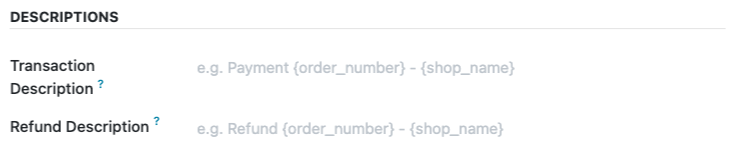
You can configure the following fields in the general plugin settings:
- Transaction Description
Defines the description shown for payment transactions. - Refund Description
Defines the description shown for refund transactions.
Make sure the descriptions are clear and recognizable, as they are visible in the Buckaroo transaction overview and may also appear on customer bank statements.
After successfully configuring the API credentials and transaction descriptions, you can continue with enabling and configuring the available payment methods.
Updated 10 days ago
What’s Next
To see the full list of supported payment methods, please visit our payment methods page.