

Payment methods
Choose which payment methods to offer, and control when each one appears in checkout.
You will see every payment method the app supports in the Odoo back office, whether or not you can use it. A method only works in checkout if it's also active on your Buckaroo contract. If a method is enabled in Odoo but not on your contract, customers will see it and the payment will fail. Check your active methods in Buckaroo Plaza, or contact your account manager to add one.
Enable a payment method
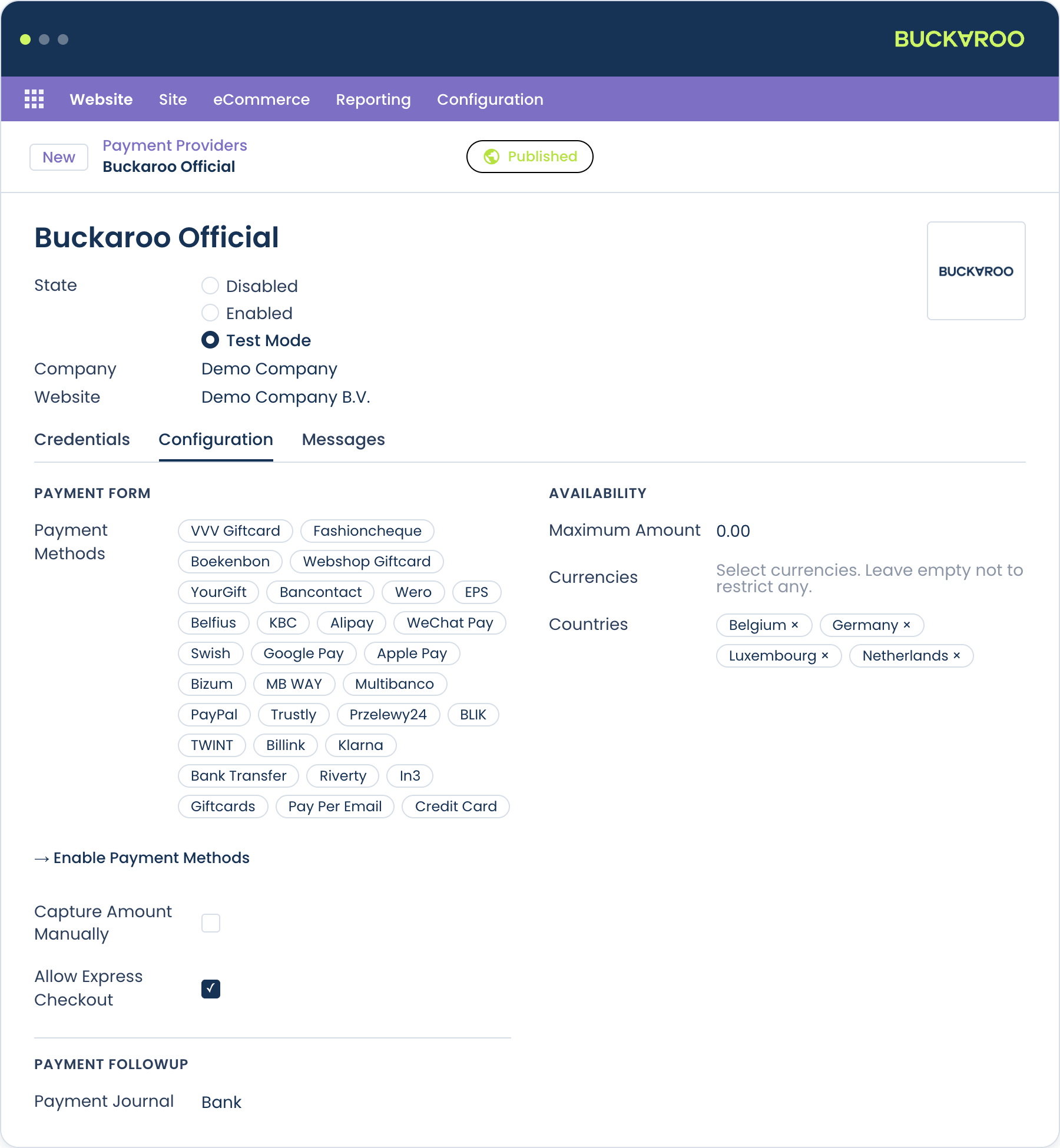
- Go to Invoicing → Configuration → Payment Providers and open Buckaroo Official.
- In the Payment Methods section, add the methods you want to offer.
- Save.
Every enabled method follows the provider's state, so all of them are in test mode whenever the provider is. There is no per-method mode setting.
Common settings per method
Open a payment method from the provider form to reach its own settings. Every Buckaroo method has a Buckaroo Official section with the following options.
| Setting | What it does |
|---|---|
| Buckaroo Min Amount | Hide the method below this order total, in the order currency. Leave empty for no limit. |
| Buckaroo Max Amount | Hide the method above this order total, in the order currency. Leave empty for no limit. |
| Payment fee | A fixed amount or percentage added to the order for this method. |
Minimum and maximum order amount
Limit a method to a range of order totals, for example to keep Buy Now Pay Later off very small orders.
- Enter a positive number, such as
100.00. - Leave a field empty for no limit.
- The maximum must be higher than the minimum.
Both values are in the order currency, and no currency conversion is applied. The limit is compared against the order total as it stands, so a maximum of 500.00 means 500 in whatever currency the order is placed in. This works the same way as the payment fee.
When the order total falls outside the range, the method is hidden in checkout.
If you sell in more than one currency, set the limits with that in mind. A single number applies across all of them, so a threshold that makes sense in euros may be far too high or too low in another currency.
Payment fee
Add a fee to the order when the customer picks this method.
| Value | Result |
|---|---|
1.50 | A fixed fee of 1.50 in the order currency |
1% | A percentage of the order subtotal |
Empty or 0 | No fee |
How the fee behaves:
- It's added as a separate order line named after the method, for example iDEAL | Wero surcharge.
- The amount is in the order currency. No currency conversion is applied, so a fixed fee is the same number regardless of the order currency.
- The percentage is calculated over the order subtotal, excluding delivery.
- VAT is inherited from the first product line on the order.
- The fee is shown next to the method name in checkout, so the customer sees it before choosing.
- Switching payment method replaces the fee line.
Whether you're allowed to charge a payment fee, and how much, depends on the payment method and on the rules that apply to your business and location. Making sure your setup complies with them is your responsibility.
Available payment methods
The app supports the following payment methods:
- Alipay
- Apple Pay
- Bancontact
- Bank Transfer
- Belfius
- Billink
- Bizum
- BLIK
- Credit and debit cards
- EPS
- Giftcards
- Google Pay™
- iDEAL | Wero
- In3
- KBC
- Klarna
- MB WAY
- Multibanco
- PayPal
- PayPerEmail
- Przelewy24
- Riverty
- Swish
- Trustly
- TWINT
- WeChat Pay
- Wero
For a complete overview of which methods are available in which country, see Overview per country.
Cards and Hosted Fields
Card payments can run in two modes, set by Credit Card Method on the Credit Card method:
- Redirect: the customer is sent to Buckaroo's hosted payment page to enter their card details. They choose a card brand in your checkout first.
- Inline (Hosted Fields): the card form is embedded directly in your checkout using secure iframes. The customer never leaves your store, which converts better.
Hosted Fields keeps you out of PCI-DSS scope because the card data never touches your server. It needs a Hosted Fields Client ID and Client Secret, which you create in Buckaroo Plaza under Settings → Token Registration. See Hosted Fields.
Strong customer authentication still applies in both modes: the customer may be sent to their bank for 3-D Secure after submitting the form.
Cards also have a Payment Action setting: Pay captures immediately, Authorize reserves the amount for a later capture. See Order management.
Card brands
Card payments cover the following brands:
Visa · Mastercard · American Express · Maestro · Visa Electron · V PAY · Carte Bancaire · Carte Bleue Visa · Dankort · Nexi · PostePay
Deactivate individual brands on the Credit Card method to control what customers can choose.
Giftcards
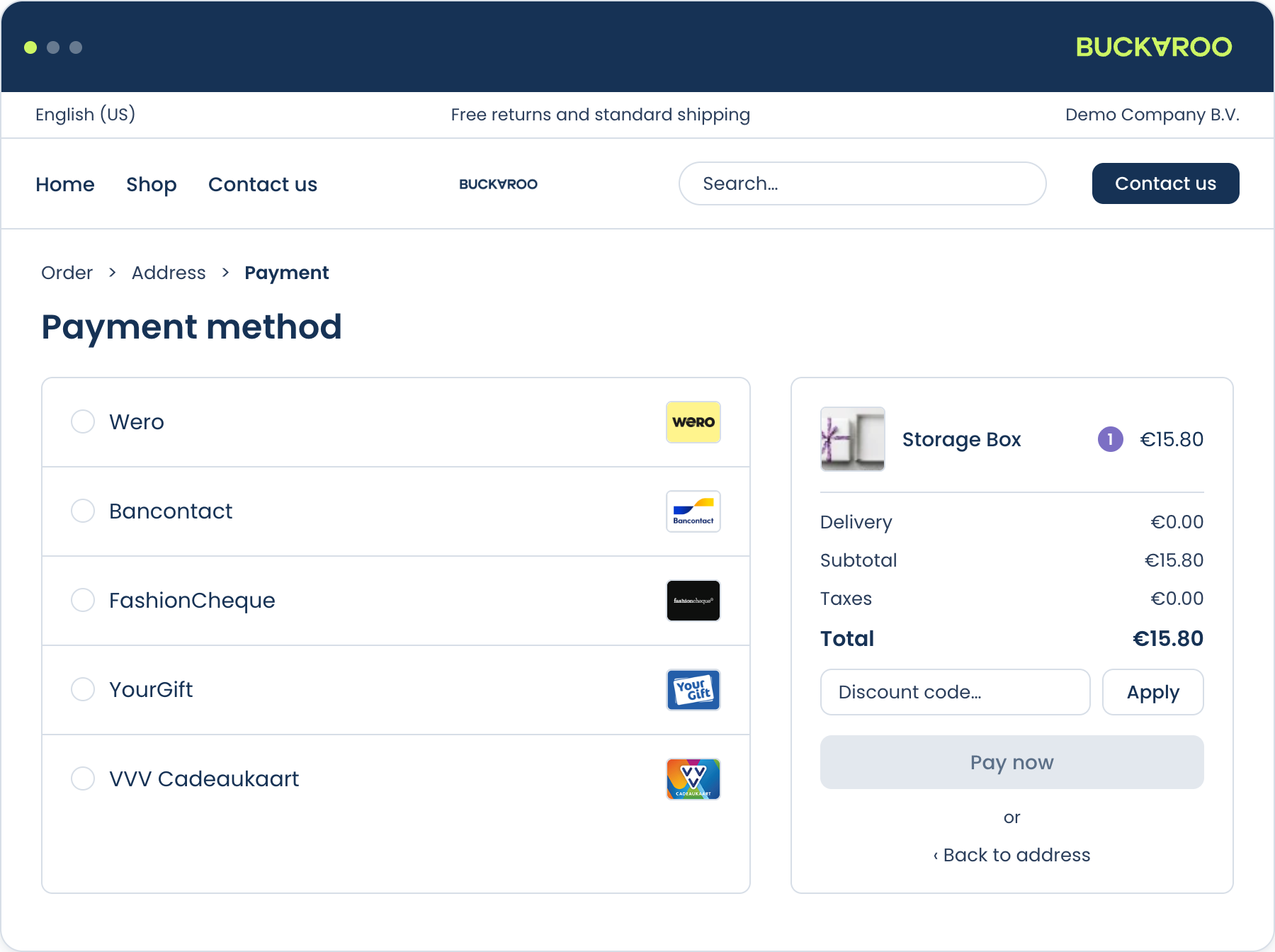
Giftcards can be applied inline, without sending the customer away from your checkout. They enter the card number and PIN on the payment step, the balance comes off the order total, and they pay whatever remains with another method.
That last part matters: a giftcard rarely covers the whole basket, so being able to settle the remainder in the same checkout is the difference between a completed order and an abandoned one.
Giftcard Method controls how this works:
| Value | What it does |
|---|---|
| Redirect | Sends the customer to Buckaroo's hosted page, where they can also combine a giftcard with another method. |
| Inline | Collects the card number and PIN on your checkout page, then returns the customer to the payment step for the remainder. |
The transaction in Odoo is adjusted to the amount actually drawn from the card, and the remainder is recorded as its own transaction, so the order total always reconciles.
Giftcards cover VVV Giftcard, Fashioncheque, Boekenbon, Webshop Giftcard and YourGift.
Express checkout
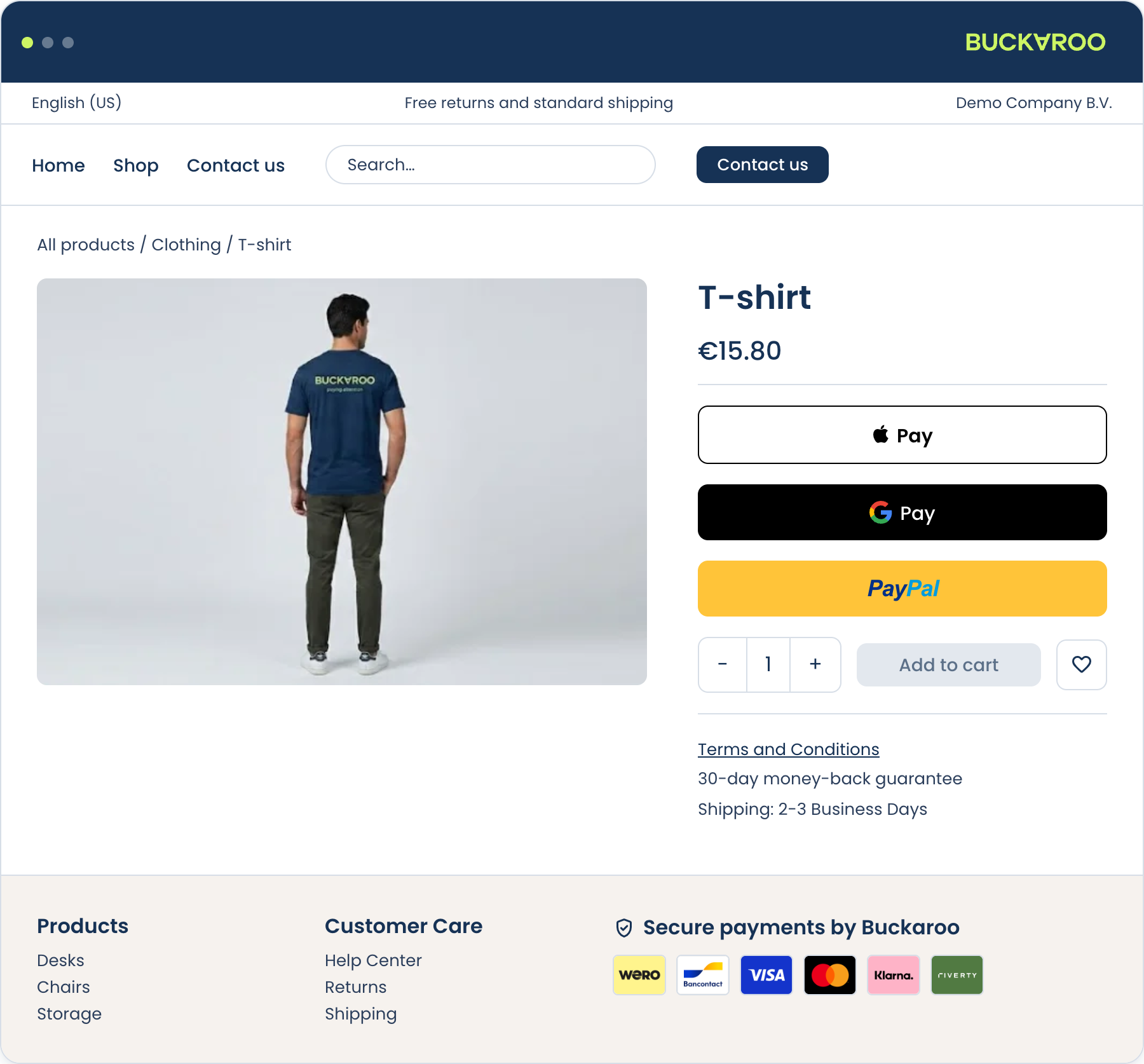
Apple Pay, Google Pay™ and PayPal can appear as a fast-checkout button on the product page and in the cart, letting the customer skip the address forms. They tap the button, confirm their address and delivery method inside the wallet, and the order is placed.
All three can also be used as ordinary payment methods in checkout.
Where the buttons appear
Each of the three methods has its own placement settings:
| Setting | Default | What it does |
|---|---|---|
| Show on Product | Off | Shows the button on product pages. Tapping it adds the selected variant to the cart and starts the wallet. |
| Show on Cart | On | Shows the button on the cart page. |
| Show on Checkout | On | Shows the method in the normal payment list in checkout. |
Turning off Show on Checkout hides the method from the payment list but leaves the express button on the cart untouched, so you can offer a wallet as express-only.
Apple Pay and Google Pay also have a Button Style setting, Dark or Light. Dark suits most storefronts; pick Light for dark-themed pages.
Delivery inside the wallet
When the customer confirms their address in the Apple Pay or Google Pay™ sheet, Odoo returns the delivery methods available for that address, cheapest first. Switching method updates the total in the sheet.
The amount charged is always the total Odoo calculates, not a figure the wallet works out on its own. An express order placed from a product page also uses its own order, so the customer's existing cart is left alone.
Apple Pay
| Setting | Where to find it |
|---|---|
| Buckaroo Merchant GUID | Buckaroo Plaza → My Buckaroo → Guid |
| Integration Mode | Inline button or Redirect |
Inline renders the native Apple Pay button. Redirect uses Buckaroo's hosted Apple Pay page, which skips merchant domain verification but still needs a supported Apple device and browser.
For inline mode, Apple has to verify your domain. The app serves the domain association file automatically at:
/.well-known/apple-developer-merchantid-domain-associationThere is nothing to upload. Open that path on your store to confirm it returns a block of text. If it doesn't, Apple Pay will not appear.
Google Pay™
| Setting | Where to find it |
|---|---|
| Buckaroo Merchant GUID | Buckaroo Plaza, under your Google Pay configuration |
| Google Merchant ID | The Google Pay & Wallet Console |
The Google Merchant ID is required for live Google Pay sessions. Without it, Google Pay works in test mode but not in production, which is easy to miss until launch day.
PayPal
| Setting | Used when |
|---|---|
| PayPal Merchant ID | The provider is Enabled (live) |
| PayPal Sandbox Merchant ID | The provider is in Test mode |
In test mode Buckaroo creates a sandbox PayPal order, which has to be approved under the matching sandbox merchant, so both values are worth filling in while you're still testing.
Buy Now Pay Later
Klarna, Riverty, Billink and In3 have extra requirements compared with other methods:
-
They need additional customer data. The app collects it in checkout when the method is selected and saves it to the contact:
Method Required Klarna Gender In3 Date of birth Billink Date of birth Riverty Date of birth, and salutation for orders in the Netherlands and Belgium These fields can also be filled in ahead of time on the contact. See Configuration.
-
They send the order lines to the payment method, so the transaction has to come from a sale order with at least one line.
-
They perform a risk assessment and may decline an order that would have succeeded with another method. Always offer a fallback.
-
Klarna and Riverty typically use authorise and capture. See Order management.
-
Some require separate onboarding with the provider before they can go live.
Riverty refunds issued from Odoo must be for the full amount.
For a partial Riverty refund, use Buckaroo Plaza.
Bank Transfer
Bank Transfer is asynchronous. The customer places the order, Buckaroo returns the bank details, and the order is confirmed with the transaction left pending until the money arrives.
- The account holder, IBAN, BIC and payment reference are shown to the customer on the confirmation page.
- Buckaroo also emails the details to the customer, so they still have them after closing the browser.
- The same details are stored on the transaction in Odoo.
- The transaction moves to done when Buckaroo confirms the transfer by push message.
PayPerEmail
PayPerEmail sends the customer a payment link by email instead of taking them through a payment page. The transaction stays pending until they pay.
The payment link offers the methods you've enabled on the provider, in the same order, rather than everything active on your Buckaroo contract. Reordering your methods in Odoo also reorders the link.
Languages
The app ships with English, Dutch, German and French translations, and follows the language the customer is browsing your webshop in. Method titles come from Odoo's own payment method records, so you can translate them per language like any other Odoo field.
Updated about 2 months ago