

FAQ
These answers apply to the Buckaroo Official plugin for Odoo 19. For setup instructions, see Installation and Configuration.
General
Odoo already includes a Buckaroo payment provider. How is Buckaroo Official different?
The Buckaroo provider that ships with Odoo is maintained by Odoo, not by Buckaroo. It is built on our legacy HTML gateway, and its payment method list still contains methods that have since been discontinued, so you can enable a method that no longer processes.
Buckaroo Official is built on our current JSON API and is maintained by us alongside the platform.
| Odoo's built-in provider | Buckaroo Official | |
|---|---|---|
| Maintained by | Odoo | Buckaroo |
| Gateway | Legacy HTML gateway | Current JSON API |
| Payment methods | Limited, includes discontinued methods | 30+, kept current |
| Express checkout | Not supported | Apple Pay, Google Pay, PayPal Express |
| Refunds from Odoo | Not supported | Full and partial |
| Authorize and capture | Not supported | Supported |
| Buy Now, Pay Later | Not supported | Klarna, in3, Billink, Riverty |
| Giftcards | Not supported | Supported, including partial payment |
| Payment fees | Not supported | Per method, fixed amount or percentage |
Should I switch from Odoo's built-in Buckaroo provider?
Yes. Both can be installed at the same time while you move across, because Buckaroo Official registers as a separate payment provider.
- Install Buckaroo Official and set its status to Test Mode.
- Enter your credentials, enable the payment methods you want to offer, and place test orders.
- Set Buckaroo Official to Enabled and set the old Buckaroo provider to Disabled in the same sitting.
While both providers are enabled, the same payment method can appear twice in your checkout. Set the old provider to Disabled rather than uninstalling it, so its existing transactions stay available for reporting and refunds.
Which Odoo versions and hosting types are supported?
The plugin requires Odoo 19 with the eCommerce and Invoicing apps.
It also needs the buckaroo-sdk Python package, version 1.0.0, available in the Odoo environment:
- Odoo.sh: add
buckaroo-sdk==1.0.0to your project'srequirements.txtand rebuild the branch. - Self-hosted: run
pip install buckaroo-sdk==1.0.0in the Python environment that runs Odoo, then restart the service.
Pin the exact version, because the plugin is built against 1.0.0.
In which languages is the plugin available?
English, Dutch, German and French. The plugin follows the language of the Odoo user or the webshop visitor.
Payment methods
Which payment methods can I offer?
More than 30, including iDEAL, Bancontact, credit cards, PayPal, Apple Pay, Google Pay, Klarna, in3, Billink, Riverty, giftcards and Pay Per Email. See Payment methods for the full list.
A method being visible in Odoo does not mean you can accept it yet. It also needs to be active on your Buckaroo contract.
Can I limit a payment method to certain order amounts?
Yes. Every Buckaroo payment method has a Buckaroo Min Amount and a Buckaroo Max Amount. Leave a field empty for no limit.
When the order total falls outside the range, the method is not shown in your checkout. Odoo's payment availability report on the checkout page reports the reason as the amount being outside the Buckaroo limits.
Enter plain positive numbers such as 100.00. The maximum has to be higher than the minimum, otherwise the settings cannot be saved.
Can I charge a payment fee per payment method?
Yes. Every Buckaroo payment method has a Payment fee field. It accepts a fixed amount such as 1.50 or a percentage such as 1%. Leave it empty or enter 0 for no fee.
When a fee applies, the payment method label in your checkout shows the surcharge and a surcharge line is added to the order.
The fee is applied in the order currency exactly as you entered it, without currency conversion. Review your amounts if you sell in more than one currency.
Why do Klarna, in3, Billink and Riverty ask for extra details in the checkout?
These Buy Now, Pay Later methods run their own acceptance check, so they need more customer information than a regular payment. Klarna and Pay Per Email also ask for a salutation, which is required for those transactions.
Complete and accurate billing details reduce the number of rejected payments on these methods.
Express checkout
What is express checkout and which methods support it?
Express checkout lets your customer pay straight from a wallet button, without filling in the full checkout form first. Apple Pay, Google Pay and PayPal Express are supported, and the delivery address comes from the wallet.
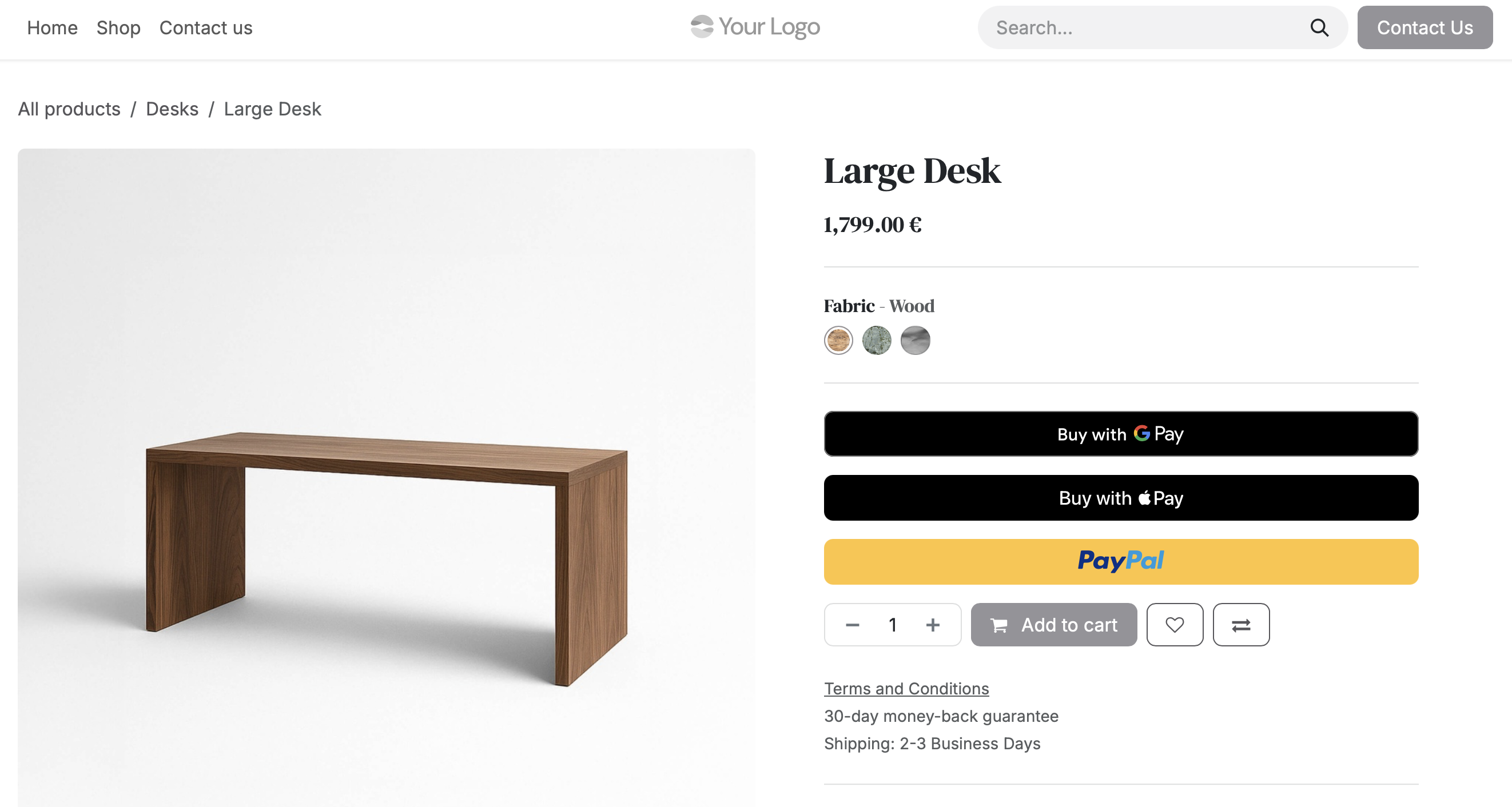
Where can the express buttons appear?
Apple Pay, Google Pay and PayPal each have separate settings for the product page, the cart and the checkout page, so you can enable exactly the placements you want. Apple Pay and Google Pay also let you choose a button style.
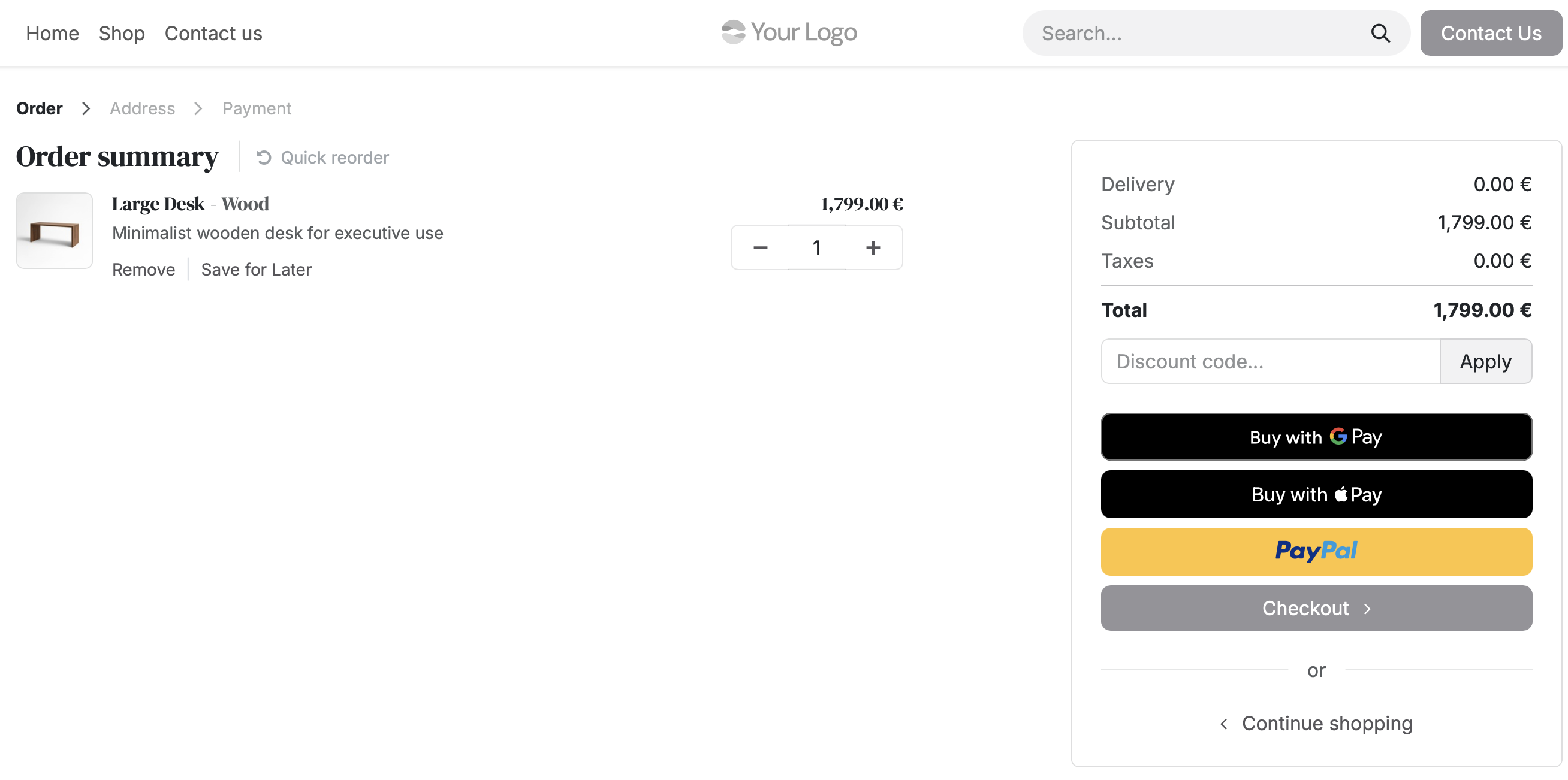
Does the shipping cost update during an express payment?
Yes. The address from the wallet is used to look up your available delivery methods, and the shipping cost is updated in the wallet before the customer confirms the payment.
Orders, captures and refunds
When is my order confirmed?
Odoo confirms the order once the transaction reaches a successful status. The plugin keeps the transaction and the order in sync through our push message, so the order is still completed correctly when your customer closes the browser before returning to your webshop.
Which methods use authorize and capture?
With an authorization the amount is reserved during checkout and collected later, usually when you ship. You then Capture or Cancel the authorization from the order.
| Payment method | Behaviour |
|---|---|
| Credit cards | Your choice: direct payment or authorization |
| Riverty | Your choice: direct payment or authorization |
| Klarna | Always reserve first, then capture |
Can I capture part of an authorization?
No, the plugin captures the full authorized amount only. If you ship part of an order, capture the full amount and refund the difference, or split the order before the authorization is created.
Can I refund from Odoo?
Yes, both full and partial refunds. Open the customer invoice that belongs to the Buckaroo payment and use the Buckaroo refund action. The plugin sends the refund to Buckaroo and creates the matching refund transaction in Odoo.
What happens if I refund in Buckaroo Plaza instead of in Odoo?
The plugin handles that as well. When we push the Plaza refund, the plugin recognises it and creates the matching refund transaction in Odoo automatically. The same applies to a capture that you perform in Plaza on an authorized transaction. Please note that the PUSH for refunds should be enabled in the Buckaroo Plaza settings with the correct PUSH URL.
How do giftcards work?
A giftcard can cover part of an order. When the balance does not cover the full total, the plugin splits the payment: the giftcard is processed first and your customer pays the remainder with another payment method. A summary shows how much has already been paid, so the outstanding amount is clear. The full amount will be displayed in the Buckaroo dashboard as a informational type known as a "Group transaction".
Troubleshooting
An order stays pending and is never completed
Pending usually means Odoo has not received or accepted our push message. Check the following, in order:
- Is your Odoo environment reachable from the internet? A push cannot be delivered to
localhostor to a private staging URL.
Please also make sure that the IP's and ports where Buckaroo is sending the PUSH messages from is added to your allow list to prevent them being blocked. You can find our IP's listed on this page. - Is the base URL of your Odoo environment correct? The plugin builds the push and return URLs from it, so an outdated base URL sends the push to the wrong address.
- Do your Store Key and Secret Key match the environment? A live key on a provider in Test Mode, or the other way around, makes the push validation fail.
- Check your Odoo server log. Rejected pushes are logged, including whether the signature was missing or invalid.
Some statuses are genuinely still pending on our side and resolve by themselves, for example a payment awaiting your customer or awaiting approval. Bank Transfer stays pending until the transfer actually arrives, which can take several days.
What do the Buckaroo status codes mean in Odoo?
| Buckaroo status | Status codes | Odoo transaction status |
|---|---|---|
| Success | 190 | Done |
| Pending: input, processing, awaiting consumer, on hold, awaiting approval | 790, 791, 792, 793, 794 | Pending |
| Failed, validation failure, technical failure, rejected | 490, 491, 492, 690 | Error |
| Cancelled by customer or by merchant | 890, 891 | Cancelled |
For the full list, see Status codes.
I see a 403 Forbidden on the push URL
The plugin validates every push before it processes it, and rejects anything that does not validate. That is expected for a push with a missing or incorrect signature, or one signed with a different Secret Key.
Check that the Secret Key in Odoo matches the Secret Key in Buckaroo Plaza → Settings → API Keys for the same environment.
Do I need to configure push URLs in Buckaroo Plaza?
No. The plugin sends the return URL and the push URL with every transaction, so there is nothing to set up in your Plaza push settings.
What does matter is that your Odoo environment is reachable from the internet and that its base URL is correct, because the plugin builds these URLs from it.
In the case you want to do refunds from the Buckaroo dashboard and want those to trigger in the Odoo environment, then a PUSH URL needs to be configured. But most merchants will do it the other way around, so handle everything from Odoo's environment instead. In that case there is no PUSH URL configuration needed.
The plugin does not install, or Odoo reports an import error
This is almost always the missing Python package. Check that buckaroo-sdk==1.0.0 is installed in the Python environment that runs Odoo, and that Odoo has been restarted since.
Still need help?
Contact our support team at [email protected] for questions about the Buckaroo Official Odoo plugin.
Updated 10 days ago