

View transactions
On the page Transactions, you can view transactions and apply filters to refine your results. Additionally, you can easily search for transactions here using the search bar by filtering by ID or keyword.
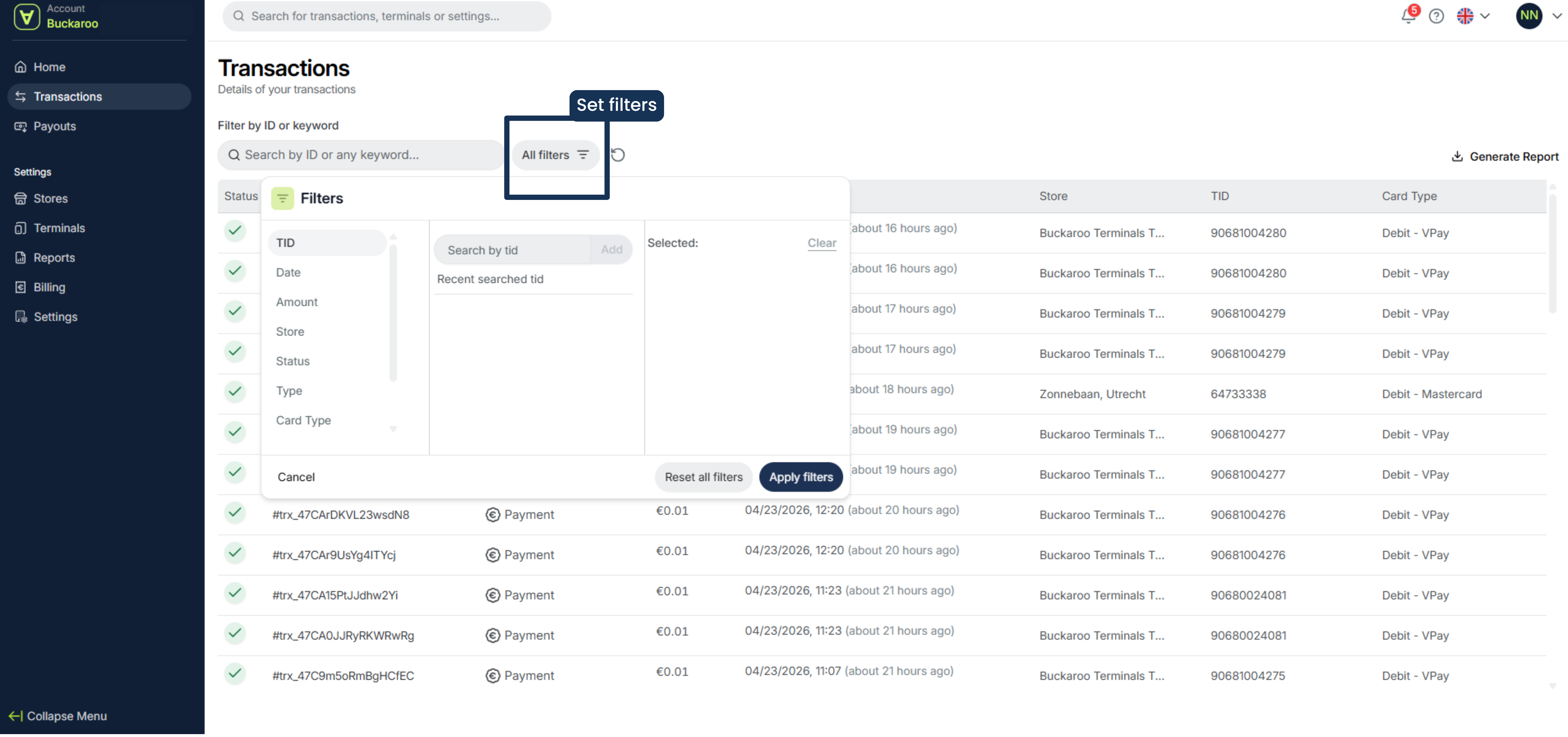
Set a filter
To set a filter,
- Click All filters.
- Choose the filter you want to apply and enter a range.
- Once you have set all the filters you want, click Apply filters. You will then see the selection appear on the screen.
- You can remove the filters again by clicking All filters once more and choosing Reset all filters. After that, you can set new filters again.
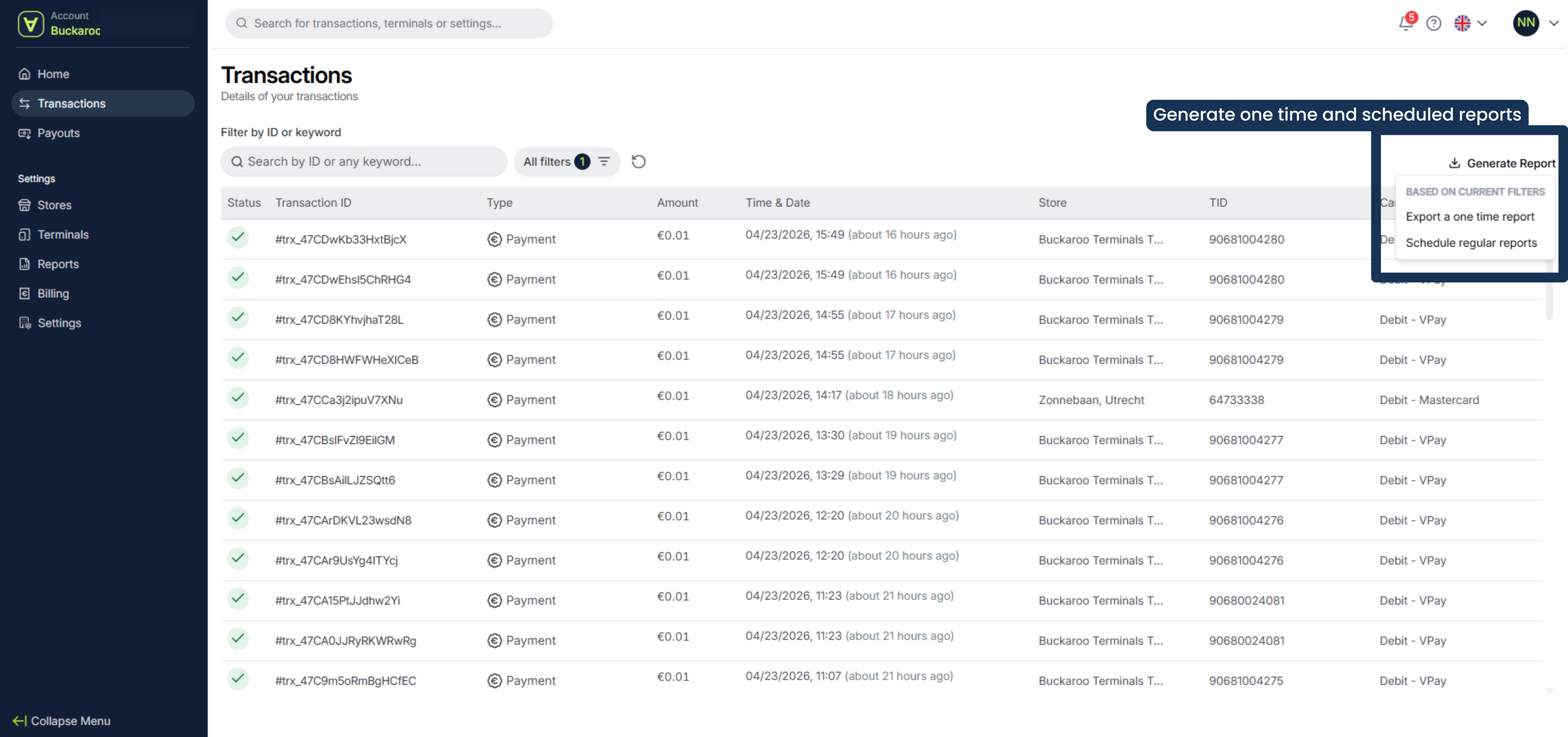
Download reports
On the right, you’ll see an option to generate reports. Here, you can either convert your overview into a one-time report or automatically send reports to an email address on a recurring basis. You can only download a report if you have applied at least one filter in this overview.
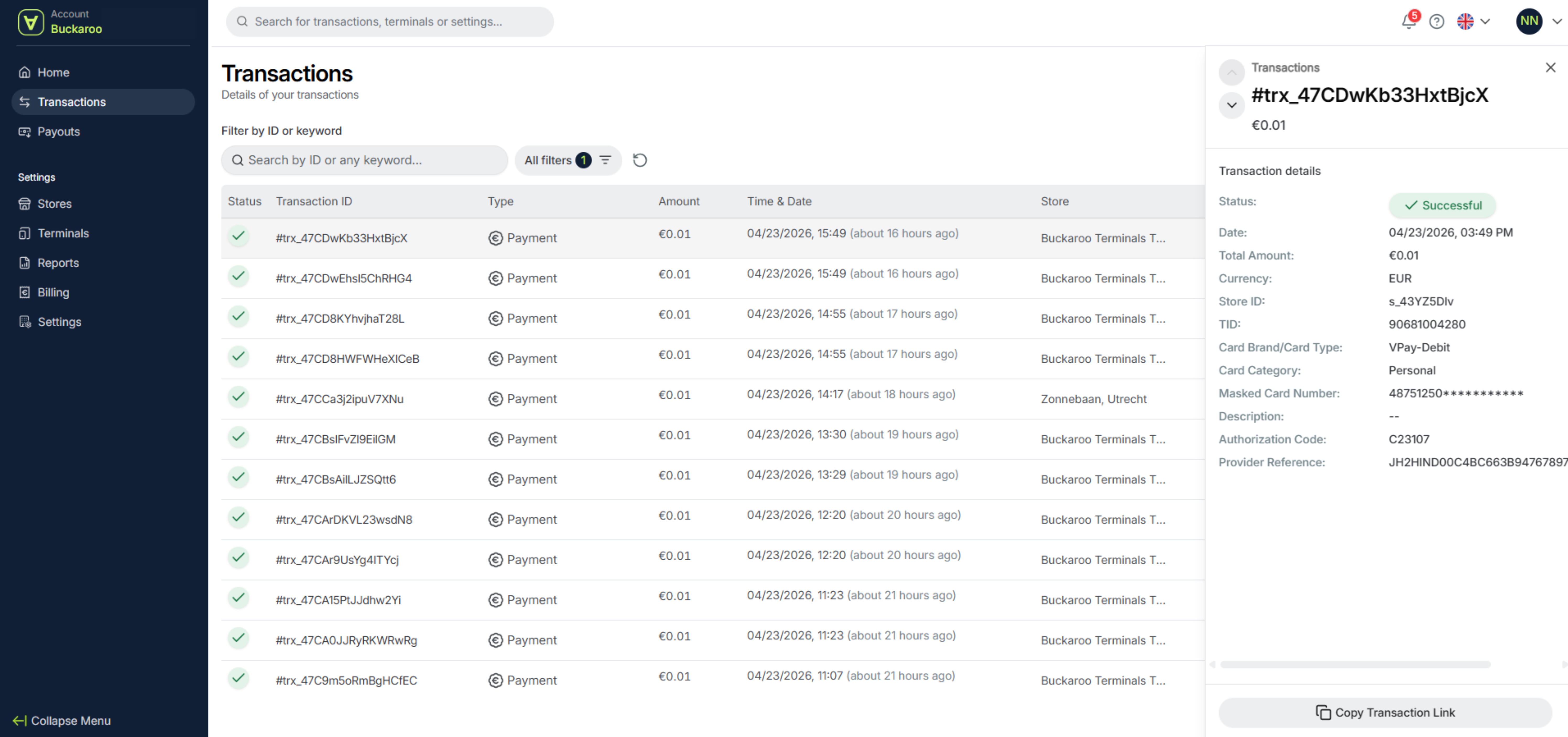
Detailed transaction information
To view more details of a transaction, click a Transaction ID. You will then see, among other things, the status, date, amount, currency, and other relevant information.
Updated 6 months ago
Did this page help you?