

Payment methods
Choose which payment methods to offer, and control when each one appears in checkout.
You will see every payment method the plugin supports in the WordPress admin, whether or not you can use it. A method only works in checkout if it's also active on your Buckaroo contract. If a method is enabled in WooCommerce but not on your contract, customers will see it and the payment will fail. Check your active methods in Buckaroo Plaza, or contact your account manager to add one.
Enable a payment method
- Go to WooCommerce → Settings → Buckaroo Settings → Payment Methods.
- Select the settings icon next to the method you want.
- Tick Enable/Disable.
- Set Transaction mode to
TestorLive. - Select Save changes.
The Payment Methods list shows each method's status as Active, Test or Inactive, along with the countries and currencies it supports, so you can see the state of your whole setup on one screen.
Rather than working through the list by hand, use Auto-configure on the General Settings page.
It reads your Buckaroo contract and enables the matching methods for you.
Read more about it at the documentation on how to connect your Buckaroo account.
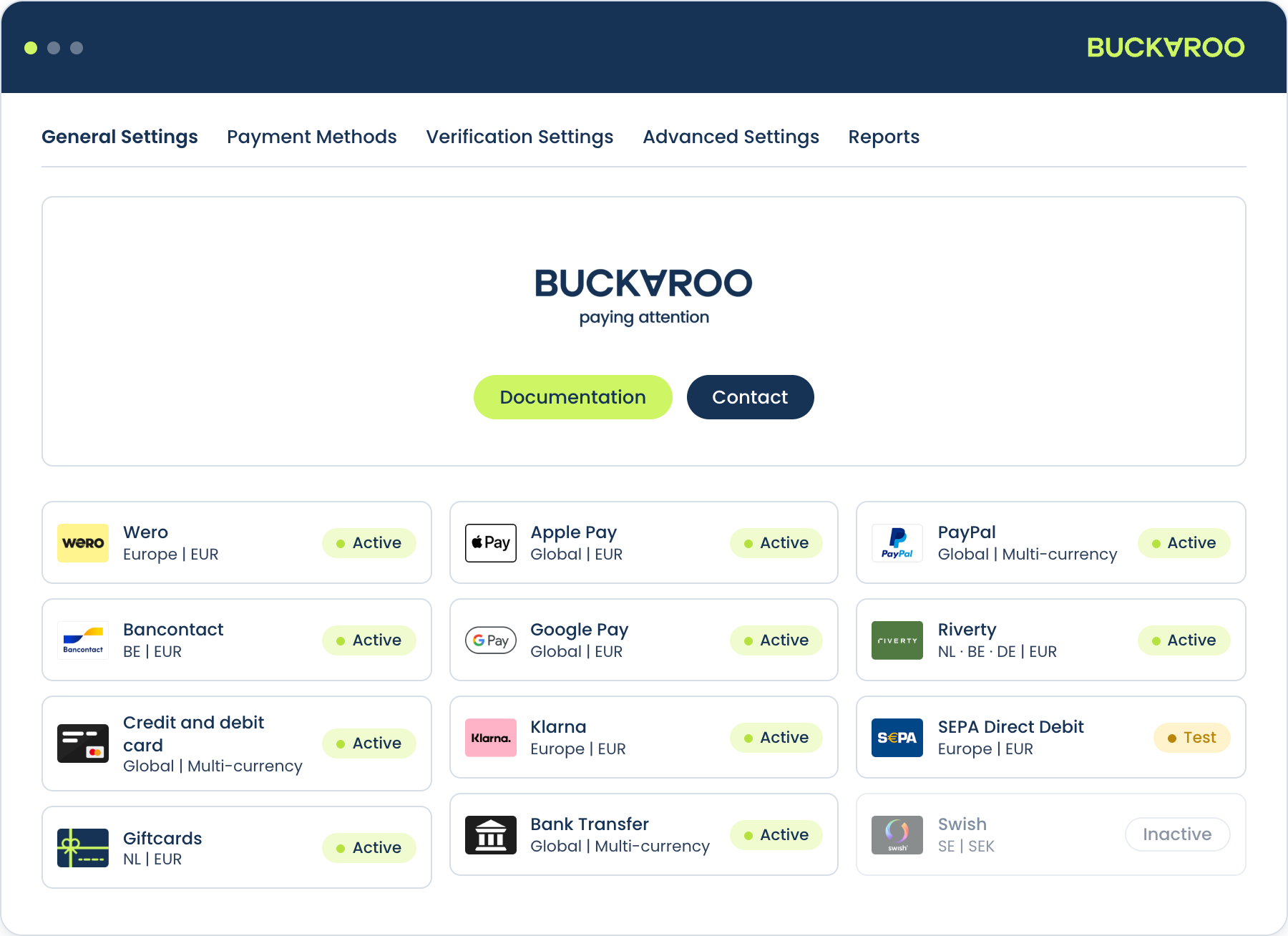
Common settings per method
Most methods share the same set of options. These are what let you show the right methods to the right customers instead of showing everything to everyone.
| Setting | What it does |
|---|---|
| Enable/Disable | Whether the method appears in checkout at all. |
| Transaction mode | Test or Live, set per method. |
| Title | The label shown in checkout. |
| Description | Explanatory text under the method name in checkout. |
| Payment fee | A fixed amount, for example 1.50, or a percentage, for example 1%. Decimals use a dot. |
| Minimum order amount allowed | Hide the method below this cart total. Zero or empty means no limit. |
| Maximum order amount allowed | Hide the method above this cart total. Zero or empty means no limit. |
The fee's tax class and whether it displays including or excluding VAT are set once for all methods under Configuration.
Order your methods by how your customers actually pay, not alphabetically. In the Netherlands, putting Wero at the top is worth real conversion. Method order follows WooCommerce's own payment gateway ordering under WooCommerce → Settings → Payments.
Available payment methods
The plugin supports the following payment methods:
- Alipay
- Apple Pay
- Bancontact
- Bank Transfer
- Belfius
- Billink
- Bizum
- BLIK
- Credit and debit cards
- EPS
- Giftcards
- Google Pay
- iDEAL | Wero
- In3
- KBC
- Klarna
- MB Way
- Multibanco
- Pay by Bank
- PayPal
- PayPerEmail
- Przelewy24
- Riverty
- SEPA Direct Debit
- Swish
- Trustly
- TWINT
- WeChat Pay
- Wero
- Zakelijk op rekening (by ABN AMRO)
For a complete overview of which methods are available in which country, see Overview per country.
Cards and Hosted Fields
Card payments can run in two modes, set by Credit and debit card method:
- Redirect: the customer is sent to Buckaroo's hosted payment page to enter their card details.
- Inline (Hosted Fields): the card form is embedded directly in your checkout using secure iframes. The customer never leaves your store, which converts better.
Hosted Fields keeps you out of PCI-DSS scope because the card data never touches your server. It needs a Hosted Fields Client ID and Client Secret, which you create in Buckaroo Plaza under Settings → Token registration. See Hosted Fields.
Hosted Fields requires HTTPS on your checkout. Without a valid certificate the inline card form will not load.
Credit and debit card flow sets whether the plugin sends a Pay or an Authorize request. Use Authorize to reserve the amount and capture it later. See Order management.
Card brands
Card payments cover Visa, Mastercard, American Express, Maestro, Visa Electron, V PAY, Carte Bancaire, Carte Bleue, Dankort, Nexi and PostePay.
Two settings control how they appear:
| Setting | What it does |
|---|---|
| Allowed provider | Which brands the customer can choose. Deselect a brand to hide it. |
| Show separate in checkout | Which brands get their own entry in the checkout payment list, instead of sitting behind a single card option. |
Showing a brand separately is worth doing where a brand carries recognition of its own in your market. Showing all eleven separately is not: it turns your checkout into a wall of logos.
Giftcards
Giftcards are entered in your checkout and applied against the order total, with the remainder paid by another method.
List of authorized giftcards controls which brands are accepted, as a comma-separated list of Buckaroo giftcard service codes. The default covers VVV Giftcard, Boekenbon, Boekenvoordeel, Fashioncheque, YourGift and Webshop Giftcard.
The codes here are Buckaroo service names, not display names. If you add a brand, take the exact code from your Buckaroo contract. A typo silently drops that brand rather than showing an error.
Express checkout
Apple Pay, Google Pay and PayPal can appear as a fast-checkout button on the product page, the cart and the checkout, letting the customer skip the address forms. They tap the button, confirm their details in the wallet, and the order is placed.
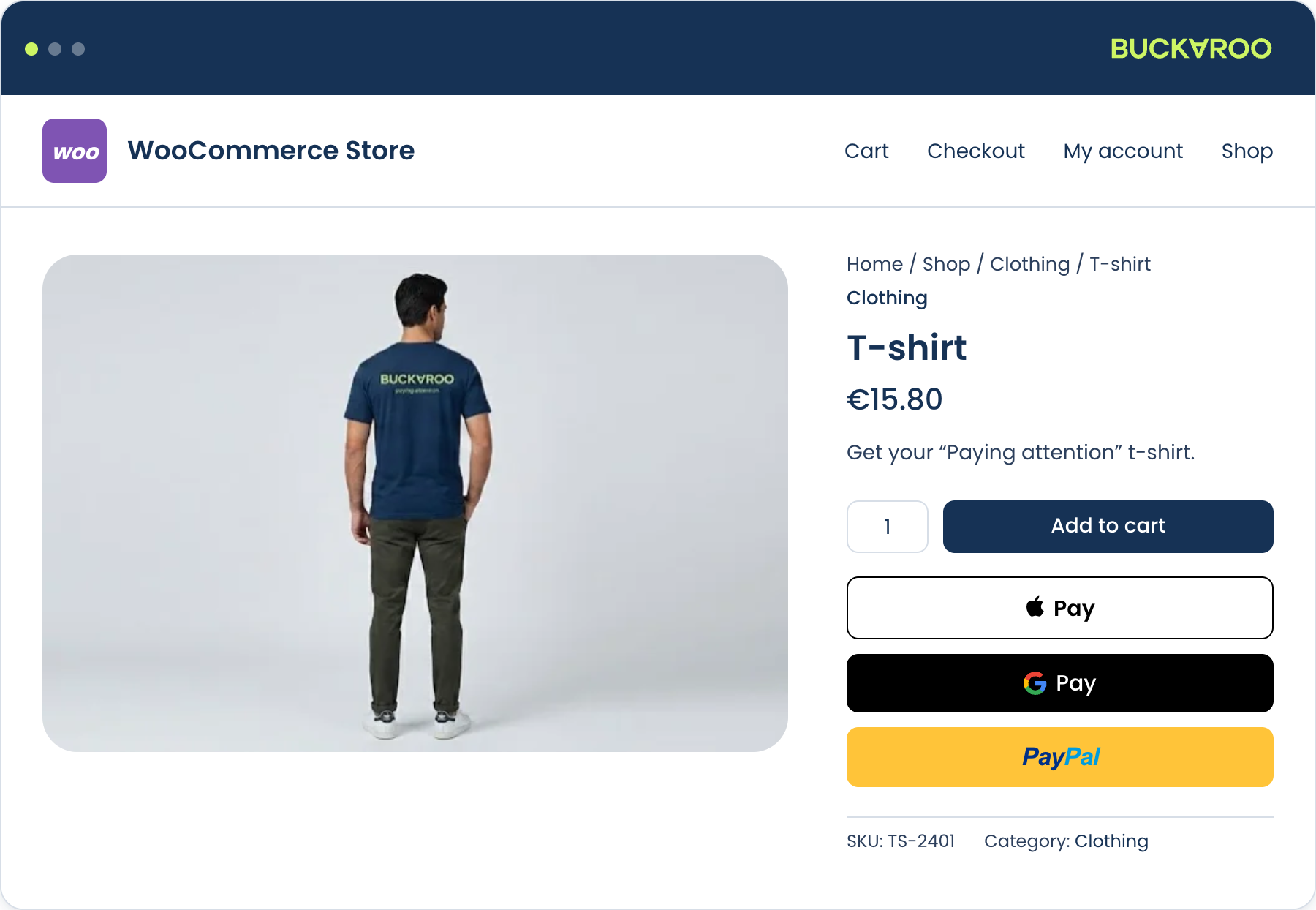
Apple Pay
| Setting | What it does |
|---|---|
| GUID | Your Buckaroo GUID, from Plaza under My Buckaroo → General. |
| Button on product page | Show or hide. Shown by default. |
| Button on cart page | Show or hide. Shown by default. |
| Button on checkout page | Show or hide. Shown by default. |
| Apple Pay as checkout payment method | Lists Apple Pay as a selectable payment method alongside the express button. Shown by default. |
| Button style | Black, white, or white with outline. |
The last one is worth understanding. As a selectable payment method, the Apple Pay sheet only authorises the payment: billing and shipping come from the checkout form the customer already filled in. As an express button, the sheet supplies the address as well. Having both means customers can use Apple Pay whichever way they arrive at checkout.
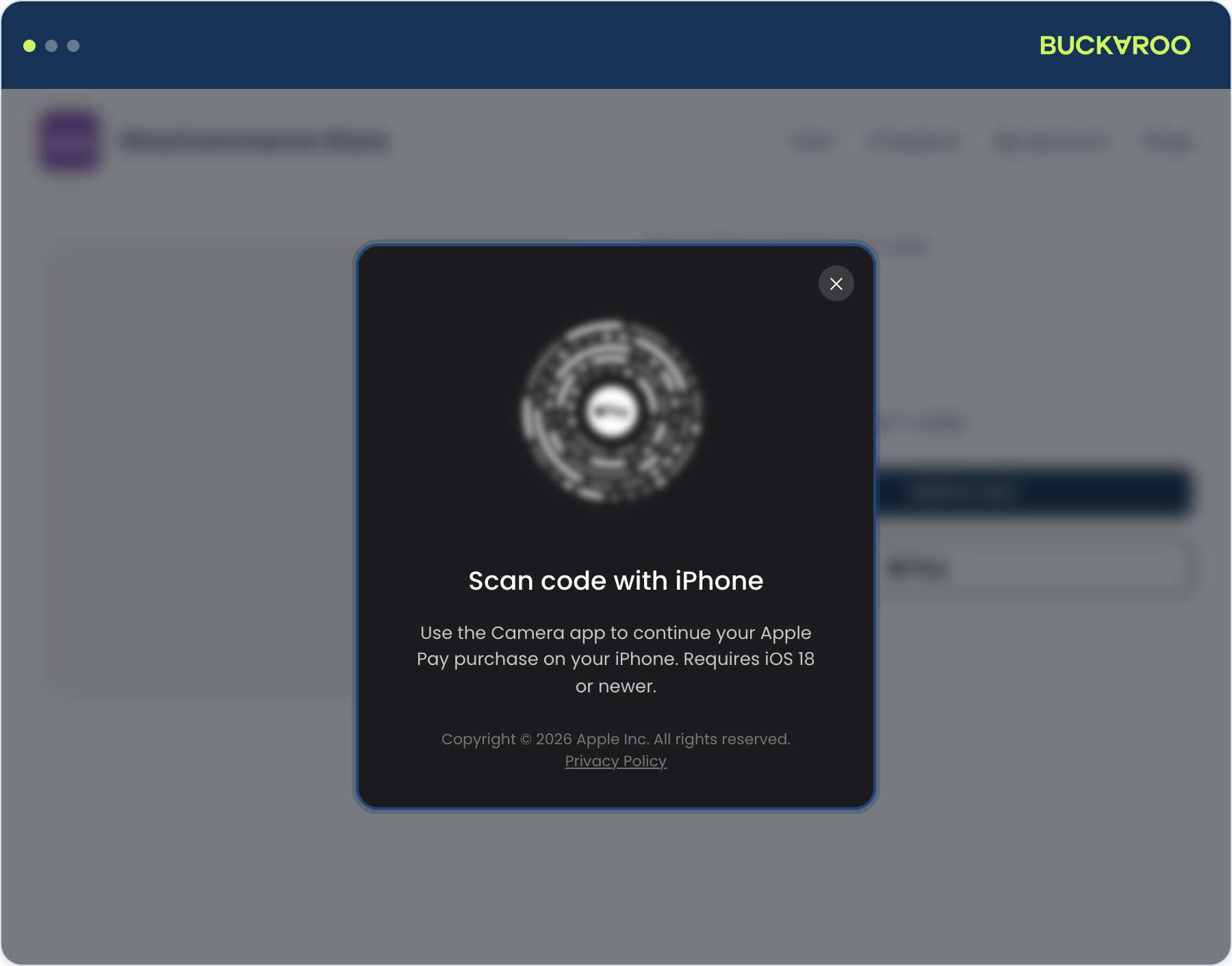
Apple Pay is now shown across browsers rather than only in Safari.
On a browser without native support the customer can still complete the payment.
Google Pay
| Setting | What it does |
|---|---|
| Gateway Merchant ID | Your Buckaroo gateway merchant ID, from Plaza under Services → Google Pay. |
| Google Merchant ID | Your own ID from the Google Pay Business Console, in the form BCR2DN4T.... |
| Button on product / cart / checkout page | Show or hide, per location. |
| Button style | Black, white, or white with outline. |
Both merchant IDs are needed for live Google Pay. Without the Google Merchant ID the button works in test mode but fails in production, which is easy to miss until launch day.
PayPal
| Setting | What it does |
|---|---|
| Seller Protection | Sends the customer's address to PayPal so PayPal seller protection applies. Enabled by default. |
| PayPal express merchant id | Your PayPal merchant ID, used in Live mode. |
| Sandbox merchant id | Used instead, when Transaction mode is Test. |
| PayPal express | Which pages show the express button: product, cart, checkout, or none. |
The sandbox client IDs are handled by Buckaroo, so the sandbox merchant ID is the only extra value you need for testing.
Buy Now Pay Later
Klarna, Riverty, Billink and In3 have extra requirements compared with other methods:
- They need additional customer data, such as date of birth, which the plugin collects in checkout when the method is selected.
- They perform a risk assessment and may decline an order that would have succeeded with another method. Always offer a fallback.
- They typically use authorise and capture: the amount is reserved at checkout and captured when you ship. See Order management.
- Some require separate onboarding with the provider before they can go live.
Riverty
Riverty has its own settings beyond the shared ones:
| Setting | What it does |
|---|---|
| Riverty Pay or Capture | Whether to send a Pay or an Authorize request. |
| Riverty customer type | Both, B2C or B2B. With B2B, the method only appears when the customer enters a company name in checkout. |
| Min / Max order amount for B2B | Separate amount limits that apply to business orders. |
Separate B2B limits are useful because business orders are usually larger. You can set a low ceiling for consumers and a much higher one for companies without splitting the method in two.
Bank Transfer
Bank Transfer is asynchronous. The customer places the order, receives the bank details, and the order stays on hold until the money arrives.
| Setting | What it does | Default |
|---|---|---|
| Number of days till order expire | How long the customer has to pay. | 14 |
| Send email | Whether Buckaroo emails the payment instructions to the customer. | No |
| Show payment procedures | Whether the instructions appear on the thank-you page after checkout. | No |
Both display options are off by default, which means a customer choosing Bank Transfer may not see how to pay. Switch at least one of them on if you offer this method.
PayPerEmail and PayLink
PayPerEmail sends the customer a payment link instead of taking them through checkout. The plugin can use it in two places, and they are configured separately.
| Setting | What it does | Default |
|---|---|---|
| Show on Checkout page | Offer PayPerEmail as a checkout payment method. | No |
| Show PayPerEmail | Show the PayPerEmail action on the admin order screen. | Show |
| Show PayLink | Show the PayLink action on the admin order screen. | Show |
| Due date (in days) | How long the payment link stays valid. | |
| Allowed methods | Which payment methods the link offers the customer. |
The admin actions are the more useful half. Create an order in the WooCommerce admin for a customer who ordered by phone or email, then send them a link to pay it. See Order management.
Updated 11 days ago