

Payment methods
Choose which payment methods to offer, and control when each one appears in checkout.
You will see every payment method the plugin supports in the Magento admin, whether or not you can use it. A method only works in checkout if it's also active on your Buckaroo contract. If a method is enabled in Magento but not on your contract, customers will see it and the payment will fail. Check your active methods in Buckaroo Plaza, or contact your account manager to add one.
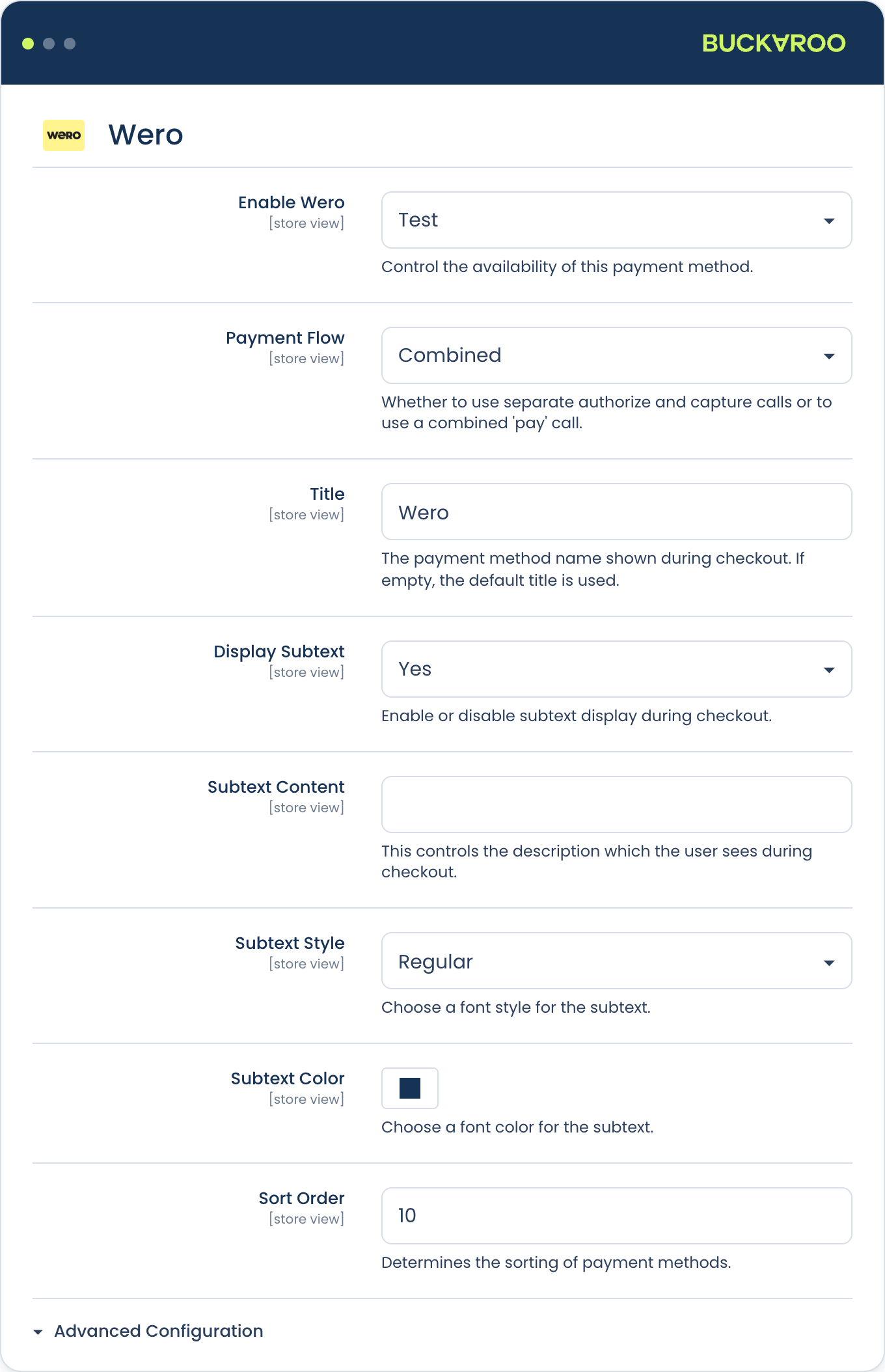
Enable a payment method
- Log in to the Magento admin.
- Go to Stores → Configuration → Sales → Buckaroo → Payment methods.
- Expand the method you want.
- Set the mode:
- Live: real payments.
- Test: test payments against Buckaroo's test environment.
- Off: hidden from checkout.
- Select Save Config and flush the cache.
Common settings per method
Most methods share the same set of options. These are what let you show the right methods to the right customers instead of showing everything to everyone.
| Setting | What it does |
|---|---|
| Title | The label shown in checkout. Translate it per store view. |
| Display Subtext | Adds a line of explanatory text under the method name, with configurable style and colour. Useful for "Pay in 14 days" or similar. Off by default. |
| Sort Order | Position in the checkout list. Lower numbers appear first. |
| Payment Fee | A fixed amount or percentage added to the order for this method. |
| Send Order Confirmation Email | Override the global setting for this method. |
| Method Specific Status Enabled | Lets this method use its own success and failure order statuses instead of the global ones. |
| Min Order Amount | Hide the method below this order total. |
| Max Order Amount | Hide the method above this order total. |
| Allow Customer Groups | Restrict to specific customer groups, for example B2B-only invoicing methods. |
| Allowed Currencies | Restrict to specific currencies. |
| Allowed Countries / Payment from Specific Country | Restrict to specific billing countries. |
| Add customer data to request | Override the global setting for this method. |
Method Specific Status is easy to miss and genuinely useful. If you want BNPL orders to land in a separate status for manual review while Wero orders go straight to processing, this is how, with no customisation needed.
Sort order matters more than most merchants think. In the Netherlands, putting iDEAL | Wero at the top is worth real conversion. Order your methods by actual usage in your market, not alphabetically.
Available payment methods
The plugin supports the following payment methods:
- Alipay
- Apple Pay
- Bancontact
- Bank Transfer
- Belfius
- Billink
- Bizum
- BLIK
- Buckaroo Voucher
- Credit and debit cards
- EPS
- Giftcards
- Google Pay™
- iDEAL | Wero
- In3
- KBC
- Klarna
- MB Way
- Multibanco
- Pay by Bank
- PayPal
- PayPerEmail
- Przelewy24
- Riverty
- SEPA Direct Debit
- Swish
- Trustly
- TWINT
- WeChat Pay
- Wero
- Zakelijk op rekening (by ABN AMRO)
For a complete overview of which methods are available in which country, see Overview per country.
Giftcards
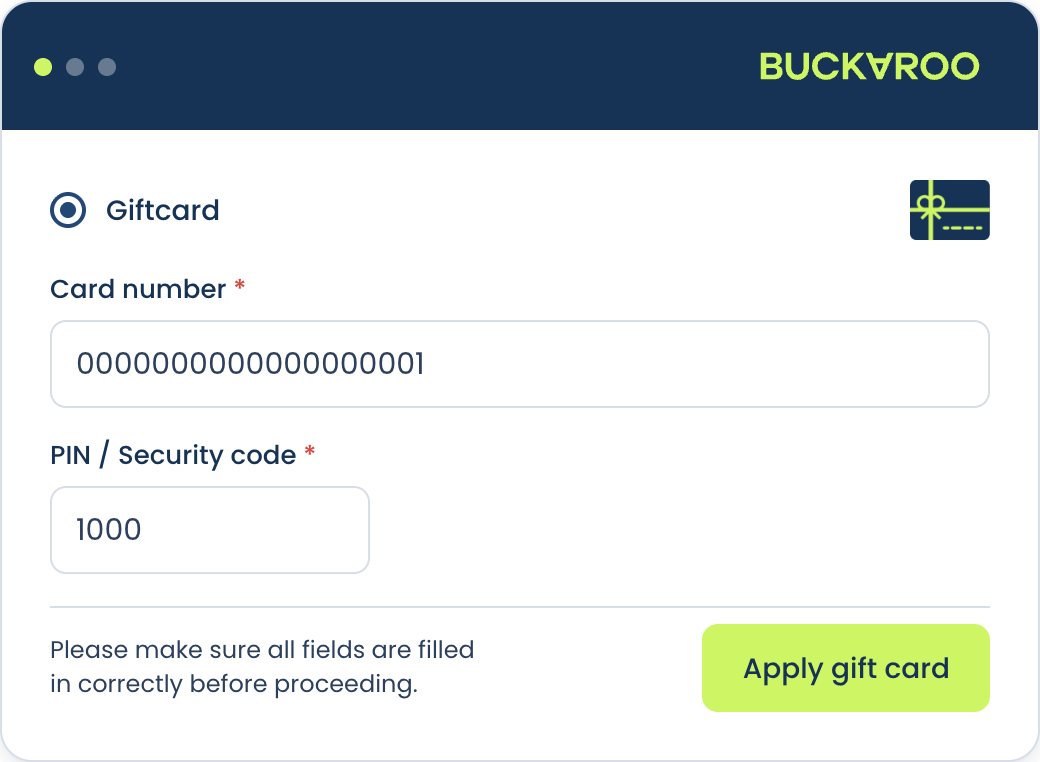
Giftcards can be applied inline, without sending the customer away from your checkout. They enter the card number and PIN on the payment step, the balance comes off the order total, and they pay whatever remains with another method. No redirect, no lost session.
That last part matters: a giftcard rarely covers the whole basket, so being able to settle the remainder in the same checkout is the difference between a completed order and an abandoned one.
Configure it under the Giftcards method:
| Setting | What it does |
|---|---|
| Allowed Giftcards | Which giftcard brands appear in checkout |
| Sort Giftcards | The order they're listed in |
| Giftcard Handling | Inline shows each giftcard separately in your checkout. Redirect sends the customer to Buckaroo's payment page instead |
Cards and Hosted Fields
Card payments can run in two modes:
- Redirect: the customer is sent to Buckaroo's hosted payment page to enter their card details.
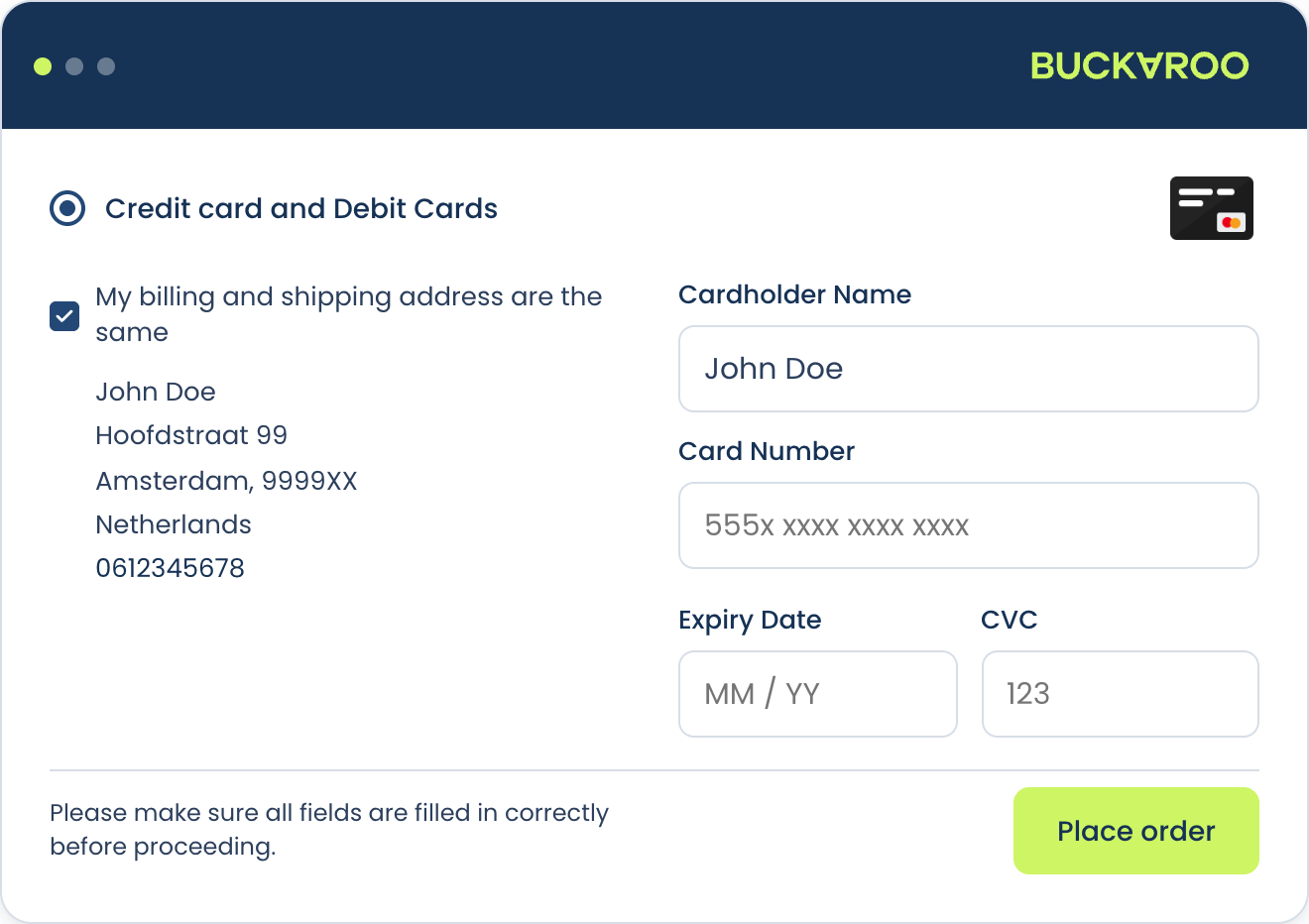
- Hosted Fields: the card form is embedded directly in your checkout using secure iframes. The customer never leaves your store, which converts better.
Hosted Fields keeps you out of PCI-DSS scope because the card data never touches your server. It replaces the older Client Side Encryption method, so use Hosted Fields for new integrations. See Hosted Fields for setup.
Express checkout
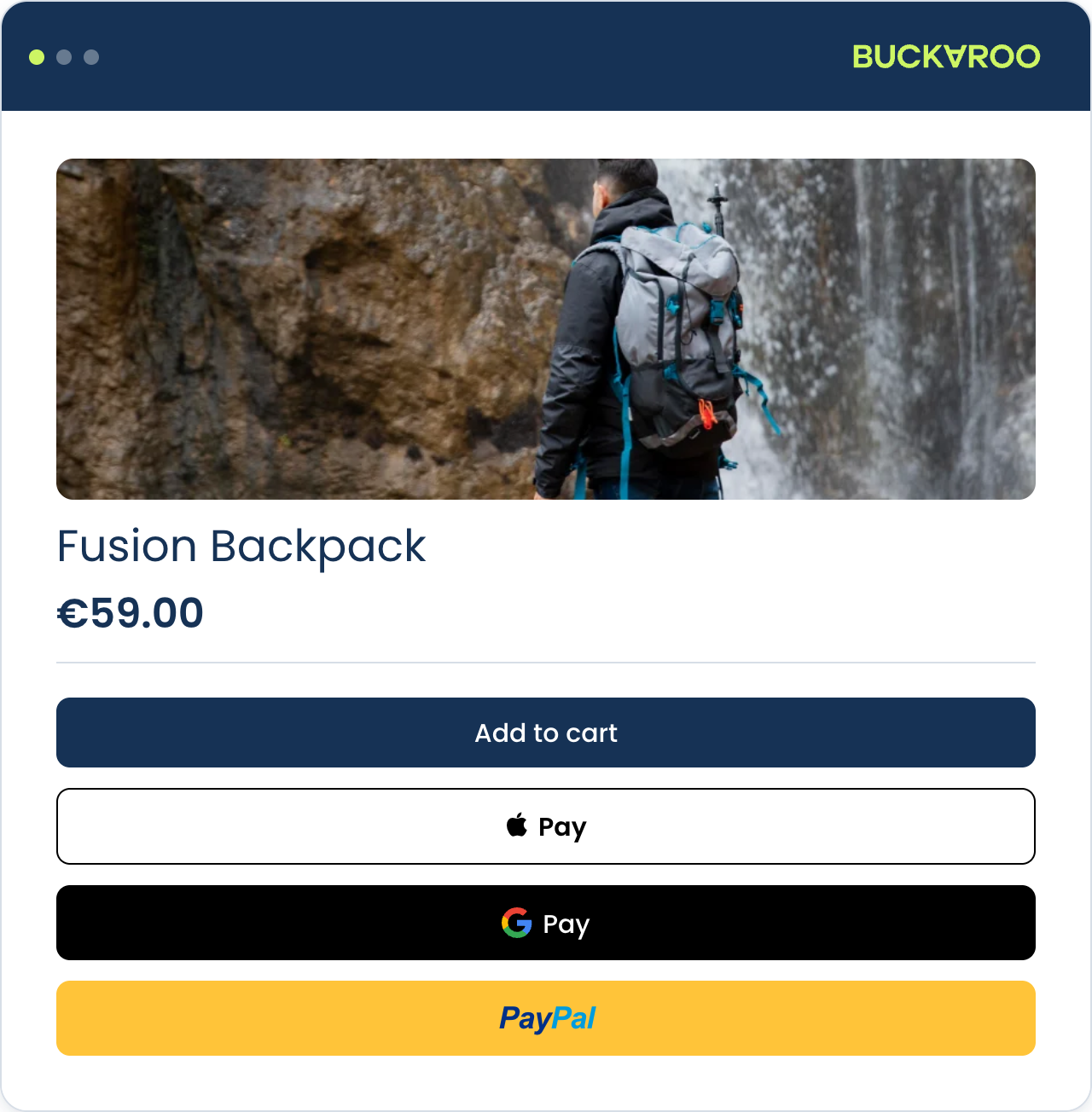
Some methods can appear as a fast-checkout button on the product page or in the cart, letting the customer skip the address forms.
Available for:
- Apple Pay (which requires domain verification before it will render)
- Google Pay™
- PayPal
Enable it in the method's own settings, then choose the Button Location: Product Page, Cart, or both. Some methods also let you set the button colour to suit light or dark backgrounds.
Buy Now Pay Later
Klarna, Riverty, Billink and In3 have extra requirements compared with other methods:
- They usually need additional customer data: date of birth, phone number, sometimes Chamber of Commerce number for B2B. The plugin adds these fields to checkout when the method is selected.
- They perform a risk assessment and may decline an order that would have succeeded with another method. Always offer a fallback.
- They typically use authorise and capture: the amount is reserved at checkout and captured when you invoice or ship. See Order management.
- Some require separate onboarding with the provider before they can go live.
Updated 3 days ago