

Payment methods
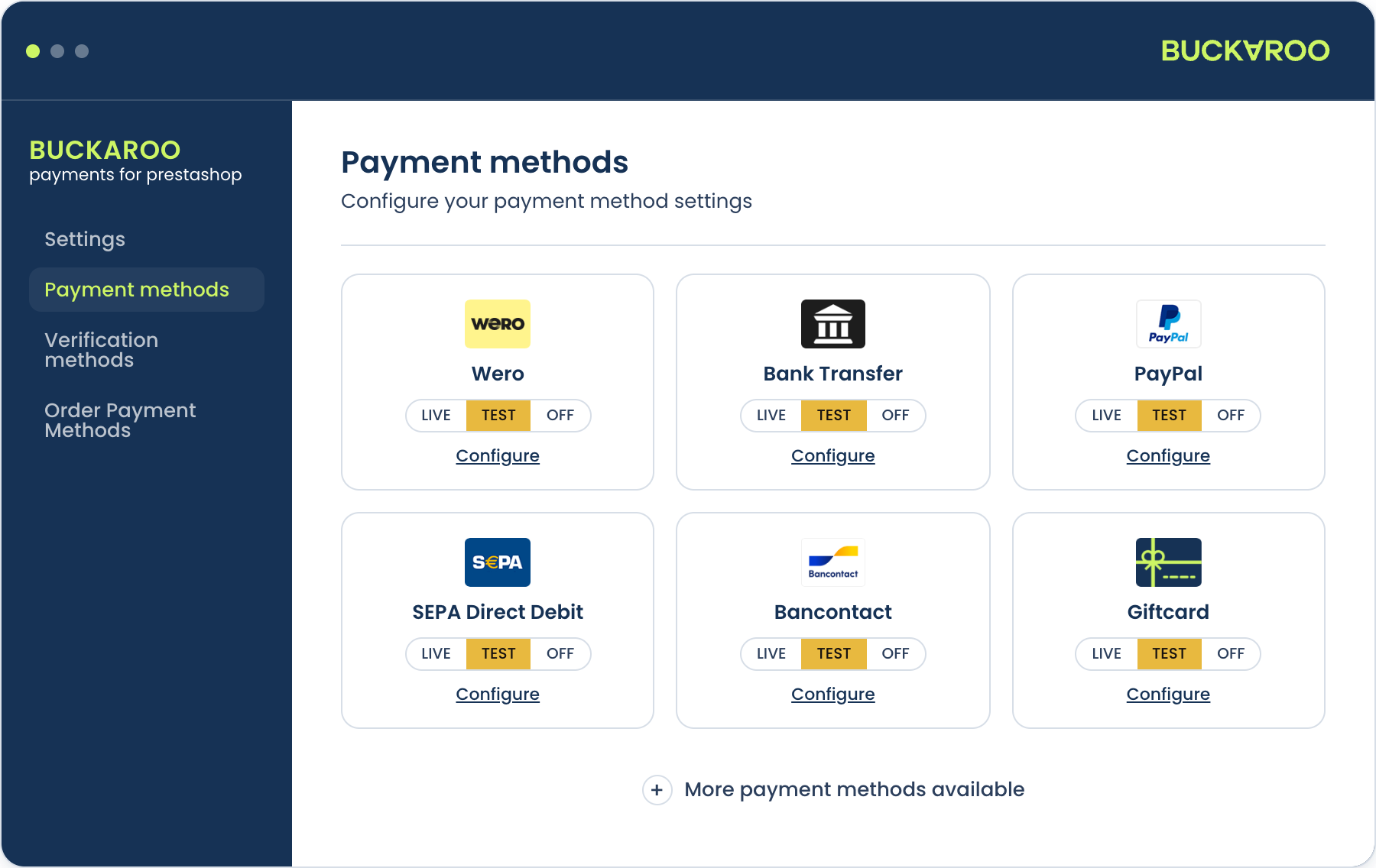
Every payment method is configured on its own, under Payment methods in the module's configuration panel. Methods you have not touched are off, so a fresh installation shows nothing at checkout until you enable something.
Turning a method on
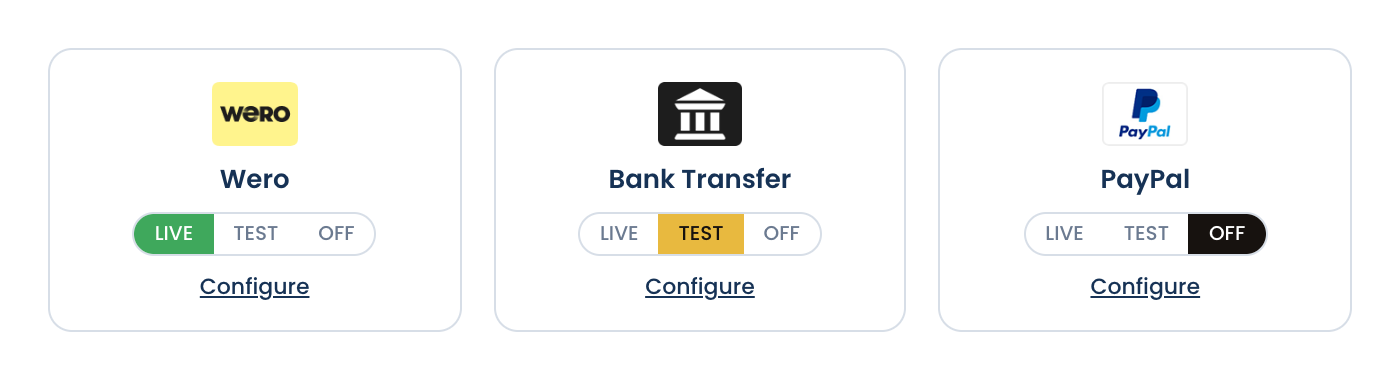
Each method tile carries three modes:
| Mode | Result |
|---|---|
| Live | Real payments. |
| Test | Test transactions only. |
| Off | The method does not appear at checkout. |
Set the mode on the tile, or open Configure on the method for the rest of its settings.
A method must also be active on your Buckaroo store, and some methods need a contract with the provider before they can be used. A method that is live in the module but not active in Plaza will fail at the gateway rather than at checkout.
Settings every method has
| Setting | What it does |
|---|---|
| Mode | Live, test or off. |
| Payment method name | The name shown to customers at checkout, replacing the default. |
| Payment fee incl. VAT | A fixed amount such as 1.50, or a percentage such as 3%. |
| Order amount allowed | Minimum and maximum order amount. Outside the range, the method is hidden. |
| Countries | The method only appears for the countries you list. Leave empty for all countries. |
Fees use a full stop as the decimal separator, and any value containing % is treated as a percentage. What a percentage is calculated over is set once for the whole module. See Payment fees.
Pay By Bank has no payment fee field, because fees are not available for it.
Methods with their own settings
Most methods need nothing beyond the settings above. These have more.
Cards. Choose whether the card selection appears as radio buttons or a dropdown, pick which schemes you accept from the full list, and choose whether the schemes appear as separate options at checkout or grouped under one Cards entry.
Giftcards. Pick which giftcards you accept, and choose how they appear: Inline shows each brand separately with card number and PIN fields, and Grouped shows one Giftcards option that redirects to the Buckaroo payment page. You can also add a custom giftcard, using the service code Intersolve sends you, with an optional logo URL.
Riverty and Billink. Set the customer type to B2C, B2B or both. Choosing B2B or both adds a separate minimum and maximum order amount for B2B orders.
PayPerEmail. Set the due date in days, pick which payment methods the customer may use, and choose whether the merchant sends the email.
Bank Transfer. Set the due date in days, and choose whether a payment instruction email is sent.
PayPal. Turn seller protection on or off.
Pay By Bank. Choose radio buttons or a dropdown for the bank selection.
Google Pay. Fill in your merchant name, Google Merchant ID and Gateway Merchant ID.
Bancontact. Turn client side encryption on or off.
Verification methods
iDIN is not a payment method, so it lives under Verification methods rather than alongside the others. Alongside mode, name and countries, it has one setting of its own:
- Global applies iDIN to every product in the store.
- Specific products applies it only to products you have enabled it for, which you do in the PrestaShop catalogue as well as here.
For what iDIN returns and what it can verify, see iDIN.
Updated 5 days ago