

Order management
What happens to an order after the customer pays, and how to refund, capture or take payment for it from the WordPress admin.
Order statuses
The plugin maps Buckaroo transaction results onto WooCommerce order statuses.
| WooCommerce status | When it applies |
|---|---|
| Pending payment | Order created, payment not yet completed. |
| On hold | Awaiting the customer, the bank or a review. Normal for Bank Transfer and PayPerEmail. |
| Processing | Payment confirmed. |
| Failed | The payment was rejected. |
| Cancelled | The customer abandoned the payment, or you cancelled the order. |
| Refunded | The full amount has been refunded. |
The status is set from the push message Buckaroo sends server to server, not from the customer's return to your store. That means an order still reaches the right status when the customer closes their browser mid-payment.
An order stuck On hold long after the customer says they paid almost always means the push message didn't arrive. See Troubleshooting.
Orders paid in test mode
An order paid while the method was in Test mode is flagged, and the plugin shows a warning at the top of the order screen. It exists so nobody picks, packs and ships an order that was never really paid for. If you see it on a live order, that method is still set to Test.
Payments that settle later
Not every method confirms instantly. Bank Transfer can take days, and PayPerEmail waits for the customer to open their link. Some Buy Now Pay Later methods hold an order for review. These orders sit on hold until Buckaroo sends a push with the final result, which is why your push endpoint needs to keep working long after the customer has gone.
Authorise and capture
Some methods support deferred sales. The amount is authorised (reserved on the customer's card or account) at checkout and captured (actually taken) later. Cards and Riverty both have a Pay-or-Authorize setting; several Buy Now Pay Later methods use it by default.
With Authorize selected, place the order as normal, then capture from the order screen when you're ready to ship.
| Action | Effect |
|---|---|
| Authorise | Automatic at checkout when the method is configured for it. Funds reserved, not taken. |
| Capture | Taken from the order screen. Funds collected. |
| Partial capture | Capture part of the order, for example when you ship part of it. |
Capturing on time is your responsibility. Authorisations expire, and the window varies by method. If you don't capture before expiry the reservation lapses, the money is never collected, and you'll have to ask the customer to pay again. Capture as soon as you're able to ship.
Refunds
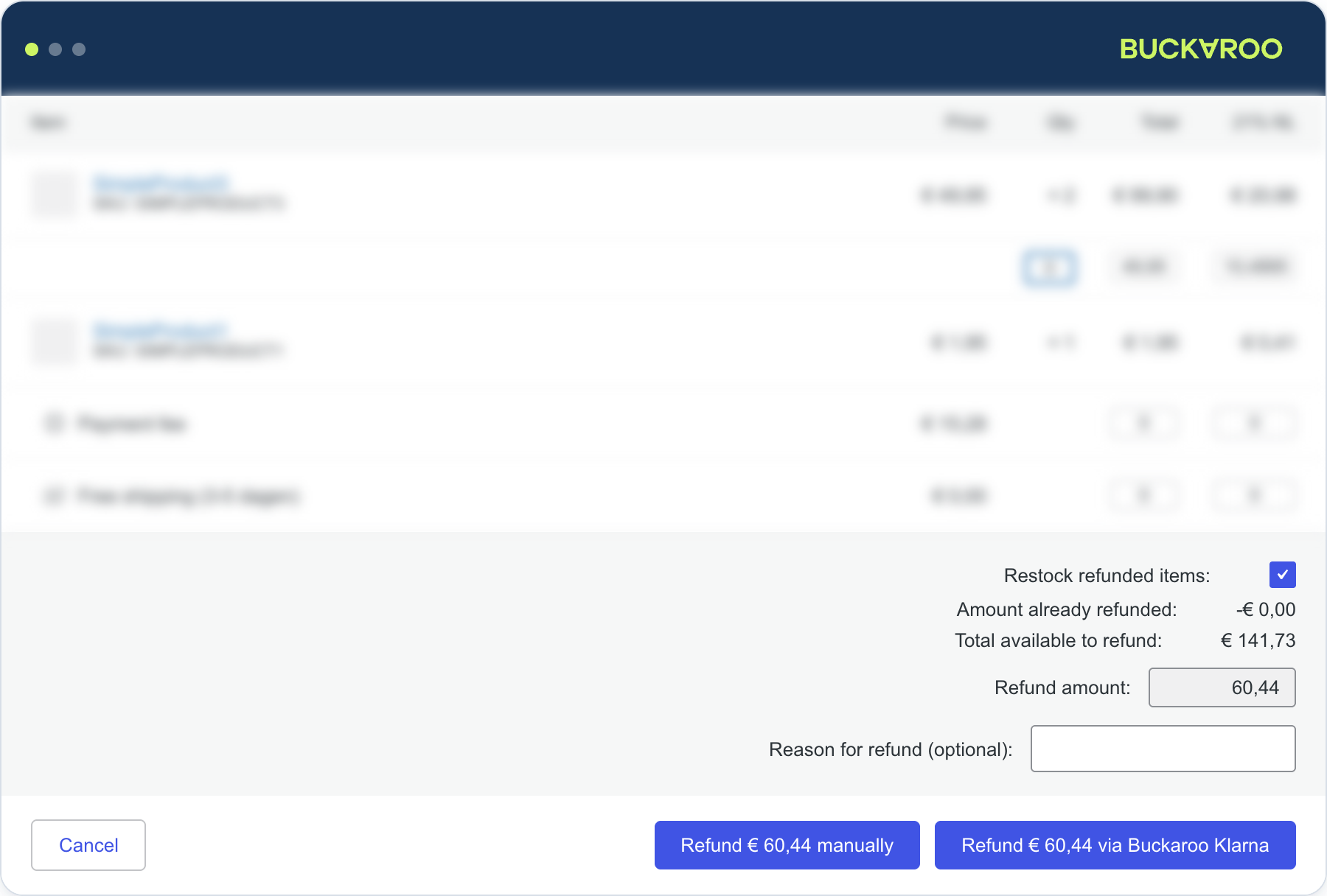
Refund from the order screen, the same way you would for any WooCommerce order.
- Open the order under WooCommerce → Orders.
- Select Refund.
- Enter the quantities or the amount to refund.
- Select Refund via Buckaroo.
The refund is sent to Buckaroo and processed against the original transaction. How long the customer waits depends on the method. Card refunds typically take several working days; bank-based methods are usually faster.
Refund via Buckaroo sends the refund to Buckaroo and the customer gets their money back. Refund manually only records the refund in WooCommerce and moves no money. If you use the manual option by mistake, your books will show a refund that never reached the customer.
Partial refunds
Most methods support partial refunds. Refund specific line items or a custom amount, and repeat until the original transaction total is used up.
Refunding a captured amount
Where an order was captured in more than one step, the plugin refunds against the specific capture rather than the order as a whole. The order screen shows the captures available to refund, so you pick the one you mean. This matters for partly shipped orders: refunding the capture that covered the returned items keeps the remaining capture intact.
Refunds started in Buckaroo Plaza
Refund from WooCommerce wherever you can. It keeps WooCommerce as the single source of truth and records the refund against the order and its line items.
If you do refund in Plaza, record it in WooCommerce afterwards as a manual refund. That keeps your administration correct without sending a second refund to Buckaroo.
Never refund the same order in both systems. Doing so can refund the customer twice.
Payment links
For orders you take by phone or email, the plugin can send the customer a link to pay rather than asking them through checkout. Create the order in WooCommerce → Orders, then use the Buckaroo action on the order screen.
| Action | What it does |
|---|---|
| PayPerEmail | Buckaroo emails the customer a payment link. |
| PayLink | Generates a link you send yourself, however you like. |
Both respect the due date and allowed-method list configured on the PayPerEmail method, so the customer only sees methods you actually offer. Either can be hidden from the order screen if you don't want them there. See Payment methods.
The order stays on hold until the customer pays, then moves to processing on the push message like any other payment.
Transactions in Buckaroo Plaza
WooCommerce shows you the order. Plaza shows you the payment, including the full status history, the raw push messages, and any provider-side detail such as a card decline code. When you're diagnosing a specific failed payment, Plaza is usually where the answer is.
The Buckaroo transaction key is stored on the order, which is the value to search on in Plaza.
The full history for a payment is under Transactions in Plaza.
Updated 22 days ago