

Connect your account
Link your WooCommerce store to Buckaroo with your API keys, enable push messages, and let the plugin configure your payment methods for you.
Get your API keys
You need two values from Buckaroo Plaza → Settings → API Keys:
| Key | Scope | Notes |
|---|---|---|
| Store key | One per store in your Buckaroo account | Use a separate Store key per shop if you want transactions reported separately. |
| Secret key | One for your entire Buckaroo account | Used to sign requests and to verify incoming push messages. Treat it like a password. |
Never commit your Secret key to version control or share it in a support ticket. If it leaks, regenerate it in Plaza. Regenerating invalidates the old key immediately for every store using it.
Enter the keys in WooCommerce
- Go to WooCommerce → Settings → Buckaroo Settings.
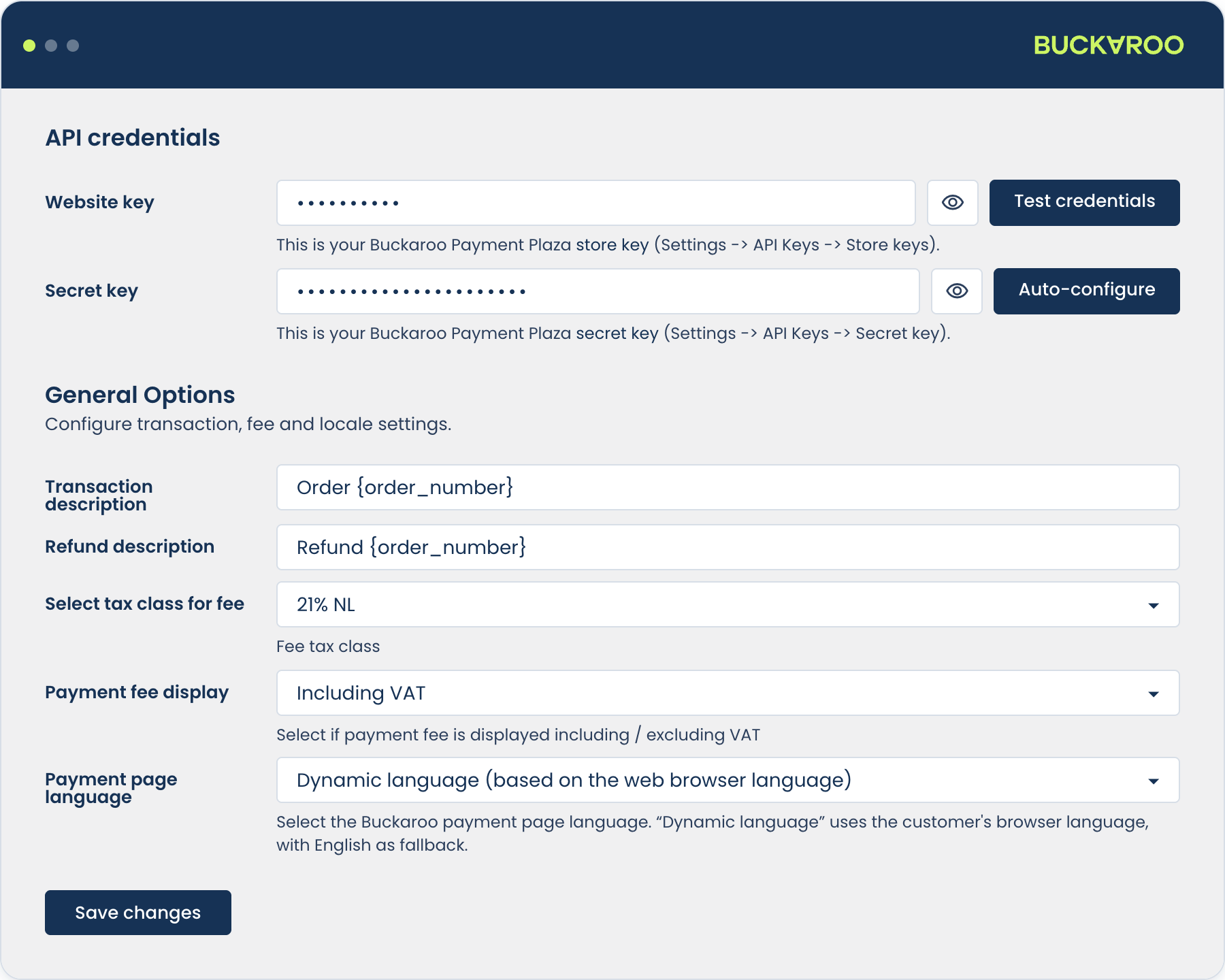
- Find the API credentials card.
- Paste your Store key and Secret key. Both fields are masked; use the eye icon to check what you pasted.
- Select Save changes.
- Select Test credentials.
Test credentials checks your keys against Buckaroo without placing an order, so it's the quickest way to rule credentials in or out before you go any further. It answers with either Credentials are OK or Credentials are incorrect.
Both keys are required. If either is empty the plugin warns you when you save, and payments will fail until it's filled in.
Configure your payment methods automatically
Next to the Secret key is an Auto-configure button. It connects to your Buckaroo account, reads which payment methods are active on your contract, and enables the matching methods in the plugin in Live mode.
This saves working through the method list by hand, and it means you can't enable a method your contract doesn't cover.
- Save your keys first. Auto-configure needs valid credentials.
- Select Auto-configure.
- Confirm when prompted. Nothing is changed until you do.
- The plugin reports which methods it configured.
Auto-configure enables methods in Live mode, so it's the last step before going live rather than the first step of testing. If you want to test first, set the methods you're testing back to Test afterwards, or configure them by hand.
If it reports that no active subscriptions were found, your credentials are valid but your Buckaroo contract has no methods active yet.
Test mode and live mode
The Buckaroo plugin sets mode per payment method, not globally. Each method has its own Enable/Disable toggle and a Transaction mode of Test or Live.
This lets you go live with Wero while still testing Klarna, but it also means you have to check every enabled method before launch. The Payment Methods section of the Buckaroo settings shows the status of each one at a glance, as Active, Test or Inactive.

Test and live transactions use the same Store key and Secret key. The only thing separating them is the per-method mode setting. Before going live, confirm that no method is still set to
Test.
Orders paid in test mode are marked, and the plugin shows a warning on the order screen so nobody fulfils them by mistake.

Push messages
A push message is Buckaroo's server-to-server notification that a payment has reached a final status. Your store uses it to update the order. The customer's browser may never come back: they close the tab, their connection drops, or the method settles days later. That makes the push the authoritative source, not the redirect.
You don't need to configure a push URL.
The plugin sends the correct push URL with every transaction request, which overrides whatever is configured in Plaza for that store. There is no URL to enter, in Plaza or in WordPress.
Your store receives the result at:
https://your-store.com/?wc-api=wc_push_buckarooThere are two things you do need: push messages switched on for the store in Plaza, and a server that will accept the incoming request.
Enable push messages for your store
Push messages are enabled per store in Buckaroo Plaza, under Settings → Stores → Push settings.
Switch them on for the store whose Store key you entered in WordPress.
This is separate from the push URL. The plugin supplies the URL; what Plaza controls is whether pushes are sent for that store at all. If they aren't, payments will succeed at Buckaroo and your orders will stay on hold, with no push attempts recorded against the transaction in Plaza.
Allow Buckaroo's IP addresses and ports
If your store sits behind a firewall, WAF or IP allowlist, push messages will be blocked and your orders will never leave on-hold.
Allow inbound traffic from Buckaroo's push addresses on the supported ports. The current list is maintained on the Push messages page. Always take the values from there rather than from a copy, since they can change.
This allowlist is for traffic from Buckaroo to your store. Don't confuse it with traffic in the other direction. The addresses your store sends requests to are dynamic and should not be allowlisted by IP.
Other things that block pushes
Your push endpoint must also be:
- Publicly reachable over HTTPS with a valid certificate. Self-signed certificates will fail.
- Not behind basic authentication. Staging sites protected with HTTP auth will reject pushes.
- Not cached. A full-page cache in front of the
wc-apiendpoint will break it. - Returning HTTP 200. Buckaroo treats any other status code as a failed push.
Retries
If a push fails, Buckaroo retries automatically over a period of hours, and keeps trying for up to 18 hours before giving up. See Push messages for the exact schedule.
What this means in practice: a firewall rule fixed the same day will usually let orders reconcile themselves without any manual work. It's a generous window, but not unlimited, so don't leave a broken endpoint over a long weekend.
Plaza can optionally email you when pushes fail, under Settings → Stores → Push settings → E-mail push failure. Bear in mind it warns on the first failed attempt, so a push that fails once and succeeds on retry still triggers an email. On a busy store that adds up, so it suits a launch period or an active investigation better than permanent use.
Test the connection
Place a test order using Wero in test mode and choose the "success" outcome on the test page.
Within a few seconds the order should move out of on-hold.
If it doesn't:
- Check the Logs tab in Buckaroo Plaza for the transaction. It shows every push attempt and any error returned by your server, which usually identifies the problem immediately. No push attempts at all usually means push messages aren't enabled for that store.
- Switch on Debug mode under Advanced Settings and place another test order, then read the log under Reports.
If Plaza shows the push failing with a connection error or timeout, it's a firewall or network problem. If Plaza shows the push succeeding but WooCommerce didn't act on it, it's a signature or configuration problem, most often a Secret key mismatch. See Troubleshooting.
You can resend a push manually from Plaza: open the transaction and use Actions. To resend many at once, use Transactions → Overview → Filters → Actions → Bulk Push. This is how you recover a batch of orders after fixing a blocked firewall.
Updated 22 days ago