

Test and go live
Test mode is set per payment method, in your Shopify admin. That means you can test one method while others keep taking live payments, and it also means you have to switch every method over individually before you go live.
Turn on test mode
- In your Shopify admin, go to Settings → Payments.
- Select the Buckaroo app for the method you want to test.
- Switch Test mode on.
- Select Save.
Shopify shows a Test mode is on banner on the app page while it is active. All transactions through that method are simulated and customers cannot make real purchases with it.
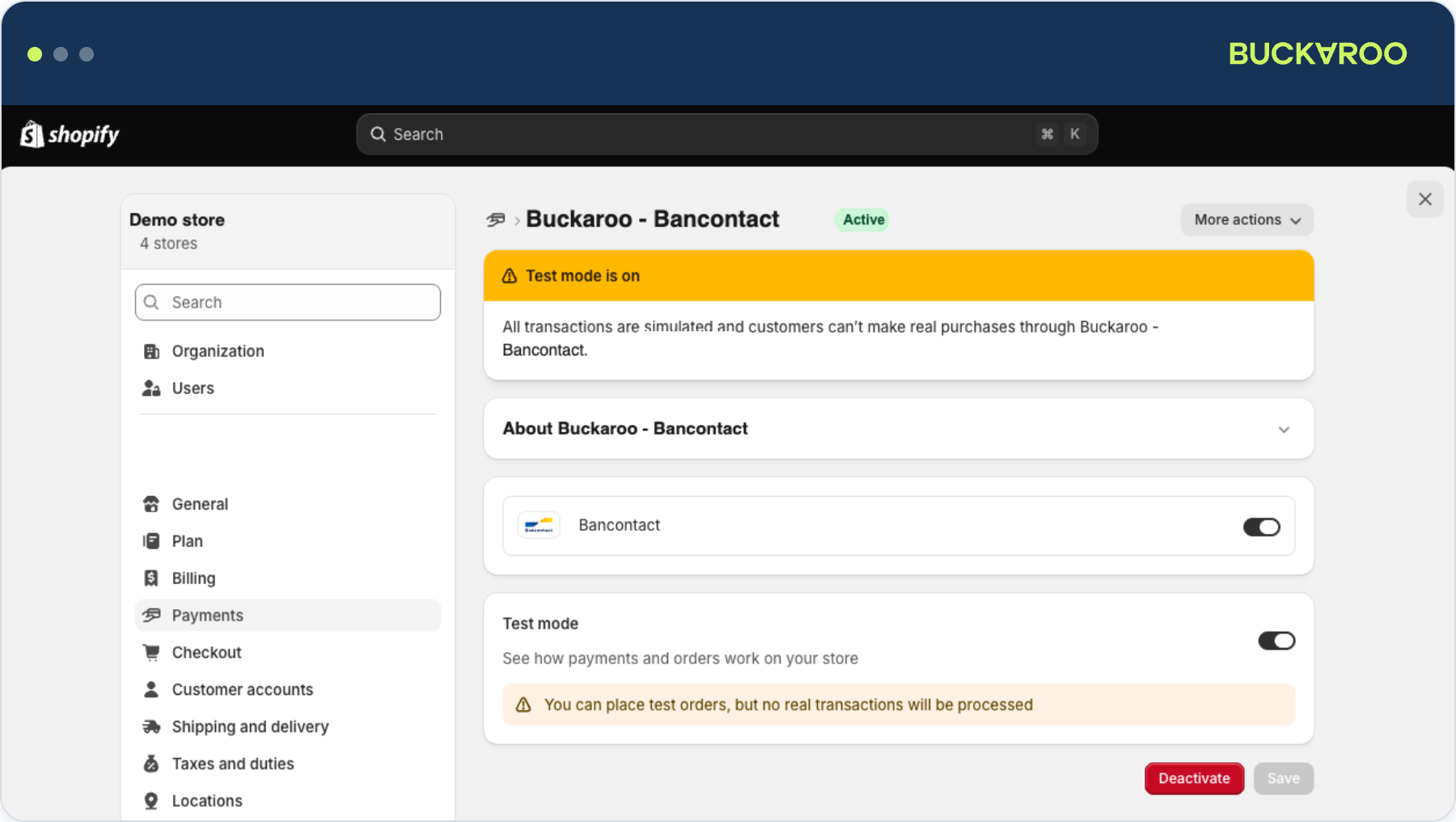
Place a test order
- Place an order in your Store and choose the payment method you are testing.
- Complete the payment at Buckaroo. Test card details and other test credentials are on the Test transactions page.
- Check that the order appears in Shopify with the payment recorded.
- Check that the transaction appears in Plaza with the description you configured.
Worth testing beyond a successful payment:
- A cancelled or failed payment, so you know how the order is left behind.
- A refund, both full and partial.
- Each payment method you intend to offer, since they behave differently.
Go-live checklist
Run through this before switching the store to live traffic.
Credentials and connection
- Your Store key and Secret key are the live credentials for the right Buckaroo Store
- If you have more than one Store in your Shopify account, the right one is selected in the Select Store dialog before you check anything else. The settings panel is shared between Stores, so it is easy to read or change the wrong one
Payment methods
-
Every method you want to offer has its own Buckaroo app installed. A missing app means a missing method at checkout
-
Test mode is switched off for every method, one app at a time
-
Every method you want to offer is toggled on and the app shows as Active
-
Every method also has an active Buckaroo subscription in your account. You can check this in the Buckaroo Plaza
-
Every method appears at checkout in a test order, in the order you expect
-
Penny tests done for every method you can pay with yourself, checking the order status updates correctly in Shopify, and refunded afterwards
After go-live
- Watch the first day of orders for anything stuck in a pending state
- Confirm settlement appears as expected in Plaza
- Optional: subscribe to Buckaroo status updates for incidents and maintenance
Check every installed appBecause test mode is per method, one app left in test mode will keep simulating payments after the rest have gone live. Customers choosing that method will not be charged.
Updated 29 days ago