

Terminals
On this page, you can perform the following actions:
- Adjust settings: For example, change the terminal name and disable printing a second receipt.
- Order new payment terminals: Both mobile and fixed devices.
- Install Tap to Pay: Turn a smartphone into a payment terminal by installing an app.
- Transaction processing: Let Buckaroo process transactions on a device from another supplier.
- Rent payment terminals: Rent devices for a specific period.
Change terminal settings
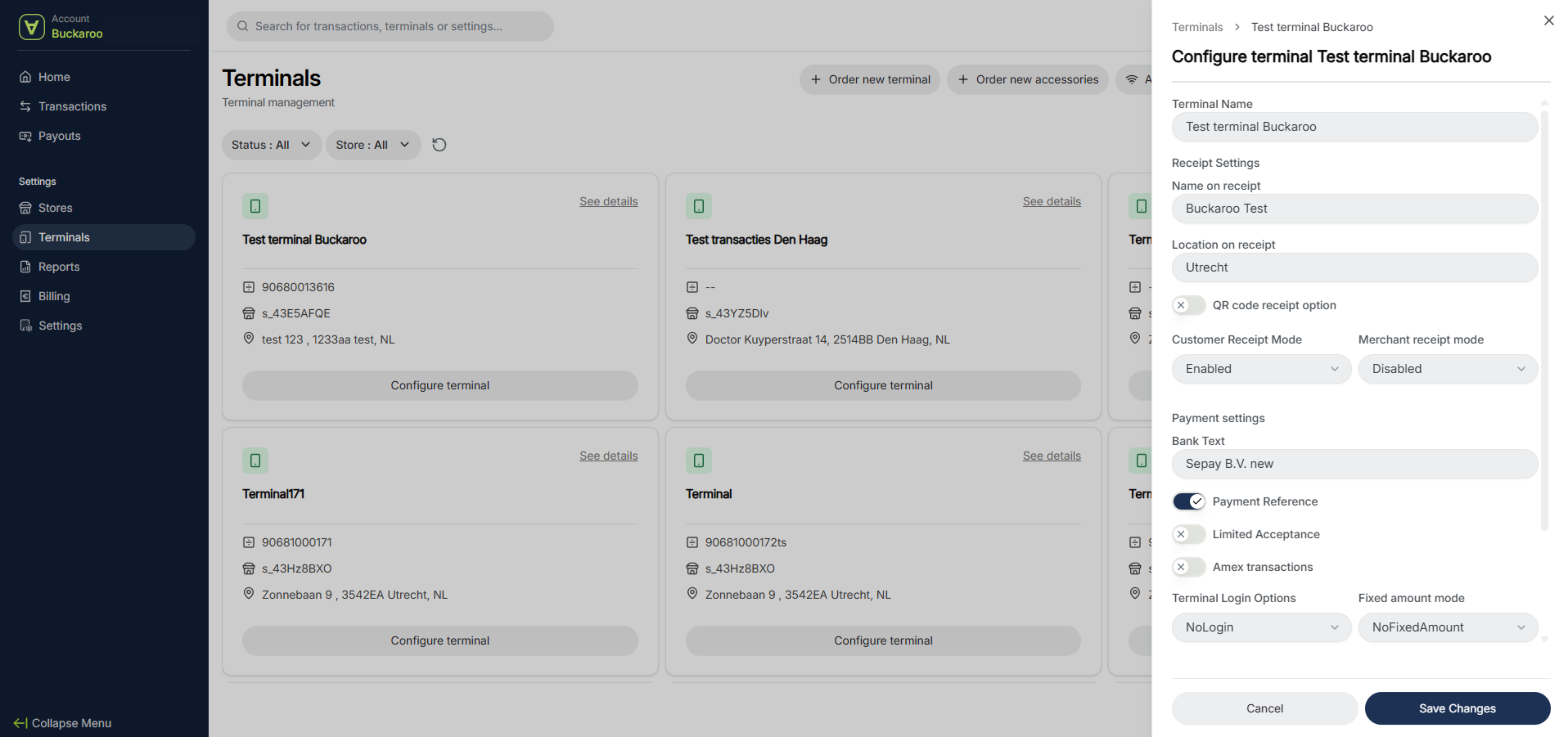
To update your terminal details, click “Configure terminal.” Here, you can change the name of your terminal, the name shown on the receipt, and the location displayed on the receipt. You can also disable the second receipt.
How to disable the second PIN receipt
By default, your payment terminal prints two receipts: one for you and one for the customer. You can adjust this so that only one receipt is printed. It’s not possible to disable receipts entirely, as they serve as proof that the transaction has been completed.
Add an access code and charge a fixed amount
Under Login options, you can add an access password. You’ll also find the option to set a fixed amount if you frequently process the same payment value.
WECR settings
Finally, this section includes options to connect your POS system to your payment terminal using the WECR feature. Please note that not all POS systems can be integrated with Buckaroo terminals.
Order a new terminal
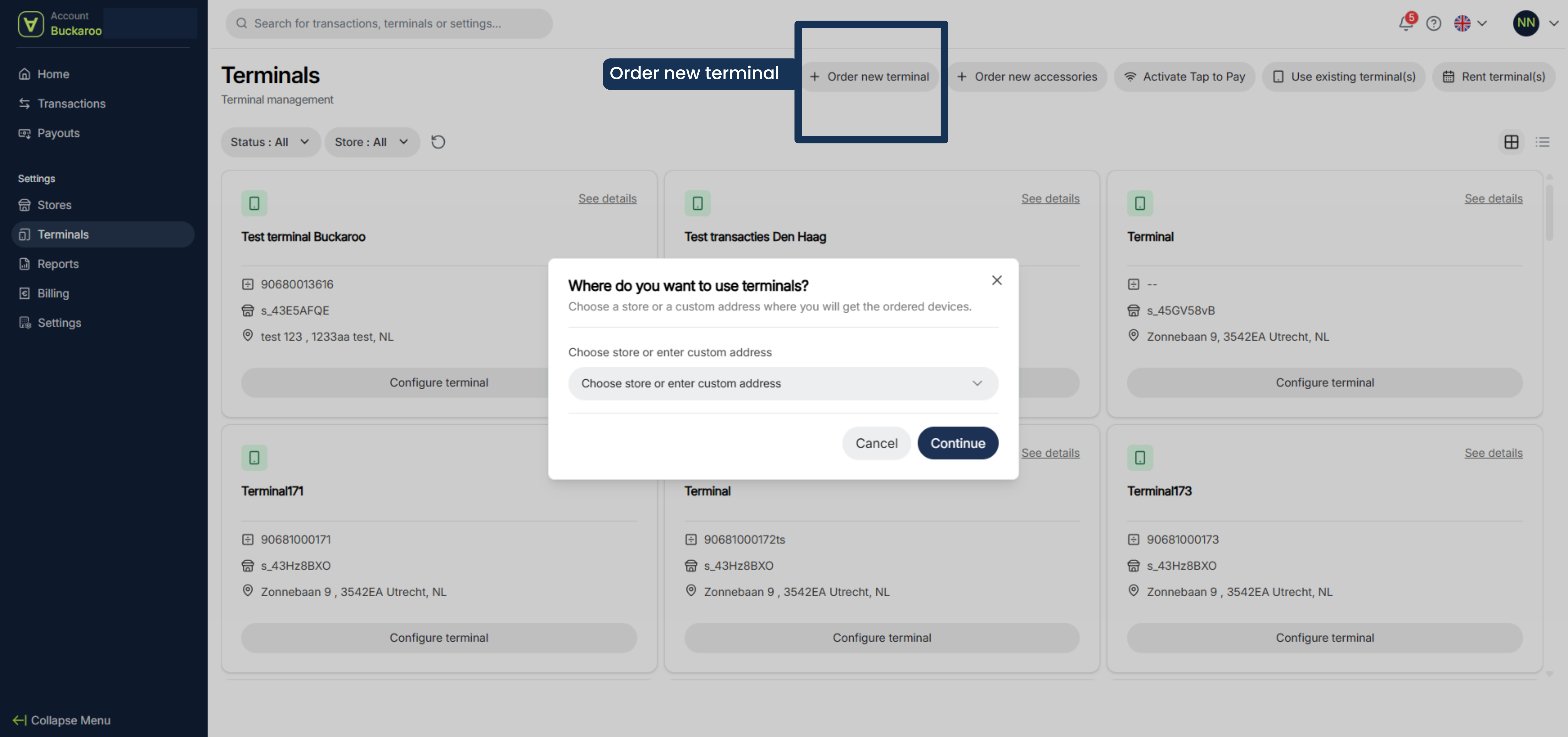
- Click on Order new terminal
- Enter the address where you want to use the terminal and click on continue
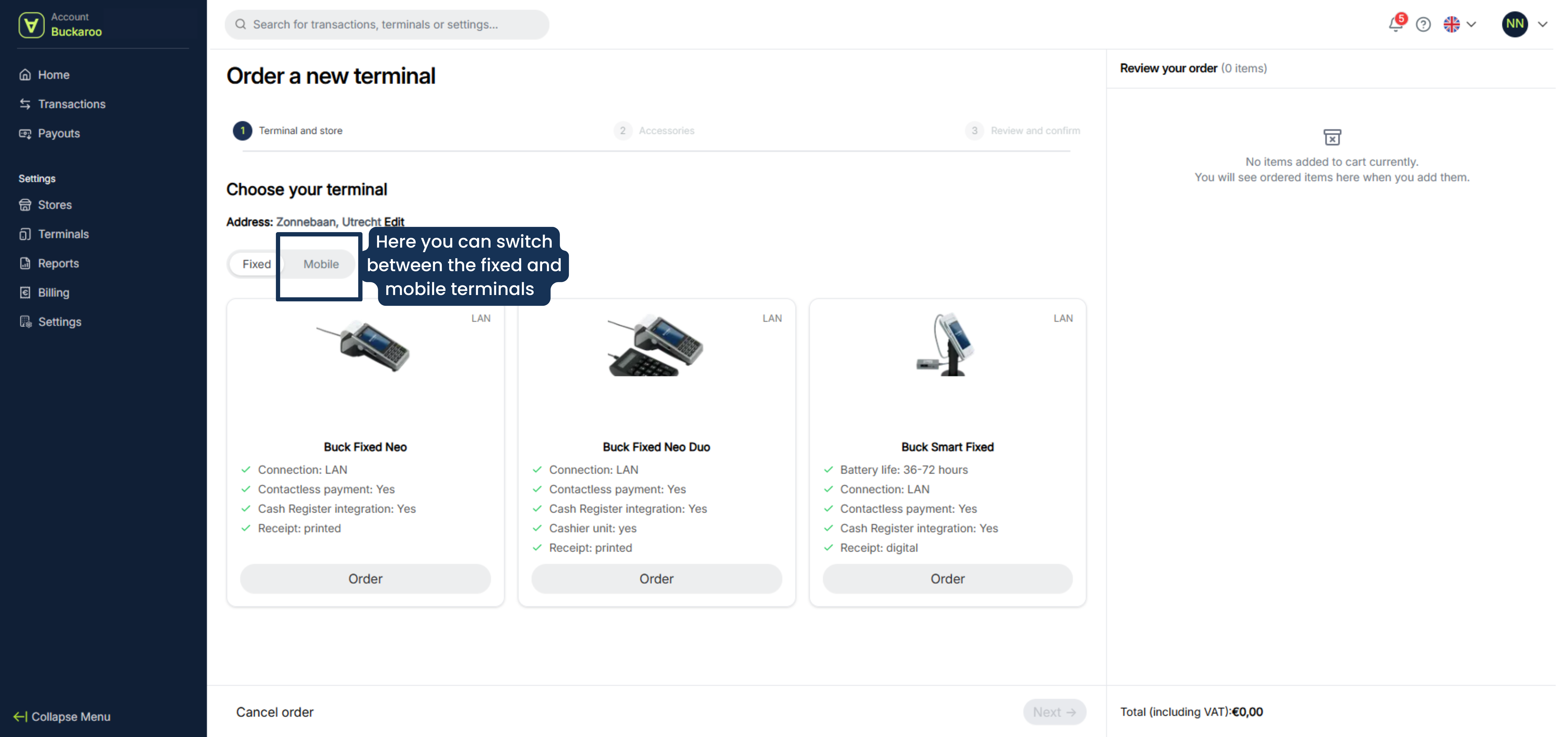
- Select the terminal(s) On the second tab you can find the mobile terminals
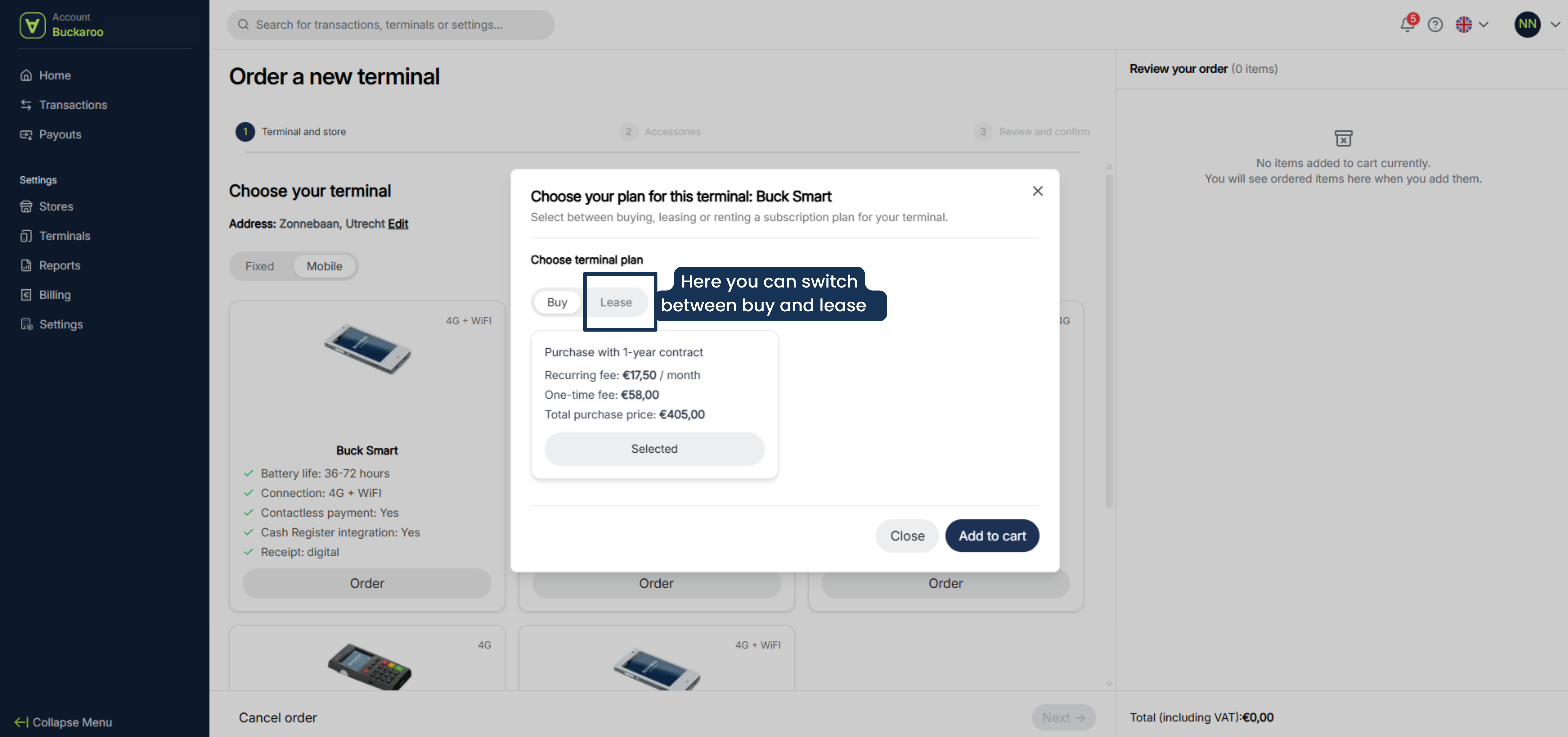
- Select buy or lease
- Select add to chart
- Click on next
- If you need accessories, you can add them here.
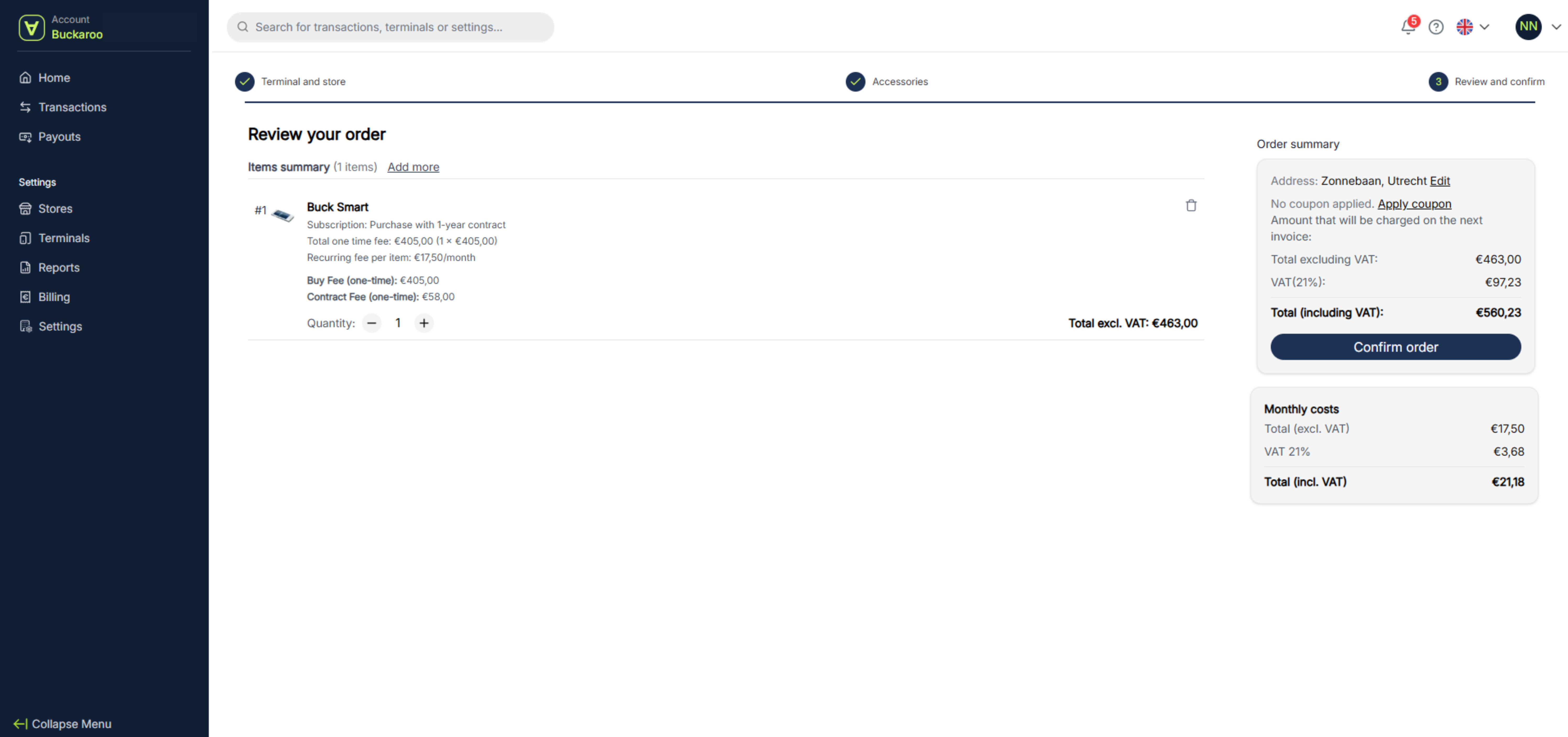
- Review your order. If you want to remove a product from your cart, click the trash icon next to the relevant product and remove the product. If you want to add more products, click “Add more.”
- If everything is correct click on confrim order
- You will receive an order confirmation in your inbox. If you haven’t received a confirmation, your order may not have gone through successfully. Please check your portal to see if there are any pending actions.
Activate Tap to Pay
With Tap to Pay, you can accept card payments on your smartphone via an app.
To request this, follow the steps below.
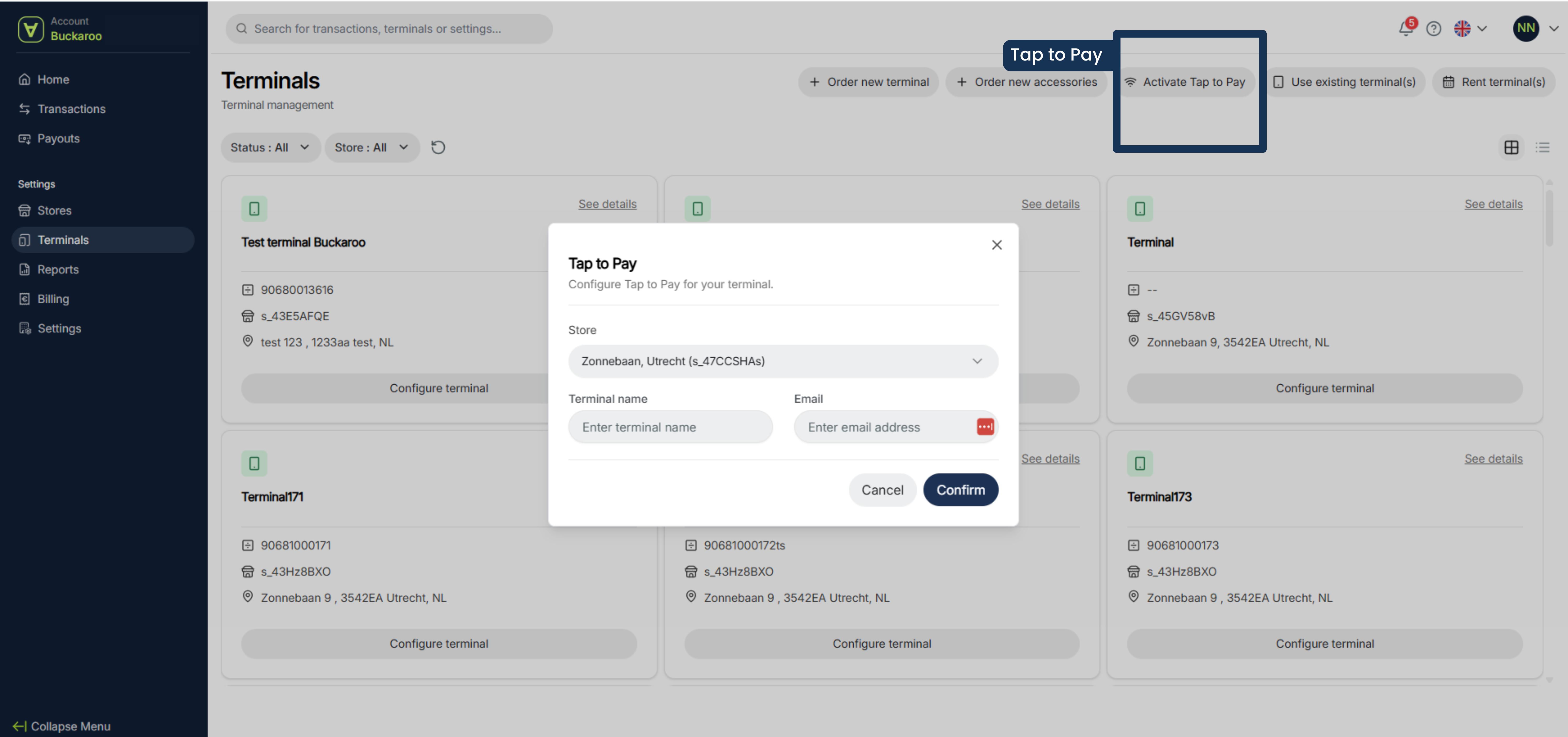
- Click on activate Tap to Pay
- Choose your store
- Enter a terminal name and an email address
- Click on confirm
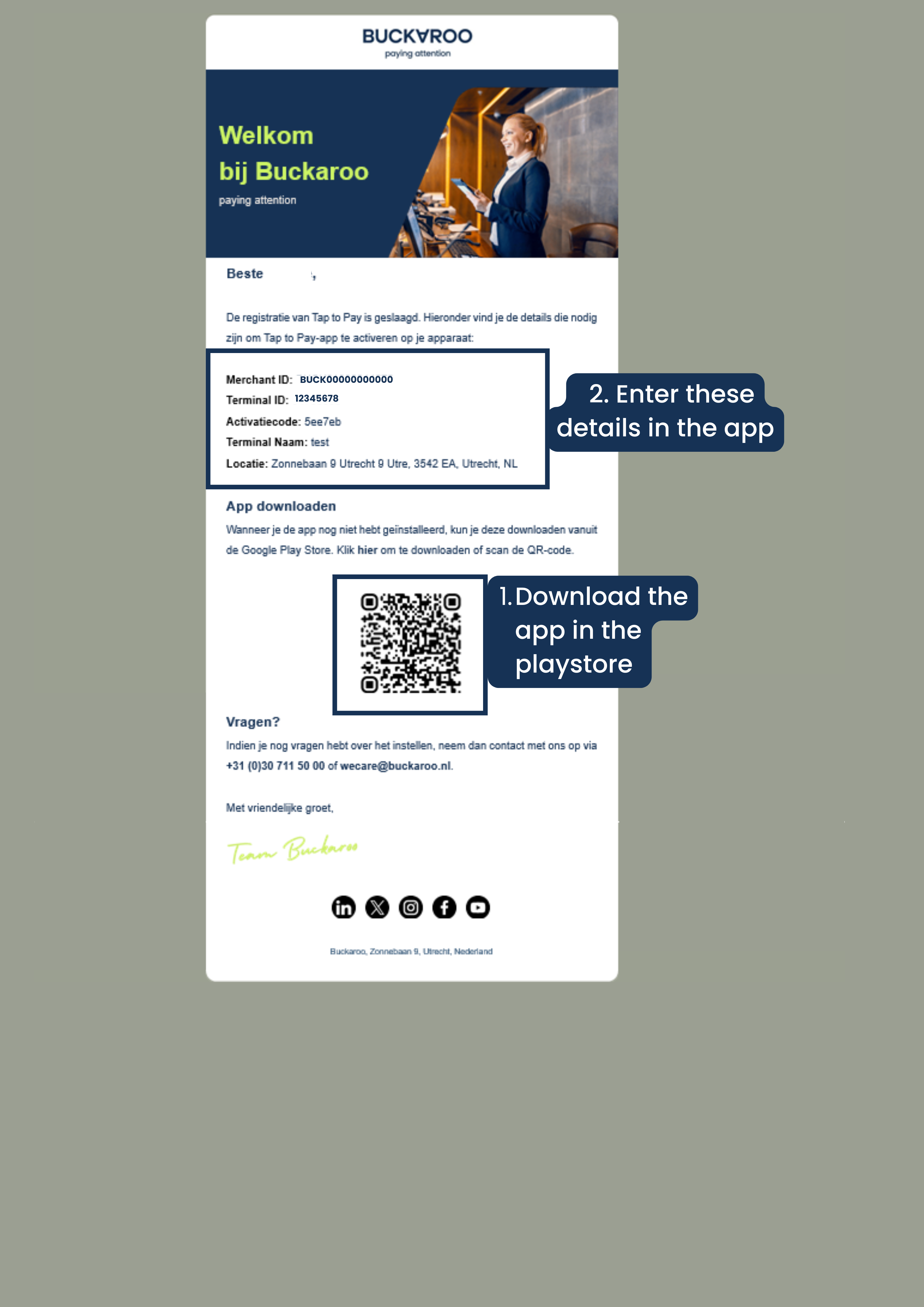
- You will receive an order confirmation. Further instructions will be sent to the email address you provided. You are asked to install the Buckaroo Tap to Pay app and then enter the details provided in the mail. After that, you can start accepting transactions right away.
Email with instructions to install Tap to Pay on your mobile device
Use existing terminal(s)
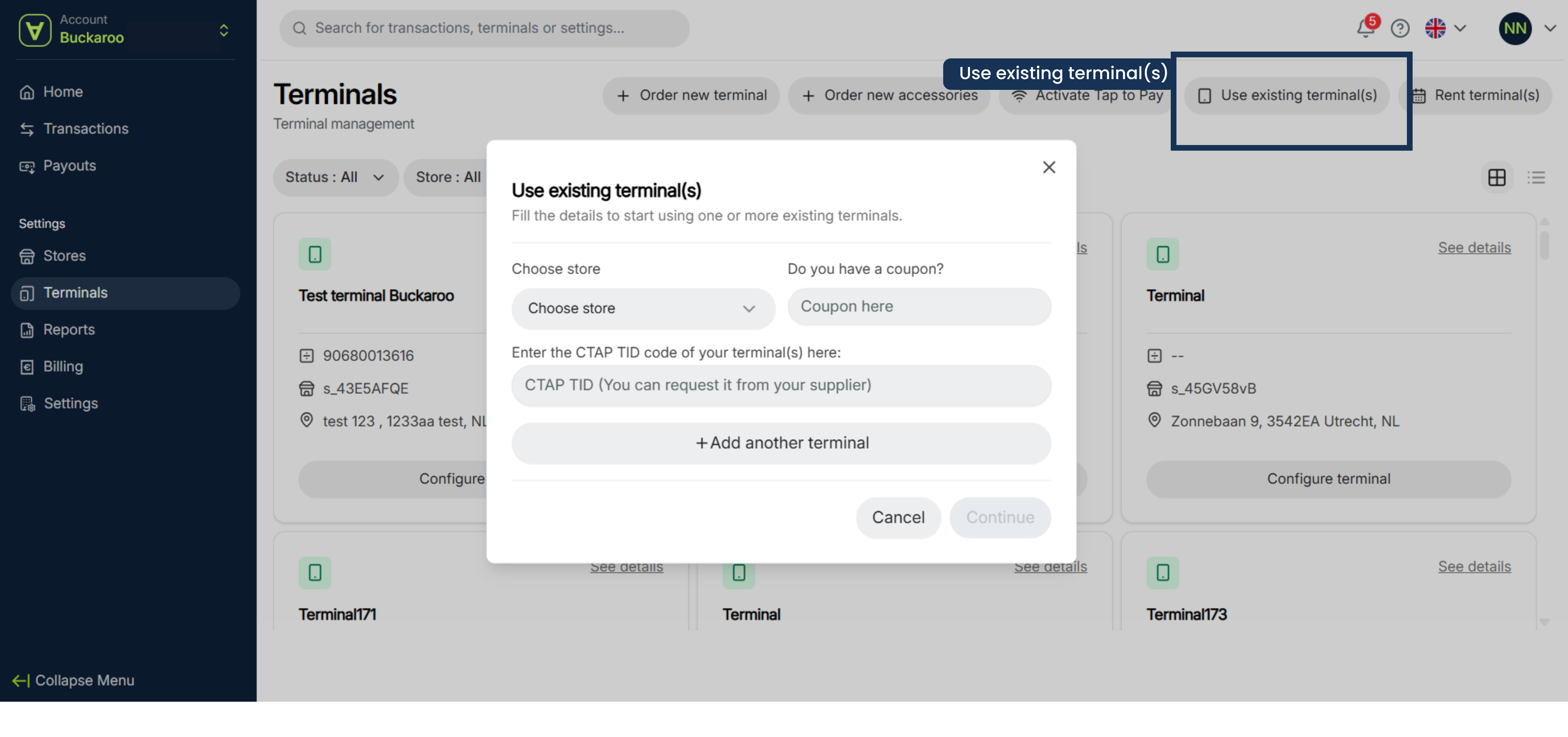
If you want to accept payments on a device from another provider than Buckaroo, you can configure this here. Note: this is not possible on SumUp and Zettle devices.
Set it up as follows:
- Click on Use existing terminal(s)
- Choose your store
- Enter your CTAP TID code TID = Terminal ID. You can request it from your supplier
- Click on continue
- Check the Terminal ID and finish your order by pressing on confirm
- You will receive a confirmation email.
- When the order is completed you will recieve an email with the contract information to be shared with your teminal provider.
Rent terminal(s)
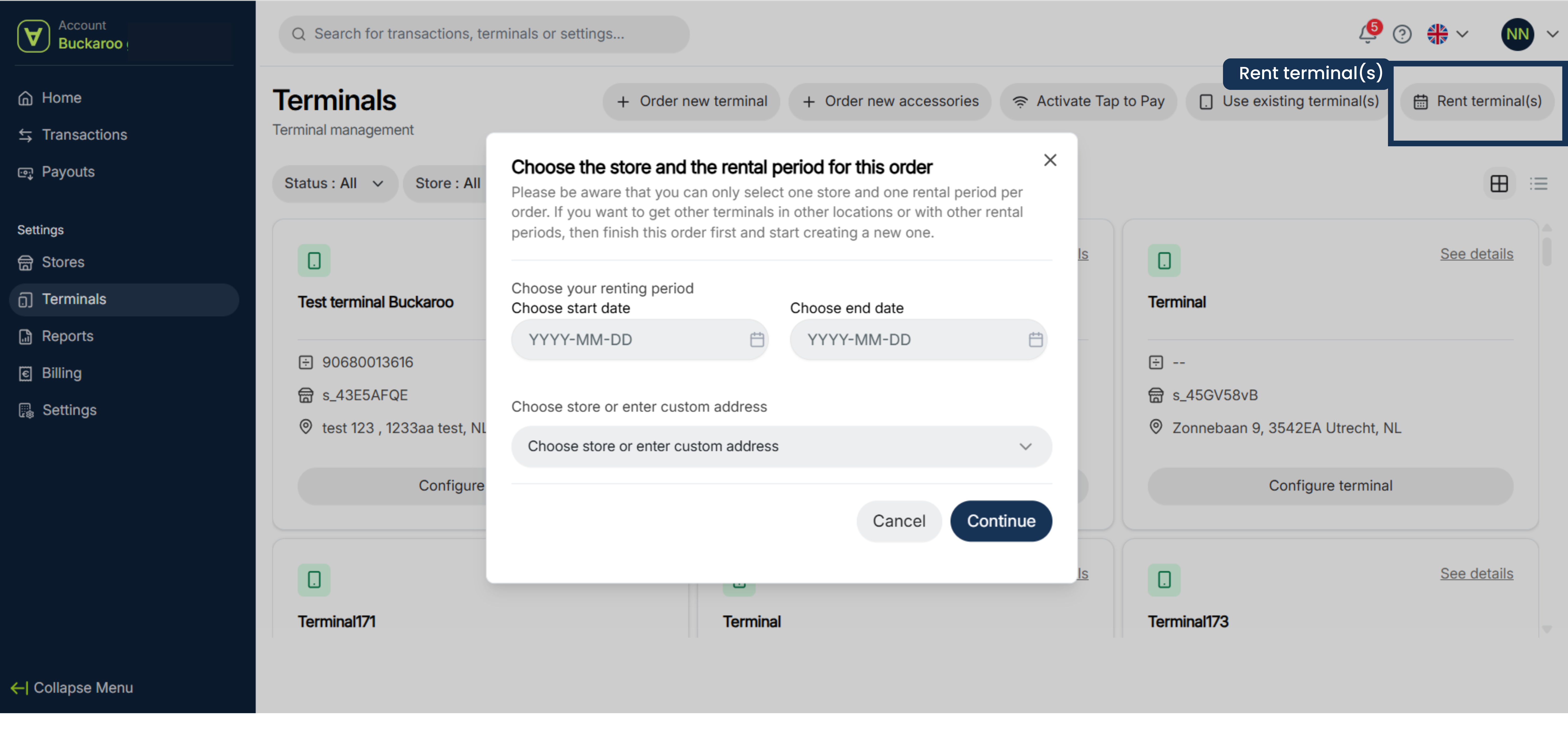
- Go to Rent Terminals and select the desired rental period by entering the start date and end date.
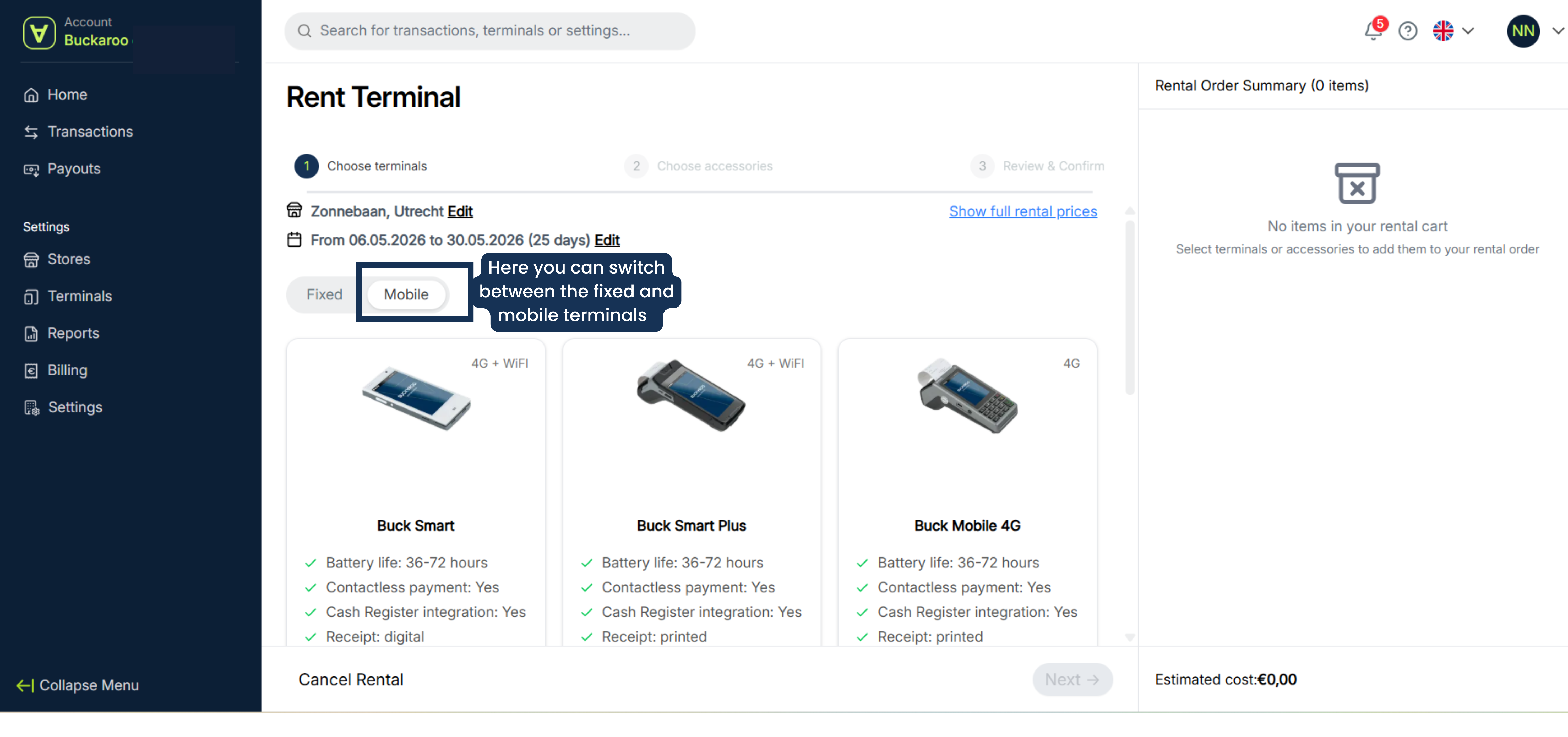
- Choose the location and the terminal you want to rent. On the second tab, you will find mobile terminals.
- You can also add accessories if needed.
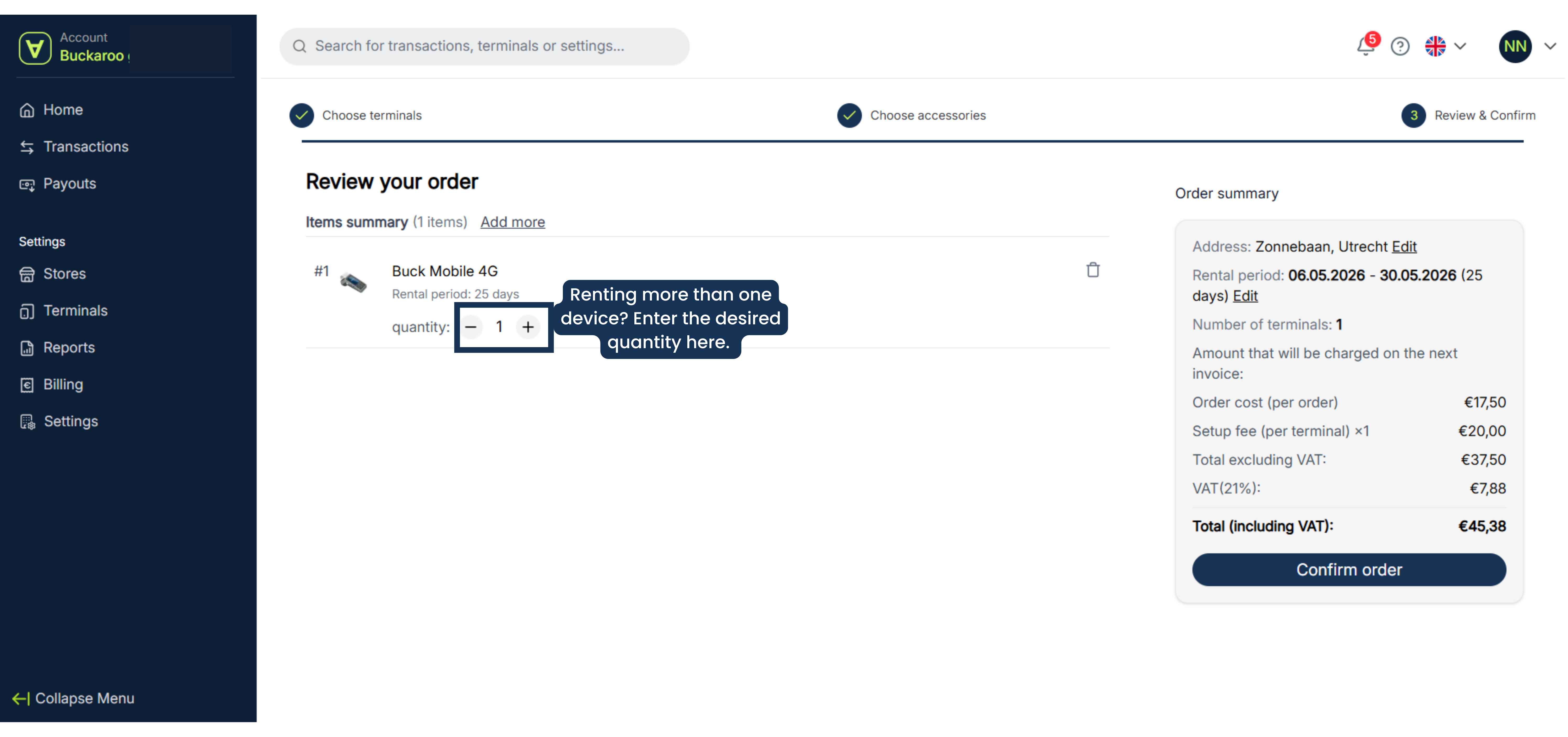
- Review your order. Want to rent more than one device? Then adjust the quantity.Is everything correct? Then confirm your order. You will receive an order confirmation by email if the order has been placed successfully.
Updated 5 months ago