

Payment Analyzer User Guide
Overview
The Payment Analyzer helps you reconcile unmatched transfers with the transactions or invoices they belong to. It guides you step by step through matching, refunding, or depositing any leftover amount.
Opening the Payment Analyzer
There are two ways to get there:
Through the menu Go to Execute, then Payment Analyzer (New).
Through the Plaza dashboard Click “Unmatched credit transfers” in the top right corner of the dashboard, if it is visible to you.
Step 1: Assigned Transfers
This is the main screen. It lists your unmatched transfers.
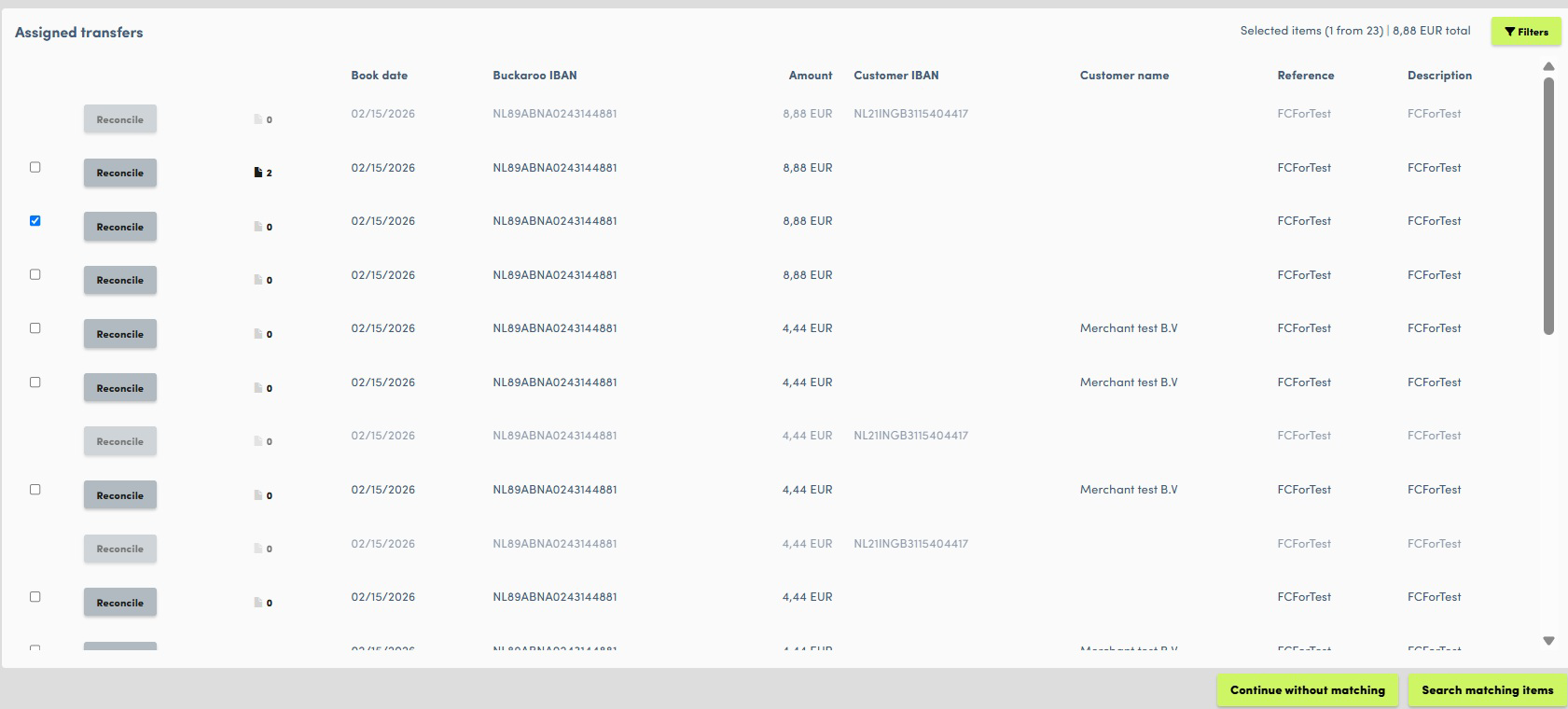
Assigned transfers screen
What you see
The list shows up to 750 items at a time. If there are more results than that, you will see a note asking you to narrow your search criteria.
Each row shows:
- Book date
- Buckaroo IBAN
- Amount
- Customer IBAN
- Customer name
- Reference
- Description
Filtering
You can narrow the list down using:
- From book date and to book date
- Currency (defaults to EUR)
- Amount
- A general search field, which looks across customer IBAN, customer name, description, and reference
Selecting items
You can select one or multiple items, as long as they all share the same IBAN. Once you select at least one item, a summary appears at the top of the page showing how many items you picked out of the total, and their combined amount, for example “Selected items (1 from 23), 8.88 EUR total.”
Available actions
Once you have at least one item selected, these options appear:
Continue without matching Skips the matching step entirely and takes you straight to the final screen to process a refund or deposit.
Search matching items Opens the transactions and invoices screen, where you look for the items to reconcile against.
Reconcile Available directly on each row. Clicking it opens the search-for-matching-items flow for that one specific transfer.
Notes The notes icon next to Reconcile lets you view and add notes for that specific transfer. Each note shows the username, date and time, and message, and you can add a new one at any time.
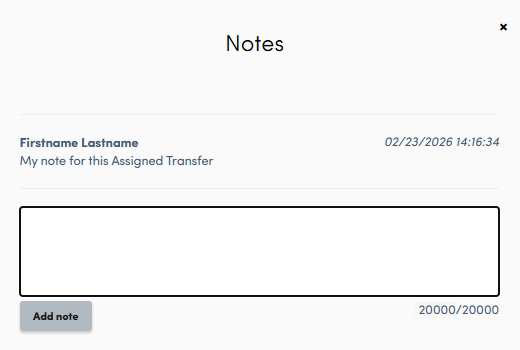
Notes popup
Step 2: Transactions/Invoices
After selecting one or more transfers and clicking “Search matching items,” you land here. This screen allows you to search for transactions or invoices that could match your selected transfer(s).
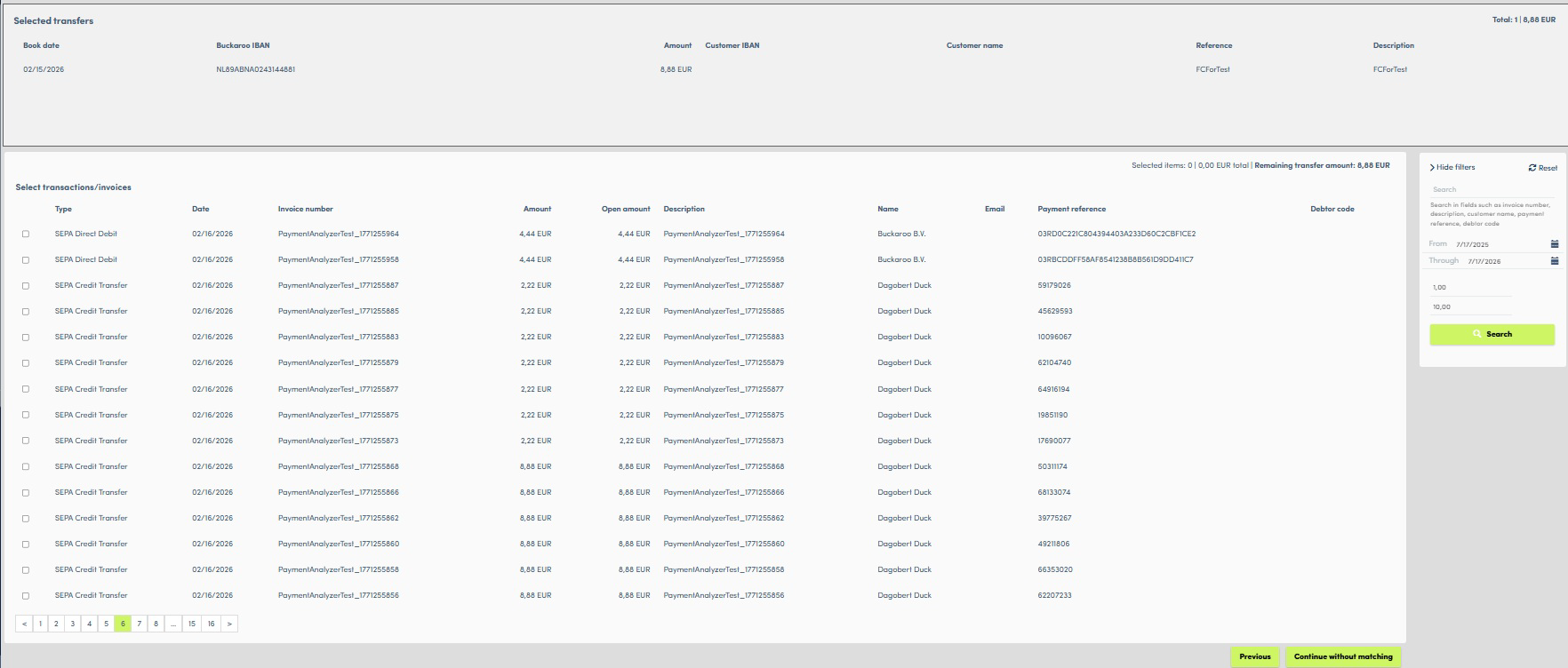
Transactions and invoices screen
What shows up here
Not every transaction or invoice in the system appears in this list. Only items meeting specific criteria are shown:
- Pending PayPerEmails and Transfers
- Reversed SEPA Direct Debits which have not yet had a transfer reconciled to them
- Credit Management invoices which have an open amount
Filtering
You can search and filter using:
- A search field (search in fields such as invoice number, description, customer name, payment reference, or debtor code)
- Date from (defaults to one year ago)
- Date through (defaults to today)
- From amount and to amount
Columns shown
Each result includes the following data, if available: type, date, invoice number, amount, open amount, description, name, email, payment reference, and debtor code.
Selecting items
You can select one or multiple transactions or invoices. As soon as you select at least one, the “To summary” button becomes available. The “Continue without matching” and “Previous” buttons are always available, regardless of what you have selected.
Once something is selected, a summary appears above the table showing:
- How many items are selected
- The total selected amount
- The remaining amount, calculated as your total transfer amount minus the open amount of what you have selected so far
This updates instantly as you select or deselect items.
Selection limit
Once your selected items’ open amounts add up to the full transfer amount (or more), you cannot select anything further. You can always deselect items to free up room, or swap in different items if you still have remaining amount available.
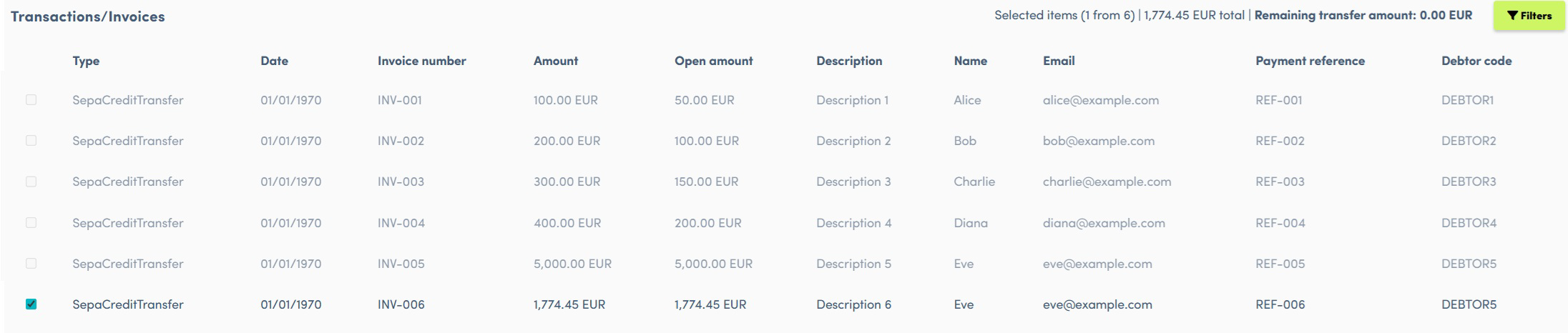
Selection limit reached remaining transfer amount shows 0.00 EUR
Step 3: Finalize
What this screen looks like depends on how the totals compare between your selected transfers and your selected transactions or invoices.
When the amounts match exactly
If your transfer total exactly matches the open amount of what you selected, you get a clean summary screen to review everything before finishing. Clicking Finalize reconciliation completes the reconciliation and sends you back to the Assigned Transfers screen.
When the transfer amount is larger
If you have money left over after matching, you are asked to choose what to do with the remainder. You will see a warning at the bottom of the screen, along with the options “Refund the payment to the customer” and “Deposit to myself.”
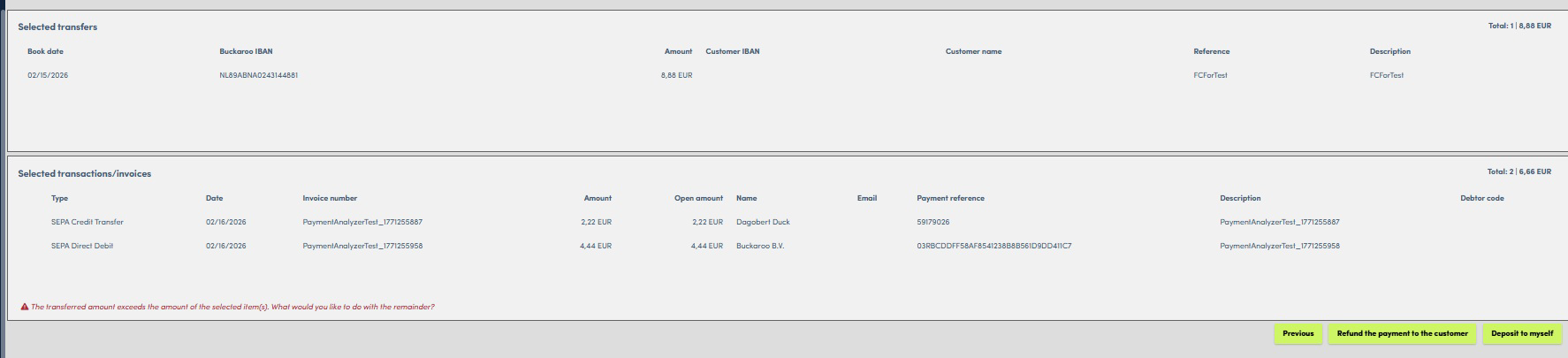
Transfer amount exceeds selected items choose how to handle the remainder
Whichever you choose opens a popup asking for some additional details:
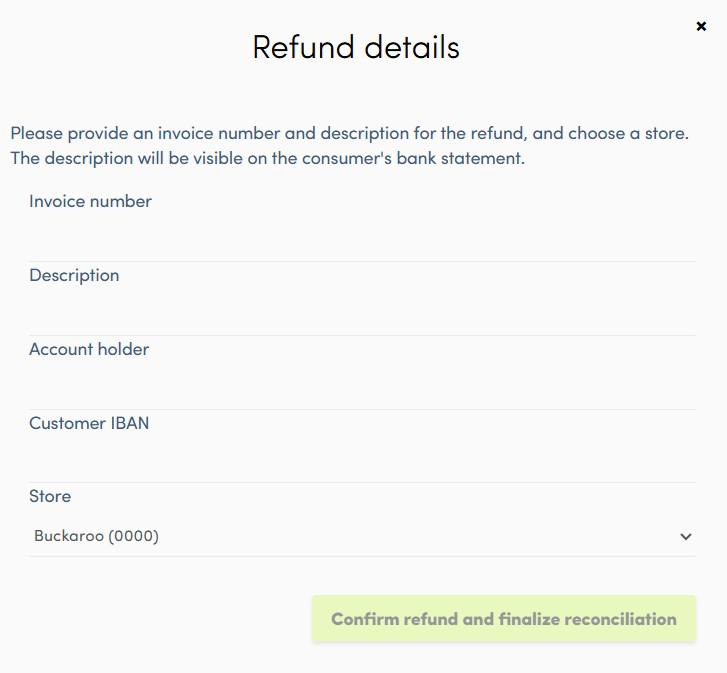
Refund details popup
- Invoice number
- Description
- Account holder (only required if this is missing from the transfer)
- Customer IBAN (only required if this is missing from the transfer)
- Store (pre-filled with your store, but you can choose a different one from the dropdown)
Once everything is filled in, click “Confirm refund and finalize reconciliation” or “Confirm deposit and finalize reconciliation.” This matches your selected items, handles the leftover amount as chosen, and completes the reconciliation.
When the selected items amount is larger
If what you selected adds up to more than your transfer amount, you will see a warning asking you to select which record should be partially matched. You must mark exactly one item as “partially paid” before you can proceed.
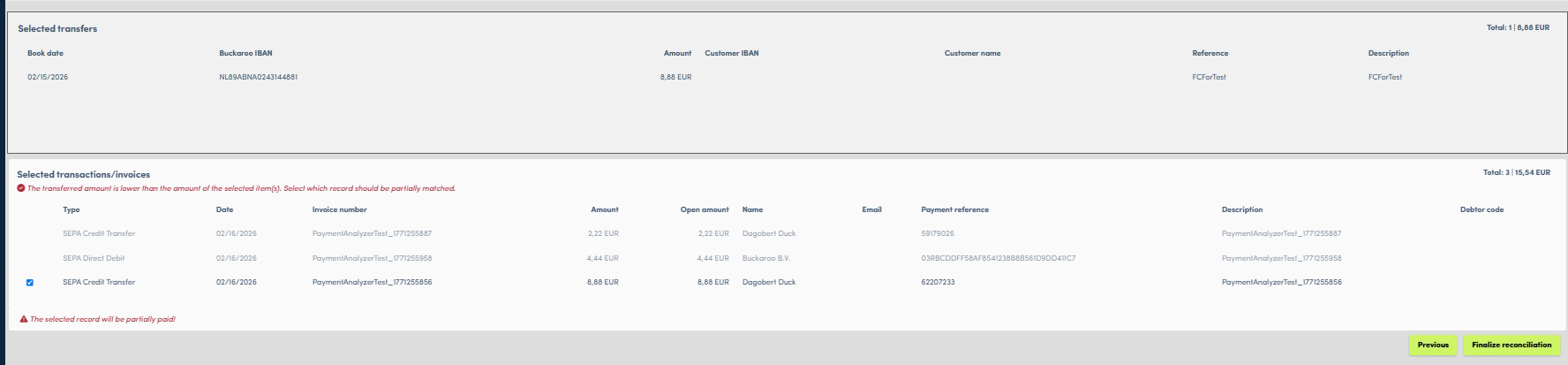
Selected items exceed transfer amount mark one item for partial payment
If you selected only one item A C001 Transfer transaction is created for the amount of the incoming transfer and that gets matched against the selected item directly.
If you selected multiple items You must mark exactly one of them as “partially paid.” You cannot move forward until you do this, since the system needs to know which item should only receive part of the payment. The rest of the selected items are matched in full, while the marked item receives the partial amount.
What happens after finalize
- For PayPerEmails, Credit Management invoices and reversed SEPA Direct Debits, a new C001 Transfer transaction is created. This can either have the full amount or a partial amount, depending on how much of the incoming money was allocated to it.
- For existing C001 Transfer transactions, it will either go to success if the full amount of money was allocated to it, or it will create a new C001 Transfer if it was partially matched.
- For refunds and deposits, a new C001 Transfer transaction is created for the amount that is refunded or deposited. In case of a refund, a C101 refund transaction is created as well.
Quick reference
| Situation | What to do |
|---|---|
| You already know there is nothing to match | Use Continue without matching |
| You want to reconcile one specific transfer | Click Reconcile on that row |
| You want to leave a comment on a transfer | Use the notes icon next to Reconcile |
| Leftover amount after matching | Choose Refund or Deposit on the Finalize reconciliation screen |
| Selected items add up to more than the transfer, one item only | A C001 Transfer transaction is created automatically for that item |
| Selected items add up to more than the transfer, multiple items | Mark exactly one as partially paid before continuing |
Things to keep in mind
- All transfers you select together must share the same IBAN.
- The Payment Analyzer only shows you a set of transactions and invoices based on the rules under ‘What shows up here’, so an item you expect to see may not qualify.
- The results list caps at 750 items. If you cannot find what you are looking for, narrow your date range, amount, or search term.
- Account holder and IBAN are only asked for if they are missing from the transfer itself.
Getting help
If you cannot find an item you expect to see, double check it against the rules under ‘What shows up here’ for transactions and invoices. If something still does not look right, reach out to your Buckaroo contact for support.
Updated 3 months ago