

Connect your account
The Buckaroo apps for Shopify are configured in the Buckaroo settings panel, which is shared by every Buckaroo payment app installed on the same Store.
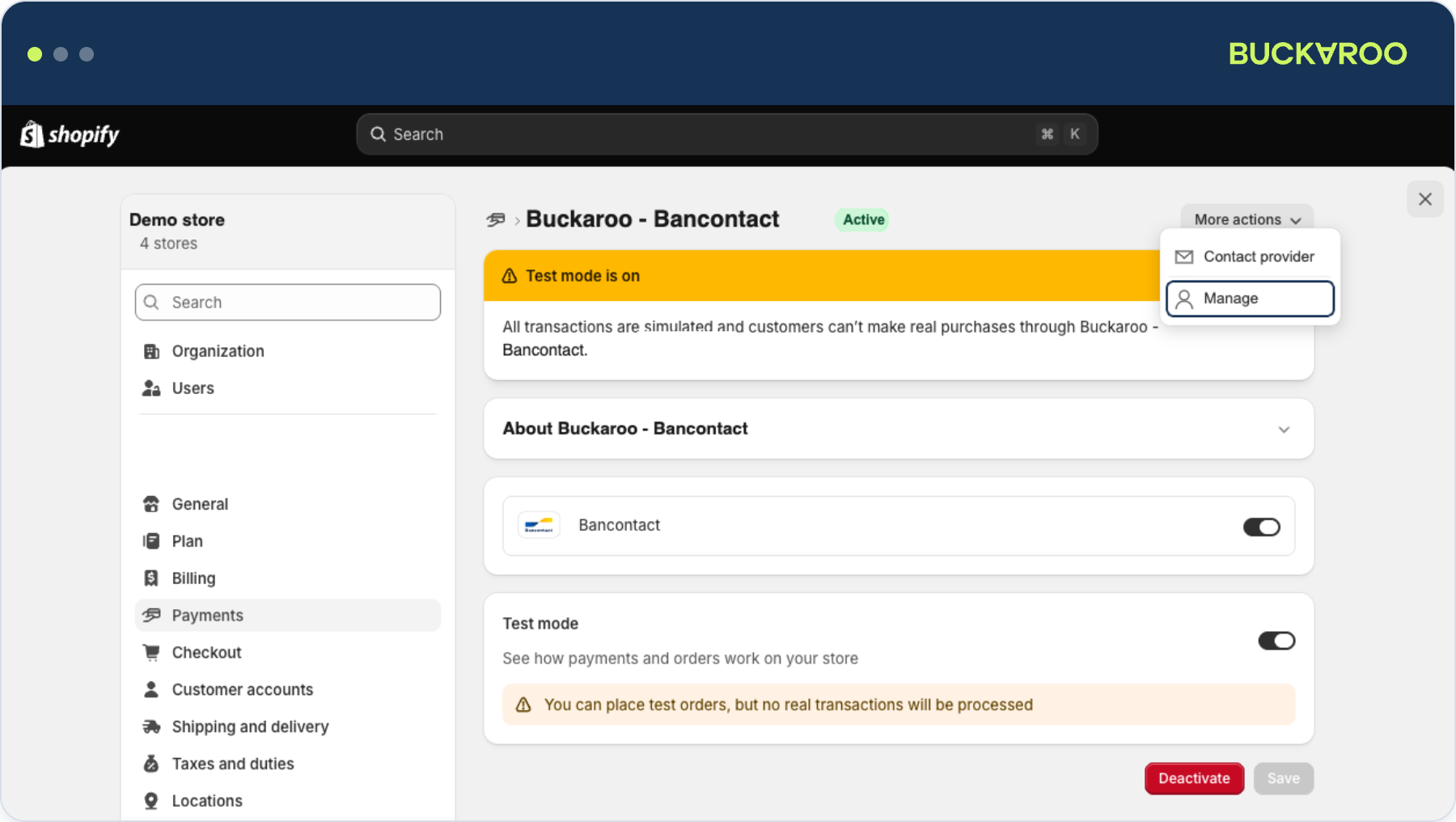
Open the settings panel
- In your Shopify admin, go to Settings → Payments.
- Select any installed Buckaroo app.
- Select More actions → Manage.
The Buckaroo settings panel opens. It does not matter which app you start from: all installed Buckaroo apps lead to the same panel and the same settings.
Select the Store
The Buckaroo payment apps are installed per Shopify Store. Install the apps you need on every Store that should accept payments through Buckaroo, and give each Store its own configuration.
The panel configures one Shopify Store at a time.
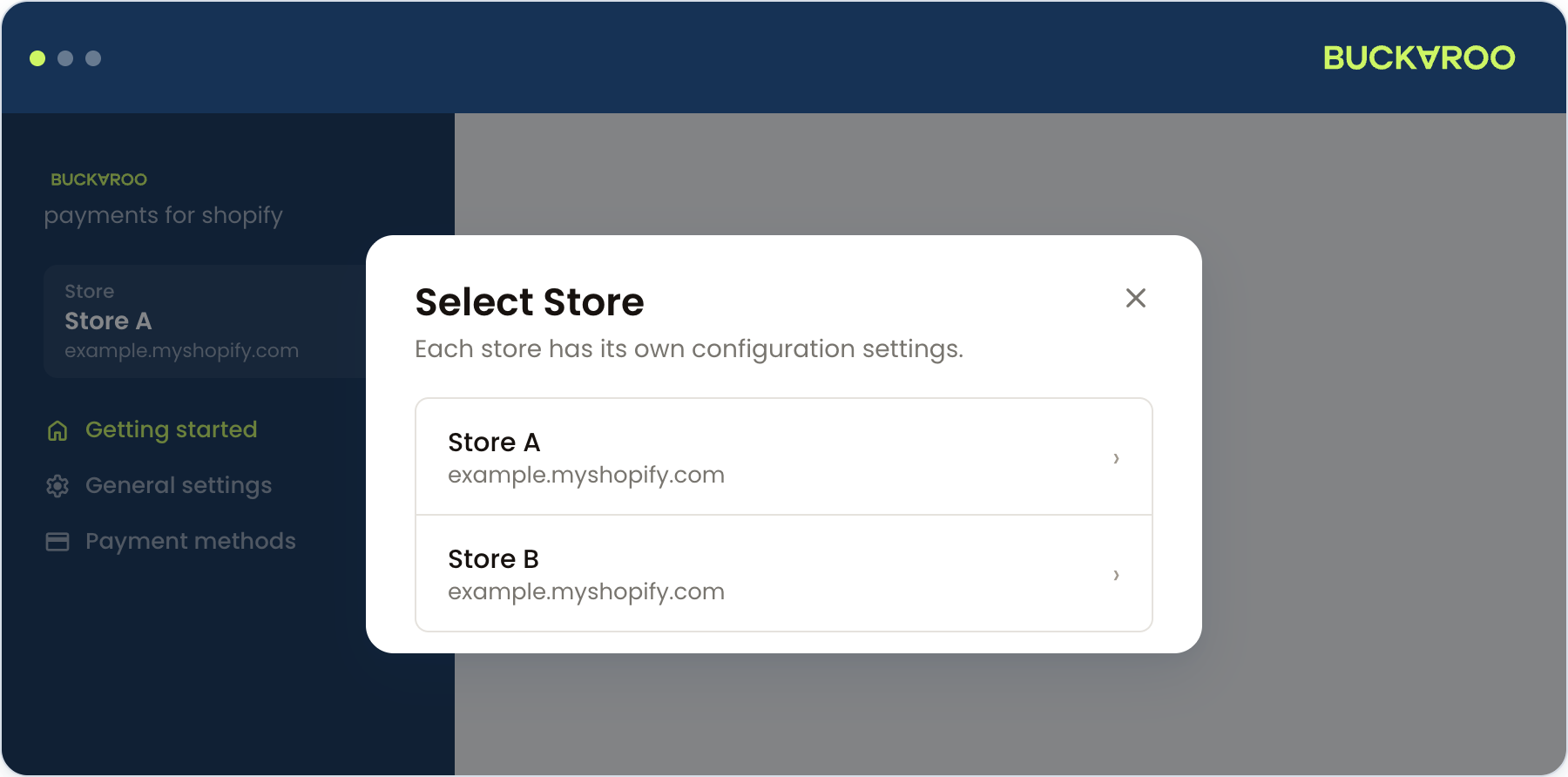
The Store you are working on is shown at the top of the left menu.
When a Store in the same Shopify account has at least one Buckaroo payment app installed, it appears in the Select Store dialog and you can manage all of those Stores from the same panel. To switch: select the Store name, then choose another Store in the dialog. Stores without a Buckaroo payment app are not listed, so install the apps on the other Store first if you do not see it.
Using a separate Shopify account per StoreStores managed under a different Shopify admin account never appear in the Select Store dialog, even when they also use Buckaroo. Configure each of those Stores from its own Shopify admin, after installing the Buckaroo payment apps there.
Use separate credentials for each StoreEvery Store has its own configuration, including its own store key and secret key.
Enter the credentials belonging to that Store so its transactions appear under the right Buckaroo account in Plaza.If you reuse one store key across several Shopify Stores, all of their transactions are grouped under a single Buckaroo Store, which makes them impossible to separate afterwards.
Enter your credentials
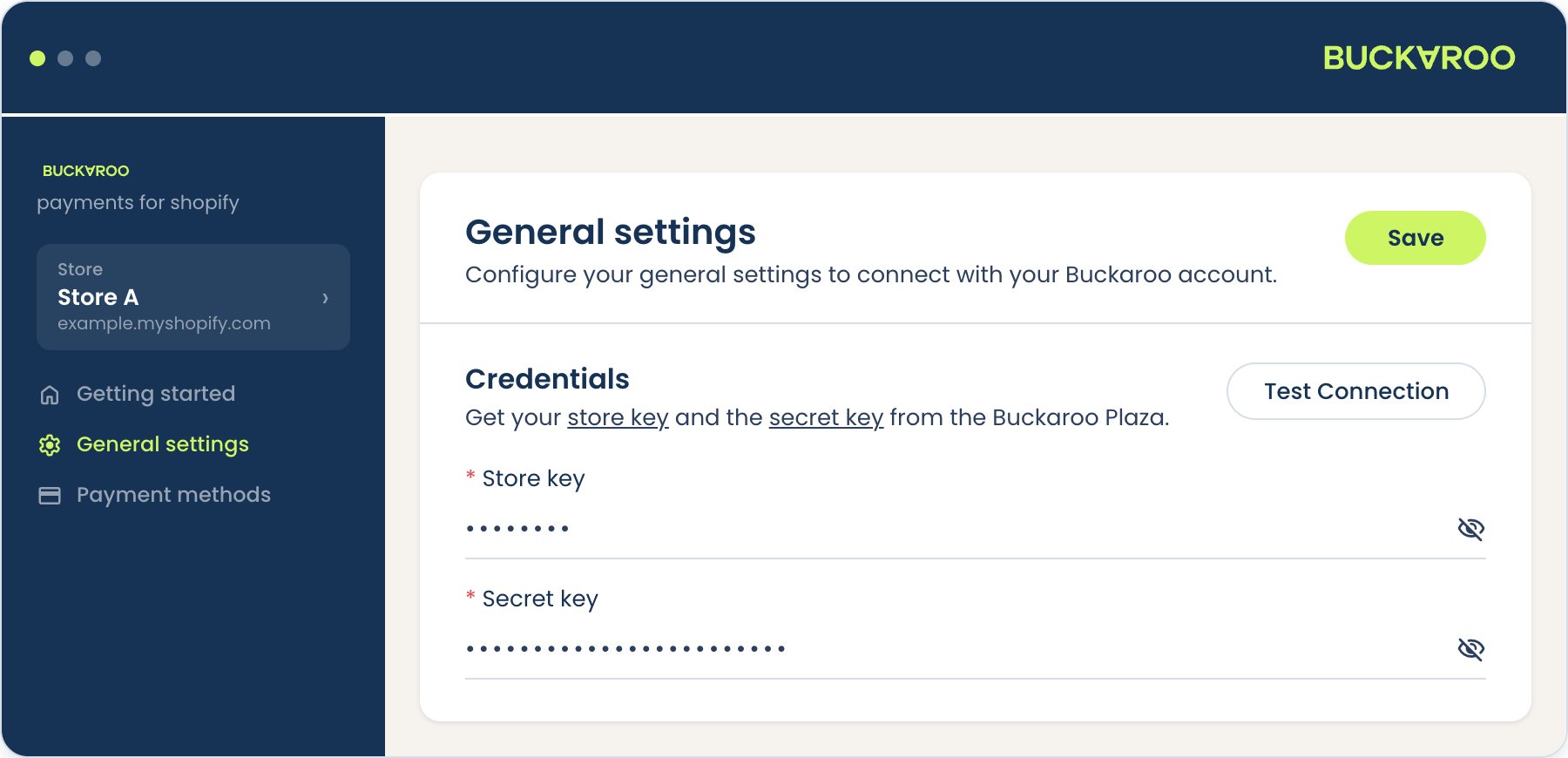
- In the left menu, select General settings.
- Fill in Store key and Secret key. Both are required.
- Select Test Connection.
- Select Save.
Your keys are in Plaza under Settings → API Keys:
- The store key is unique per Buckaroo Store, which is how transactions are attributed to the right Store.
- The secret key belongs to your whole Buckaroo account.
Store key was previously called website keyOlder documentation and integrations may refer to the store key as the website key.
They are the same value.
Test the connection
Test Connection checks your credentials against Buckaroo without sending a transaction. If it fails, the most common causes are a key copied with leading or trailing spaces, or credentials belonging to a different Buckaroo Store.
Updated about 1 month ago