

Order management
Once a payment method is live, most of your day to day work happens in your Ecwid Control Panel. This page covers what the app does on its own and what you still need to do yourself.
When a customer pays
The customer completes the payment at Buckaroo and returns to your store. Buckaroo then confirms the result to the app, and the app updates the order in Ecwid. Because the confirmation arrives separately from the customer's return, the order is still updated correctly if the customer closes their browser on the way back.
You do not need to configure a push URL for this app. Buckaroo hosts the app, so it receives payment confirmations directly. This differs from our self-hosted plugins, where you set the push URL yourself.
Refunds
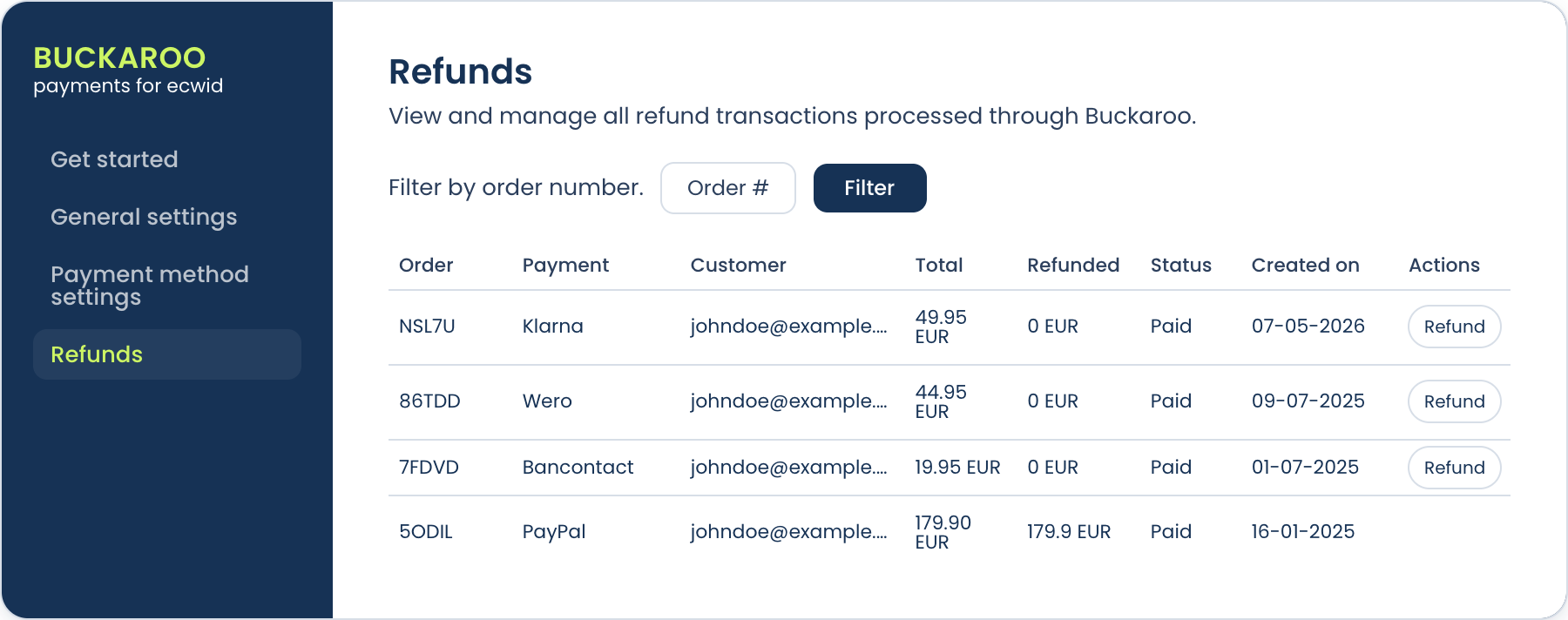
Refunds are started in the Buckaroo app rather than in your Ecwid Control Panel, and they work by order number.
- Open the app and go to Refunds.
- Search for the order number you want to refund.
- Enter the amount to refund against that order's original transaction.
- Confirm the refund.
Because you enter an amount rather than refunding a fixed total, you can refund part of an order as easily as all of it.
A refund made here does not create a credit note in Ecwid, so your Ecwid administration will not reflect it on its own. Record the refund in Ecwid yourself to keep your books straight.
You can also refund from the transaction overview in Buckaroo Plaza. Whichever route you use, refund in one place only, since refunding an order twice pays the customer twice.
Not every payment method can be refunded, and some have their own rules about partial refunds and time limits. Check the method's own page under Payment methods if a refund behaves unexpectedly.
Finding a transaction
Every payment appears in the transaction overview in Plaza, where you can see its status, the method used and any refunds against it. Search on the order number to match a Buckaroo transaction to an Ecwid order. See Transactions.
Updated about 1 month ago