

Order management
Once a payment method is live, most of your day to day work happens in the Lightspeed back office. This page covers what the app does on its own and what you still need to do yourself.
When a customer pays
The customer completes the payment at Buckaroo and returns to your store. Buckaroo then confirms the result to the app, and the app updates the order in Lightspeed. Because the confirmation arrives separately from the customer's return, the order is still updated correctly if the customer closes their browser on the way back.
You do not need to configure a push URL for this app. Buckaroo hosts the app, so it receives payment confirmations directly. This differs from some of our self-hosted plugins, where you set the push URL yourself.
Order statuses
The app uses Lightspeed's own order statuses and adds none of its own, so nothing unfamiliar turns up in your back office. Lightspeed documents the full list in Order statuses.
What a payment does to the status:
| What happened | Where the order ends up |
|---|---|
| Order placed, payment not finished yet | Awaiting payment |
| Payment failed, or the customer abandoned it partway through | Still Awaiting payment |
| Payment collected outright | The app marks the order paid, and Lightspeed moves it on to its own next status, depending on whether the order ships or is collected |
| Amount reserved on a method that reserves first | Ready for shipment |
| You mark a reserved order as shipped | The app collects the reserved amount and the order becomes Completed |
| Order expired under Cancel Expired Period | Cancelled |
A failed payment does not get a status of its own. It stays at Awaiting payment, which looks exactly like a payment the customer never started. If you need to know which of the two happened, check the transaction in Plaza rather than the order in Lightspeed.
Awaiting capture is the one status you will not see. It belongs to Lightspeed Payments and is only offered in the United States, so it plays no part in a Buckaroo order.
Methods that reserve the amount first
Riverty, Klarna KP and Klarna MoR reserve the money rather than collecting it there and then, so it reaches you in two steps:
- The customer pays and the reservation succeeds. The app sets the order to Ready for shipment.
- You mark the order as shipped in Lightspeed. That is what tells the app to collect the reserved amount, and the order moves to Completed.
On these methods, marking the order as shipped is what actually collects the money. Until you do, you are holding a reservation rather than a payment, and a reservation does not last indefinitely. How long it lasts differs per payment method, so do not leave reserved orders sitting unshipped.
Every other method the app offers collects the money outright, so nothing below applies to them.
Check that the money was collected
A collection can fail, and nothing in Lightspeed will tell you when it does. There is no note on the order and no change you would notice, so an order can read as shipped and finished while the money never arrived.
That makes checking it your job. After you ship a Riverty or Klarna order, open the transaction in Buckaroo Plaza and confirm the amount was collected. Build it into your shipping routine rather than treating it as an occasional audit, because the longer a failed collection goes unnoticed, the less likely you are to recover it.
Refunds
How a refund starts depends on the Refunds setting in the app, which is disabled until you turn it on.
With refunds disabled, which is where you start, a credit note in Lightspeed does nothing at Buckaroo. Refund from the transaction in Buckaroo Plaza instead, and create a matching credit note in Lightspeed yourself so your administration reflects it.
With refunds enabled, create a credit note in your Lightspeed back office and the app sends the refund to Buckaroo for you. Partial refunds work the same way, so you can credit part of an order without touching Plaza. Most merchants work this way, since it keeps refunds and the administration behind them in one system.
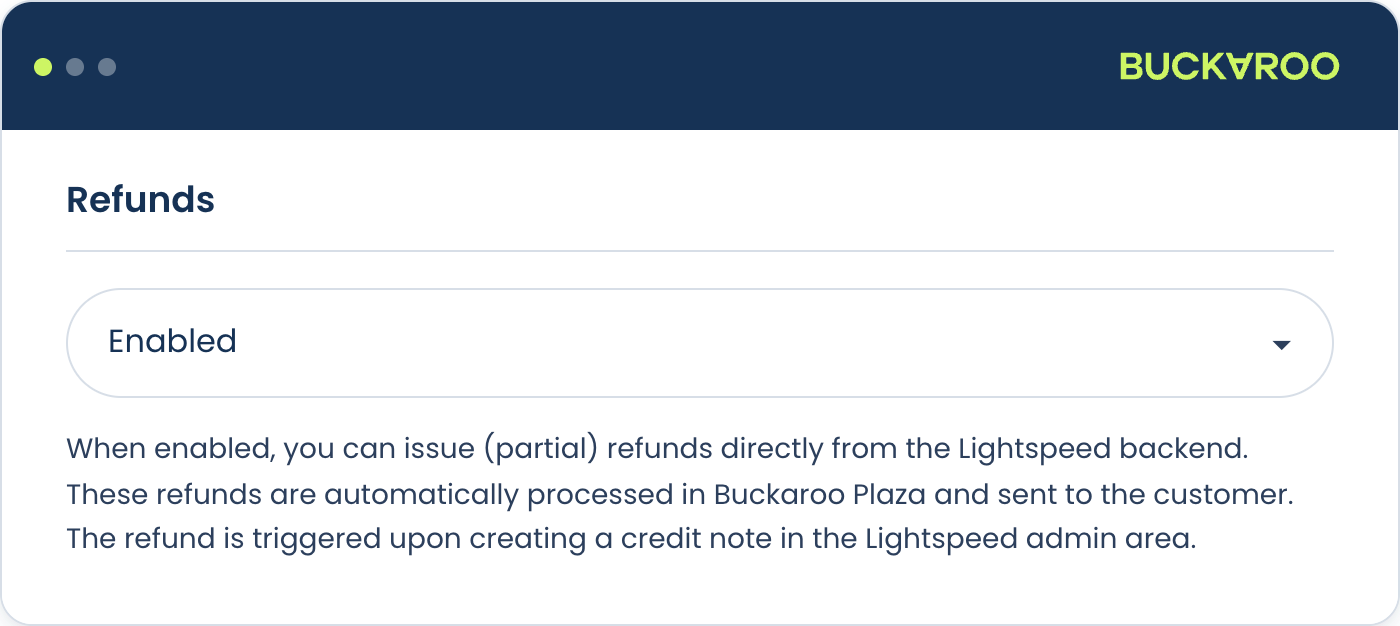
Whichever way you set it, refund in one place only. Issuing a credit note and refunding in Plaza with the setting enabled pays the customer twice.
Not every payment method can be refunded through the app, and some have their own rules about partial refunds and time limits. Check the method's own page under Payment methods if a refund behaves unexpectedly.
Orders that were never paid
Customers abandon checkouts, which leaves orders behind that were created but never paid. The Cancel Expired Period setting in Configuration clears these automatically once the period you pick has passed.
Pick a period long enough that a customer who pauses partway through a payment and comes back is not cut off.
Bank transfer and PayPerEmail are both exempt, so neither needs accounting for here. Each gives the customer days rather than minutes to pay, so the global period never cancels them.
Each has its own date setting, and the two do different jobs:
- Bank transfer's Due date (in days) is informational. It is the date the customer is given in their payment instruction email, not a rule the app enforces.
- PayPerEmail's Expiration date (in days) is enforced. Once it passes, the payment link stops working.
See Payment methods for both.
Finding a transaction
Every payment appears in the transaction overview in Plaza, where you can see its status, the method used and any refunds against it. Search on the order number to match a Buckaroo transaction to a Lightspeed order. See Transactions for what the overview shows.
Updated about 2 months ago