

Express checkout
Apple Pay, Google Pay and PayPal Express can be offered as buttons outside your checkout, on your product and cart pages. A customer who uses one skips the normal checkout: their address and payment details come from the wallet or from PayPal instead of being typed in.
This shortens the path to a completed order, which matters most on mobile. It also means an order can arrive without the customer ever seeing your checkout, so test what your order confirmation and shipping steps do with those orders.
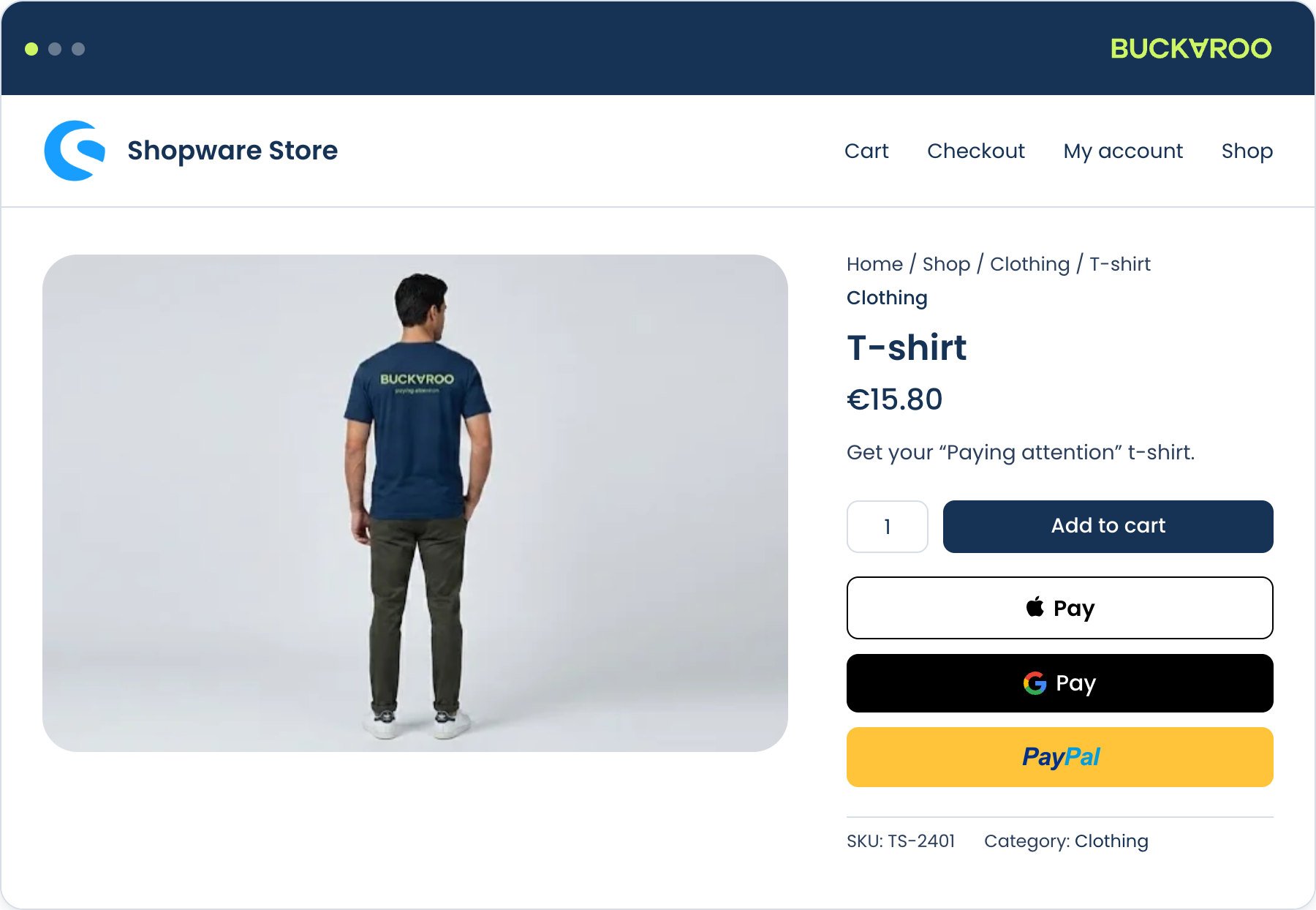
Apple Pay
Apple Pay needs your Buckaroo GUID before it will work.
Find it in Plaza under My Buckaroo → General, and enter it on the Apple Pay card.
The button can be shown in three places, each switched on separately:
| Setting | Default |
|---|---|
| Show Apple Pay button on product page | No |
| Show Apple Pay button on cart page | No |
| Show Apple Pay button on checkout page | No |
All three are off by default, so enabling Apple Pay as a payment method does not put a button anywhere on its own.
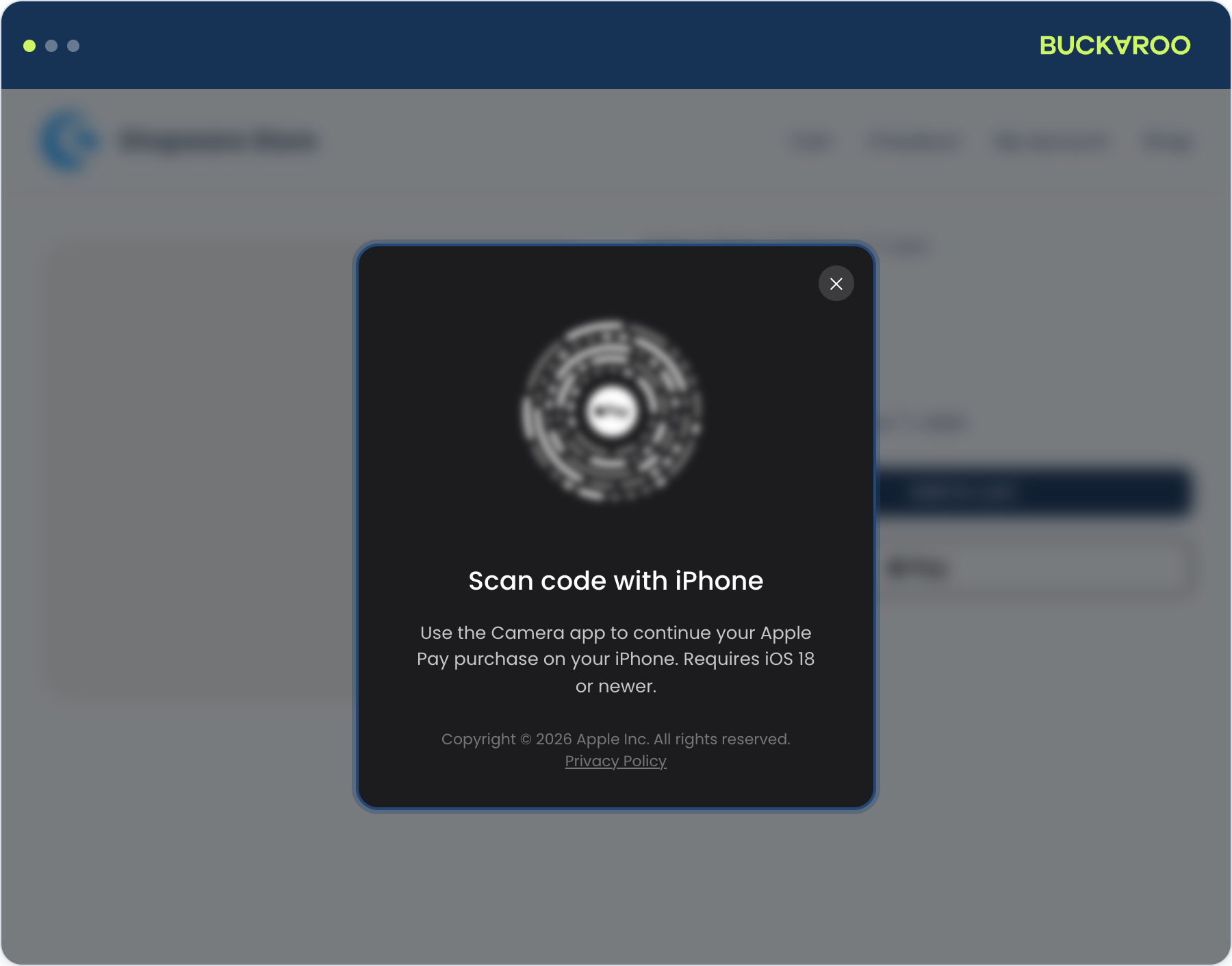
The Apple Pay button only appears for customers on a device and browser that support it. Not seeing it on your own machine usually means the browser rather than the configuration.
See Apple Pay.
Google Pay
Google Pay needs two identifiers, both on the Google Pay card:
| Field | Where it comes from |
|---|---|
| Google Merchant ID | Your Google Pay and Wallet Console, after registering there. |
| Buckaroo Gateway Merchant ID | Buckaroo, after you complete Google Pay onboarding in Plaza. |
If the Buckaroo Gateway Merchant ID is left empty, the extension falls back to your store key. That means Google Pay can appear to work without the field filled in, so fill it in rather than relying on the fallback.
The button can be shown in three places, each switched on separately:
| Setting | Default |
|---|---|
| Show Google Pay button on product page | No |
| Show Google Pay button on cart page | No |
| Show Google Pay button on checkout page | No |
All three are off by default, so enabling Google Pay as a payment method does not put a button anywhere on its own.
Button style offers Default, Black or White. Pick whichever reads clearly against your own background rather than whichever you prefer in isolation, since a white button on a white product page disappears.
As with Apple Pay, the button only appears for customers whose browser supports Google Pay. See Google Pay.
PayPal Express
PayPal Express is configured on the PayPal card, and needs a PayPal merchant ID. There is a separate field for a sandbox merchant ID, used when the method is in test mode.
Display PayPal Express button decides where it appears, and takes more than one location: product page, cart page, checkout page, or none. None is the default.
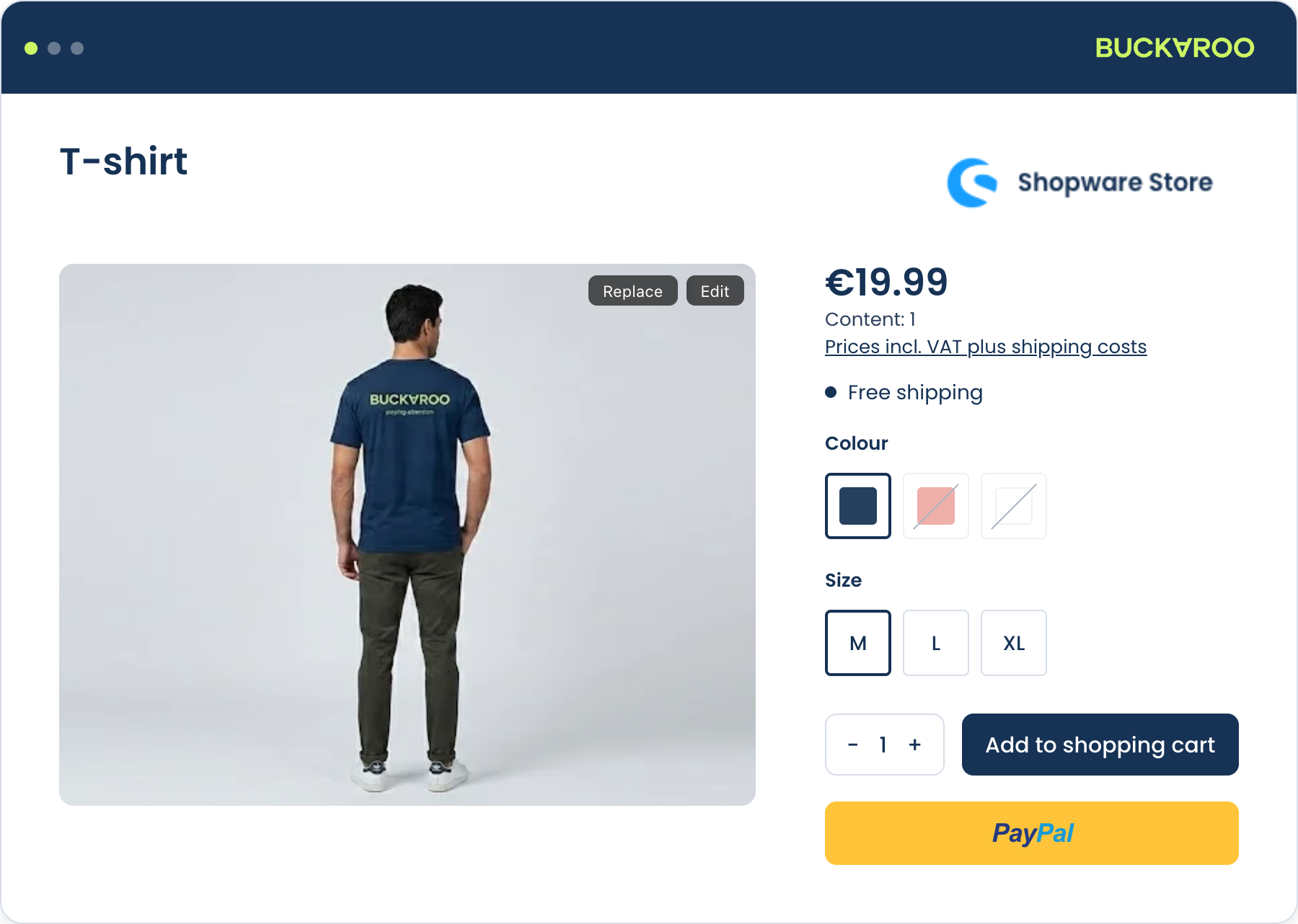
Choosing where to put a button
Fewer places is usually better. A button on every page competes with your own checkout and gives customers more decisions rather than fewer.
The cart page is the safest single choice: the customer has decided what they want and has not yet started entering details, which is exactly where a shortcut helps. Product pages suit stores where people typically buy one item. The checkout page is the least useful of the three, since the customer is already there.
Place a test order through each button you enable, and check the resulting order has everything your fulfilment process needs. Express orders can arrive with a different address shape than orders through your own checkout, since the address comes from the wallet or from PayPal.
Updated 7 days ago