

Test and go live
Test mode lets you walk through a real checkout without money moving. Because the mode is set per payment method, you can test one method while the others stay switched off.
Run a test payment
- Open the app at lightspeed.buckaroo.io, go to Settings and click Test Connection. If this fails, your keys are wrong and nothing else will work.
- Go to Payment Methods Settings and set the method you want to test to Test.
- Place an order in your store and pay with that method.
- Check the result in the transaction overview in Buckaroo Plaza, and check that the order in Lightspeed updated to match.
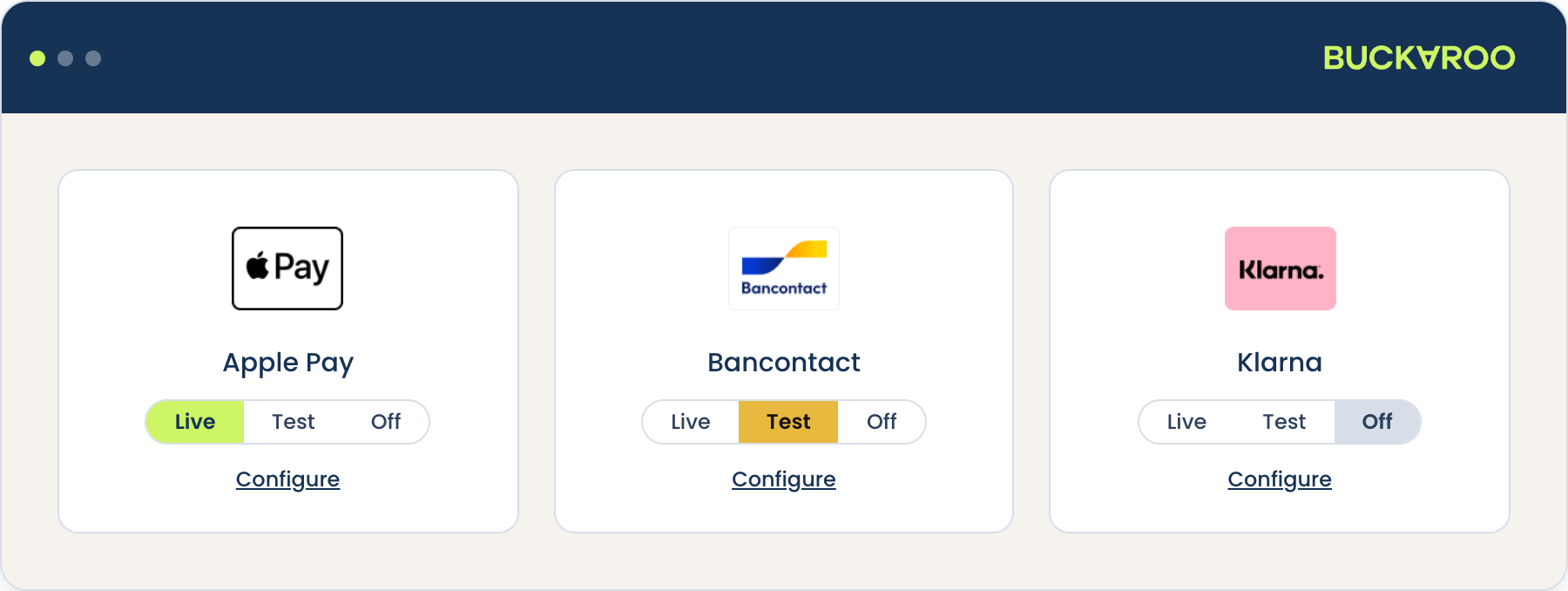
Only test on a store your customers cannot reach. A method left in Test on a live store still appears in the checkout, so customers can place orders that never actually pay.
Each method has its own test flow, and some need test credentials or a test app. See Test transactions for what to enter per method.
What to test
Test the failure paths as well as the happy one, because that is where problems surface after go-live.
- A successful payment, and that the order in Lightspeed reflects it.
- A cancelled payment, and that the order is not treated as paid.
- A refund. If you have enabled Refunds, test it with a credit note in Lightspeed; if not, test it from the transaction in Plaza.
- One slow method such as bank transfer, so you can see how a pending order behaves. Check its Due date (in days), which governs it instead of the global expiry period.
- Riverty or Klarna, if you offer either. Mark the order as shipped, then confirm in Plaza that the amount was actually collected, since Lightspeed will not tell you if it was not. See Order management.
- Your store's bank statement descriptions for both a payment and a refund, which you can read back on the transaction in Plaza.
- Your checkout order per country, if you sell across borders. See Checkout order.
- An order at each end of any minimum or maximum order amount you have set, to confirm the method appears where you expect.
Go-live checklist
Run through this before switching the store to live traffic.
- Confirm the payment methods you want are active on your Buckaroo contract.
You can check this in Plaza - Set each of those methods to Live in the app, and set anything you are not using to Off
- Confirm no method is left on Test, and check the same for Verification Methods if you use iDIN.
For Cards and Klarna, the mode is set on the methods inside the tile rather than on the tile itself - Check your Cancel Expired Period gives customers room to finish a payment they paused.
Bank transfer and PayPerEmail are exempt from it - Decide how you want refunds handled and set the Refunds option to match, remembering it starts disabled
- Set your checkout order for the countries you sell to. See Checkout order
- Check the per-method settings on anything you have restricted: Enabled Countries, the order amount limits, and the bank transfer Due date or PayPerEmail Expiration date
- If you offer Riverty or Klarna, agree who checks collections in Plaza and how often, since a failed collection is never reported back to Lightspeed
- Place one real order with a small amount, then refund it, to confirm the whole cycle works on live keys
Updated about 1 month ago
Did this page help you?